Canceling Printing
You can cancel printing before it has finished. You can also cancel a print job on the control panel of the machine. Checking the Printing Status and History

1
If the printing screen is displayed, click [Cancel].
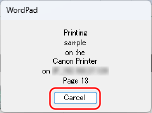

When the printer icon is not displayed
Open the printer folder, and click or double-click the icon for the machine.
2
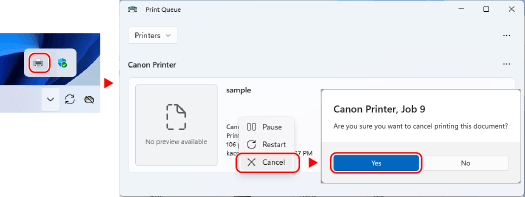
If the screen of step 1 is not displayed, double-click the printer icon in the Windows notification area, select the document to cancel, and right-click  [Cancel] [Yes].
[Cancel] [Yes].If the printer icon is not displayed in the Windows notification area or the document to be canceled is not displayed, the print data is sent to the machine after being processed on the computer.
In this case, cancel printing using the control panel of the machine or Remote UI. Checking the Printing Status and History
In this case, cancel printing using the control panel of the machine or Remote UI. Checking the Printing Status and History
3
Click [Yes].
Printing is canceled.

1
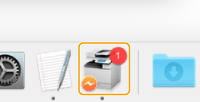
Click the printer icon displayed on the Dock.
2
Select the document to cancel and click  .
.
.Printing is canceled.