
<Special Processing>
Use a range of processes to resolve problems that arise due to factors such as the paper type, the material used, or its condition.
|
For information on the items ("A", "B", "C", and "No") in the "Import All Function" column, see Import All Function. |
<Waterdrop Pattern Prevention Mode>
 (Settings/Register)
  <Adjustment/Maintenance> <Adjust Image Quality> <Special Processing>
You can set <Waterdrop Pattern Prevention Mode> for when a splattered image, white patches, streaks, etc. appear on the halftone images of twosided print jobs. Immediately after you turn ON the machine in a low temperature environment, if the halftone reproduction of the printout becomes significantly different from the original document, set this mode to <On>.
Item | Setting Description | DeviceAdmin | NetworkAdmin | Can be set in Remote UI | Import All Function | Name of Item When Exporting with the Remote UI |
<Waterdrop Pattern Prevention Mode> | <On>, <Off> | Yes | No | Yes | B | Settings/Registration Basic Information |
|
If you set <Waterdrop Pattern Prevention Mode>, the printing speed for the first sheet becomes slower. |
<Reduce Waterdrop Pattern>
(Settings/Register) <Adjustment/Maintenance> <Adjust Image Quality> <Special Processing>Set this to <On> if the printed image shows uneven density in a pattern like a water drop.
Item | Setting Description | DeviceAdmin | NetworkAdmin | Can be set in Remote UI | Import All Function | Name of Item When Exporting with the Remote UI |
<Reduce Waterdrop Pattern> | <On>, <Off> | Yes | No | Yes | B | Settings/Registration Basic Information |
|
Setting to <On> may change the print quality. |
<POP Print Settings>
(Settings/Register) <Adjustment/Maintenance> <Adjust Image Quality> <Special Processing>If the quality of the printout is not acceptable when printing with [POP Printing Optimization] configured on the printer driver, specifying <On> is recommended. It will result in POP prints with a more vivid color tone. For more information on [POP Printing Optimization], see the manuals for the relevant drivers on the online manual website.
Item | Setting Description | DeviceAdmin | NetworkAdmin | Can be set in Remote UI | Import All Function | Name of Item When Exporting with the Remote UI |
<POP Print Settings> | <On>, <Off> | Yes | No | Yes | B | Settings/Registration Basic Information |
|
If you select <Off>, normal printing will be performed even if [POP Printing Optimization] is set in the printer driver. If you select <On>, the print speed will be slower. When [POP Printing Optimization] is configured, it is recommended that you also configure the following items. <Auto POP Calibration> Paper sizes/paper types supporting POP printing Paper size: Standard size paper is recommended. For information on the paper sizes supported by the machine, see Available Paper. Paper Type: Thin*1, Plain 1*1, Plain 2, Plain 3, Color, Recycled 1, Recycled 2, Letterhead 1*1, Letterhead 2, Letterhead 3, Letterhead 4, Letterhead 5, Heavy 1, Heavy 2, Coated 1, Coated 2, Coated 3 *1: There will be a margin of 8 mm on the lead edge. |
<Adjust Toner Volume Used for POP Printing>
(Settings/Register) <Adjustment/Maintenance> <Adjust Image Quality> <Special Processing>Set this if text smudging or toner scattering occurs when performing POP printing with [POP Printing Optimization] set. Set <Level 1> to improve text smudging. Set <Level 2> to improve toner scattering.
Item | Setting Description | DeviceAdmin | NetworkAdmin | Can be set in Remote UI | Import All Function | Name of Item When Exporting with the Remote UI |
<Adjust Toner Volume Used for POP Printing> | <Off>, <Level 1>, <Level 2> | Yes | No | No | A | Settings/Registration Basic Information |
<Adjust Fixing Temperature>
(Settings/Register) <Adjustment/Maintenance> <Adjust Image Quality> <Special Processing>You can reduce image quality problems that occur due to an inappropriate fixing unit temperature by adjusting the fixing temperature.
Item | Setting Description | DeviceAdmin | NetworkAdmin | Can be set in Remote UI | Import All Function | Name of Item When Exporting with the Remote UI |
<Adjust Fixing Temperature> | <Low>, <Standard>, <High 1>, <High 2> | Yes | No | Yes | B | Settings/Registration Basic Information |
|
Set this in the following cases. The print results may be improved. <Low>: Set this when the same unintended image is repeated, as indicated below. 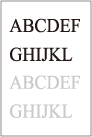 <High 1>: Set this when the toner of the printed images peels off. <High 2>: Set this when the improvements of <High 1> are insufficient. Set <Standard> to not use either setting. The printing speed is slower when <High 2> is set. Toner peeling may be able to be improved without changing this setting, by changing the paper type and usage environment. |
<Curl Prevention Mode>
(Settings/Register) <Adjustment/Maintenance> <Adjust Image Quality> <Special Processing>You can set <Curl Prevention Mode> to reduce curling on the end of paper due to the heat and pressure of the fixing unit during printing.
Item | Setting Description | DeviceAdmin | NetworkAdmin | Can be set in Remote UI | Import All Function | Name of Item When Exporting with the Remote UI |
<Curl Prevention Mode> | <On>, <Off> | Yes | No | Yes | B | Settings/Registration Basic Information |
|
If this setting is set to <On>, the printing speed decreases. In addition, printouts may be faded. |
<Adjust Paper Separation in Transfer Area>
(Settings/Register) <Adjustment/Maintenance> <Adjust Image Quality> <Special Processing>Set this to <On> if paper jams occur due the paper getting caught in the ITB unit.
Item | Setting Description | DeviceAdmin | NetworkAdmin | Can be set in Remote UI | Import All Function | Name of Item When Exporting with the Remote UI |
<Adjust Paper Separation in Transfer Area> | <On>, <Off> | Yes | No | Yes | B | Settings/Registration Basic Information |
<Adjust Paper Feed Interval for 2-Sided Printing>
(Settings/Register) <Adjustment/Maintenance> <Adjust Image Quality> <Special Processing>Configure this setting if the following symptoms occur when performing 2-sided printing:
Images are not printed in the intended size.
Printed images are shifted.
A paper jam or printing error occurs.
Item | Setting Description | DeviceAdmin | NetworkAdmin | Can be set in Remote UI | Import All Function | Name of Item When Exporting with the Remote UI |
<Adjust Paper Feed Interval for 2-Sided Printing> | <On>, <Off> | Yes | No | Yes | B | Settings/Registration Basic Information |
<Heavy Paper Fill Area Image Adjustment Mode>
(Settings/Register) <Adjustment/Maintenance> <Adjust Image Quality> <Special Processing>The finish quality may be able to be improved by enabling this setting when using heavy paper without a smooth surface.
Item | Setting Description | DeviceAdmin | NetworkAdmin | Can be set in Remote UI | Import All Function | Name of Item When Exporting with the Remote UI |
<Heavy Paper Fill Area Image Adjustment Mode> | <On>, <Off> | Yes | No | Yes | B | Settings/Registration Basic Information |
|
If you set this setting to <On> when using paper with a smooth surface, fixing problems may occur. |
<Envelope Sealing Prevention Mode>
(Settings/Register) <Adjustment/Maintenance> <Adjust Image Quality> <Special Processing>You can set <Envelope Sealing Prevention Mode> to prevent the glue on envelope flaps from melting and sealing due to the heat and pressure of the fixing unit during envelope printing.
Item | Setting Description | DeviceAdmin | NetworkAdmin | Can be set in Remote UI | Import All Function | Name of Item When Exporting with the Remote UI |
<Envelope Sealing Prevention Mode> | <On>, <Off> | Yes | No | Yes | B | Settings/Registration Basic Information |
|
This setting is only enabled during envelope printing. If this setting is set to <On>, the quality of the image may be adversely affected. |