Configuring the Firewall of the Sub Line
When the machine is connected to a dual network configuration, IP address-based and MAC address-based firewalls can be used on the sub line in the same way as the main line.
|
For information on the exception addresses and exception port numbers that can be used for communication and are registered by default, see Management Functions. |
Specifying IP Addresses in Firewall Settings of the Sub Line
1
Start the Remote UI. Starting the Remote UI
2
Click [Settings/Registration] on the portal page. Remote UI Screen
3
Click [Network Settings]  [IPv4 Address Filter] under [Firewall Settings] in [Sub Line Settings].
[IPv4 Address Filter] under [Firewall Settings] in [Sub Line Settings].Select the filter that matches the target IP address. To restrict data sent from the machine to a computer, select [IPv4 Address: Outbound Filter]. To restrict data received from a computer, select [IPv4 Address: Inbound Filter].
4
Specify the settings for packet filtering.
Select the default policy to allow or reject the communication of other devices with the machine, and then specify IP addresses for exceptions.
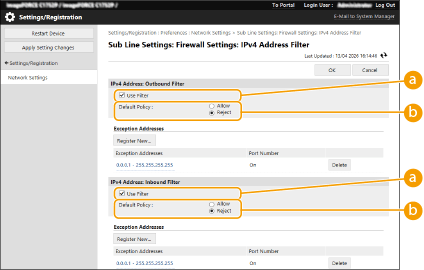
 [Use Filter]
Select the check box to restrict communication. Clear the check box to disable the restriction.
 [Default Policy]
Select the precondition to allow or reject the communication of other devices with the machine.
[Reject] | Select to pass communication packets only when they are sent to or received from devices whose IP addresses are entered in [Exception Addresses]. Communications with other devices are prohibited. |
[Allow] | Select to block communication packets when they are sent to or received from devices whose IP addresses are entered in [Exception Addresses]. Communications with other devices are permitted. |
5
Click [Register New...].
6
Specify exception addresses.
Enter the IP address (or range of IP addresses) in [Address to Register].

If the IP address is incorrectly entered, you may be unable to access the machine from the Remote UI. In this case, set <Use Filter> to <Off> for <IPv4 Address Filter>/<Outbound Filter>/<Inbound Filter> from the control panel.
<Network>
<Network>

Entry form for IP addresses
Description | Example | |
Entering a single address | Delimit numbers with periods. | 192.168.0.10 |
Specifying a range of addresses | Insert a hyphen between the addresses. | 192.168.0.10-192.168.0.20 |
Specifying a range of addresses with a prefix | Enter the address, followed by a slash and a number indicating the prefix length. | 192.168.0.32/27 |
When [Reject] is selected for an outbound filter
Outgoing multicast and broadcast packets cannot be filtered.
7
Specify the port number as required.
The exception address setting only applies to communication received from the specified IP address using the designated port number. Enter the port number, and click [Add].You can register up to 50 ports per one exception address.
8
Click [OK].
Deleting an IP address from exceptions
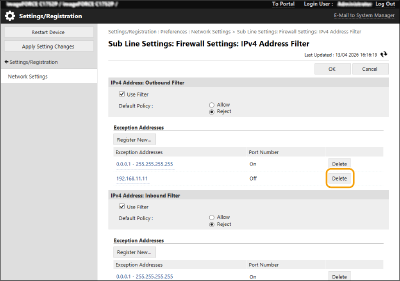
Click [Delete] for the exception address to delete..
|
Checking the blocked communication requests in the logThe latest 100 communications blocked by the firewall can be checked in [Settings/Registration] [Network Settings] [IP Address Block Log]. The history of blocked communications can be exported from the Remote UI in the CSV format. Exporting a Log as a FileIf [Default Policy] is set to [Reject], the history of communication blocked by the firewall is not displayed in [IP Address Block Log]. Using the control panelBatch importing/batch exportingThis setting can be imported/exported with models that support batch importing of this setting. Importing/Exporting the Setting Data This setting is included in [Settings/Registration Basic Information] when batch exporting. Importing/Exporting All Settings |
Configuring the Firewall in MAC Addresses of the Sub Line
1
Start the Remote UI. Starting the Remote UI
2
Click [Settings/Registration] on the portal page. Remote UI Screen
3
Click [MAC Address Filter] in [Sub Line Settings] in [Network Settings].
To restrict data sent from the machine to a computer, select [MAC Address: Outbound Filter]. To restrict data received from a computer, select [MAC Address: Inbound Filter].
4
Specify the settings for packet filtering.
Select the precondition (default policy) to allow or reject the communication of other devices with the machine, and then specify MAC addresses for exceptions.
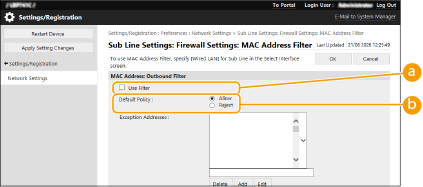 [Use Filter]
Select the check box to restrict communication. Clear the check box to disable the restriction.
[Default Policy]Select the precondition to allow or reject other devices to communicate with the machine.
[Reject] | Select to pass communication packets only when they are sent to or received from devices whose MAC addresses are entered in [Exception Addresses]. Communications with other devices are prohibited. |
[Allow] | Select to block communication packets when they are sent to or received from devices whose MAC addresses are entered in [Exception Addresses]. Communications with other devices are permitted. |
5
Specify exception addresses.
Enter the MAC address in the [Exception Addresses] text box and click [Add].
You do not need to delimit the address with hyphens or colons.
If the MAC address is incorrectly entered, you may be unable to access the machine from the Remote UI. In this case, set <Use Filter> to <Off> for <Outbound Filter>/<Inbound Filter> in <MAC Address Filter> from the control panel.
When [Reject] is selected for an outbound filter
Outgoing multicast and broadcast packets cannot be filtered.
6
Click [OK].
Deleting a MAC address from exceptions
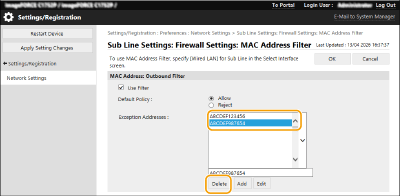
Select a MAC address and click [Delete].