5878-00H
About Paper Jams
If a paper jam occurs, an alarm beep sound is generated and the <Paper is jammed.> message is displayed on the screen. Press  to display simple solutions.
to display simple solutions.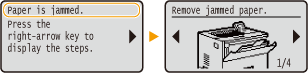
If it is difficult to understand the procedures on the display, see the following sections to clear jams. If a paper jam occurs in multiple locations at the same time, check all messages that are displayed. Carefully read the precautions in before you start clearing paper jams.
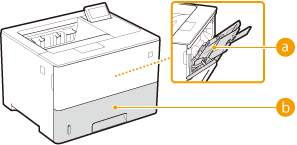
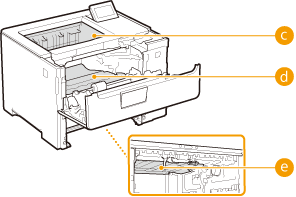
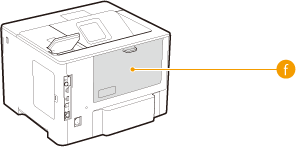
 Multi-purpose tray Paper Jams in the Multi-Purpose Tray
 Paper drawer Paper Jams in the Paper Drawer
 Output tray
  Interior
  Duplex transport guide Paper Jams at the Duplex Transport Guide
 Back side
 IMPORTANT
When removing the jammed paper, do not turn OFF the machine
Turning OFF the machine deletes the data that is being printed.
If paper tears
Remove all the paper fragments to prevent them from becoming jammed.
Do not forcibly remove the jammed paper from the machine
Forcibly removing the paper may damage parts. If you are not able to remove the paper, contact your local authorized Canon dealer or the Canon help line. When a Problem Cannot Be Solved