Inserting Text Notes in Document Text
With Desktop Editor, you can insert a text note into a document as an annotation.
|
NOTE
|
 (Text Note) annotations have both highlighted text and notes that highlight text. (Text Note) annotations have both highlighted text and notes that highlight text.The note part of a text note is not printed.
|
Inserting New Text Notes
This section describes how to insert a text note into a document as a new annotation.
1.
Click  (Select Text) on the ribbon.
(Select Text) on the ribbon.Or, follow one of the steps described below.
Click (Text Note) on the ribbon.
(Text Note) on the ribbon.Click  (Select Text) on the Details Window
(Select Text) on the Details WindowClick  (Text Note) on the Details Window
(Text Note) on the Details Window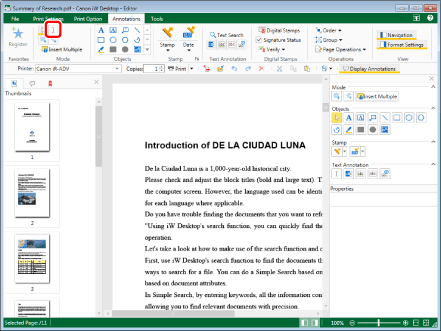
|
NOTE
|
|
If the Details Window is not displayed, see the following.
This operation can also be performed with the tool buttons on the toolbar. If tool buttons are not displayed in the toolbar of Desktop Editor, see the following to display them.
When you want to insert text notes multiple times, double-click
(Text Note) on the Details Window. When you double-click the button, it is locked while being selected and text notes can be inserted multiple times.Perform one of the following operations to cancel the button selection.
Click the selected button on the Details Window again
Click another button on the Details Window
Click a command on the ribbon
Press the [Esc] key on the keyboard.
You can click
 (Insert Multiple) on the ribbon to insert multiple annotations. For more information, see the following. (Insert Multiple) on the ribbon to insert multiple annotations. For more information, see the following. |
2.
Drag the mouse pointer on the Work Window to select the string to insert the text note in.
When the cursor passes over a selectable text string, the shape of the mouse pointer changes to  .
.
.If you clicked (Select Text) in step 1, proceed to step 3.
(Select Text) in step 1, proceed to step 3.If you clicked (Text Note) in step 1, a text note is inserted in the text string, and text note properties are displayed on the Details Window. In this case, proceed to step 4.
(Text Note) in step 1, a text note is inserted in the text string, and text note properties are displayed on the Details Window. In this case, proceed to step 4.|
NOTE
|
|
To cancel insertion and return the mouse pointer to the original shape, perform one of the following operations.
Click
 (Select Object) on the ribbon (Select Object) on the ribbonClick
 (Select Object) on the Details Window (Select Object) on the Details Window |
3.
Click (Text Note) on the ribbon.
(Text Note) on the ribbon.Or, follow one of the steps described below.
Click (Text Note) on the Details Window
(Text Note) on the Details WindowRight-click and select [Text Note].
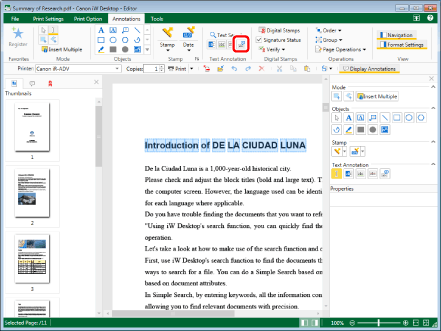
A text note is inserted into the text, and the text note properties are displayed on the Details Window.
|
NOTE
|
|
If the Details Window is not displayed, see the following.
This operation can also be performed with the tool buttons on the toolbar. If tool buttons are not displayed in the toolbar of Desktop Editor, see the following to display them.
|
4.
Enter text in the note.
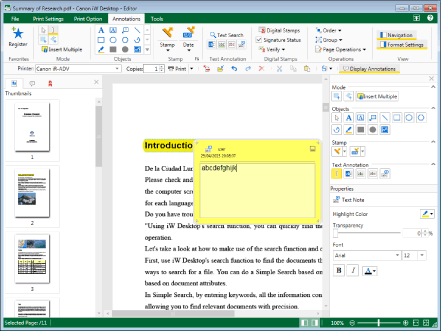
|
NOTE
|
|
If there is no text entered into the note part,
 is not displayed. is not displayed. |
5.
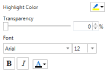
Configure the properties of the text note.
|
[Highlight Color]
|
Select the highlight color you want to use from the list displayed when you click
 . When you want to use a color that is not available in the list, select [More Colors]. Changing the color of the highlight also causes the color of the note to change. . When you want to use a color that is not available in the list, select [More Colors]. Changing the color of the highlight also causes the color of the note to change. |
|
[Transparency]
|
The slider position and numeric value (%) indicate the degree of transparency of the highlight of the text note. To change the degree of transparency, move the slider to left or right, or enter a numeric value. You can specify the degree of transparency in units of 1% by using
 . . |
|
[Font]
|
Configure the font of text notes.
|
|
[Font]
|
Select the font to use from the list displayed when you click
 . The list displays the fonts installed in your computer. . The list displays the fonts installed in your computer. |
|
[Font Size]
|
Select the font size to use from the list displayed when you click
. You can also enter the font size directly. Font sizes that can be configured are between 3.0 points and 72.0 points. If it is entered directly, you can enter up to a single decimal place. |
|
[Bold]
|
Makes the string bold.
|
|
[Italic]
|
Makes the string italic.
|
|
[Font Color]
|
Select the font color you want to use from the list displayed when you click
 . When you want to use a color that is not available in the list, select [More Colors]. . When you want to use a color that is not available in the list, select [More Colors]. |
|
NOTE
|
|
If you select [More Colors] in [Highlight Color] or [Font Color], the [Color] dialog box is displayed and you can set a color that is not listed in [Highlight Color] or [Font Color].
You can also configure the properties of the annotation with the following command.
 (Transparency) (Transparency)If commands are not displayed on the ribbon of Desktop Editor, see the following to display them.
This operation can also be performed with the tool buttons on the toolbar. If tool buttons are not displayed on the toolbar of Desktop Editor, see the following to display them.
|
6.
Click on the Work Window outside the text note you inserted to deselect the text note.
When you deselect the text note, it is automatically closed.
|
NOTE
|
|
You can also close the text note by performing one of the following operations.
Click
 . .Press the [Esc] key on the keyboard.
|
Changing Text Note Content
This section describes how to edit the content of a text note inserted into a document.
1.
Click (Select Object) on the ribbon.
(Select Object) on the ribbon.Or, click (Select Object) on the Details Window.
(Select Object) on the Details Window.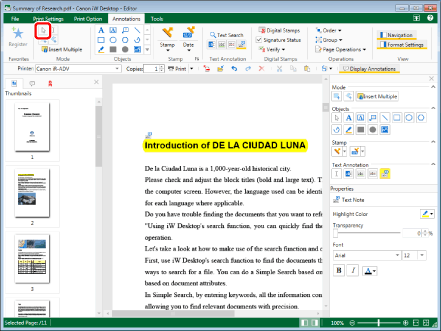
|
NOTE
|
|
If the Details Window is not displayed, see the following.
This operation can also be performed with the tool buttons on the toolbar. If tool buttons are not displayed in the toolbar of Desktop Editor, see the following to display them.
|
2.
On the Work Window, click the text note to change the content of, and click  (Display Note) on the ribbon.
(Display Note) on the ribbon.Or, follow one of the steps described below.
Right-click the text note to change the content of, and select [Display Note].
Double-click the text note to change the content of.
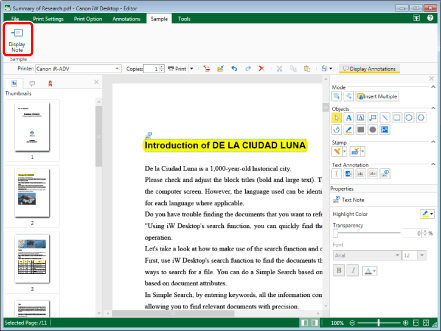
The note of the text note is displayed.
|
NOTE
|
|
If commands are not displayed on the ribbon of Desktop Editor, see the following to display them.
This operation can also be performed with the tool buttons on the toolbar. If tool buttons are not displayed in the toolbar of Desktop Editor, see the following to display them.
|
3.
Change the text in the note.
|
NOTE
|
|
If the text string is too long to fit in the note, a line break is automatically inserted.
|
4.
Click on the Work Window outside the note you edited to deselect the note.
When you deselect the text note, the changes made are automatically saved and the text note is closed.
|
NOTE
|
|
You can also close the text note by performing one of the following operations.
Click
.Press the [Esc] key on the keyboard.
|