Specifying from Address Book
 |
|
The Address Book enables you to specify a destination by selecting from a list of registered destinations or by searching by name for destinations with recipient names. You can also directly specify a destination by entering a three-digit number (coded dial number) assigned to a destination.
|
 |
|
You need to register destinations in the Address Book before using this feature.
|
Selecting Destinations from Address Book
1
Tap <Scan>.
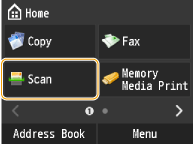
2
Tap <E-Mail> or <File>.
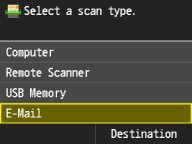
If you tap <File>, proceed to step 4.
3
Tap <Destination>.
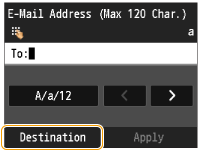
4
Tap a destination.
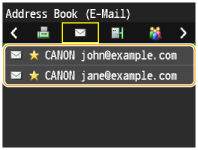
Destination tabs for e-mail or file selected in step 2 are displayed.
You can also select a tab to specify addresses.
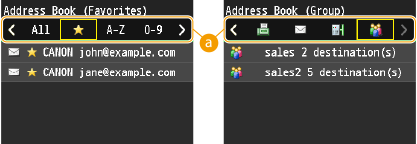
 <All>
<All>Displays all the destinations registered in the Address Book. For the marks beside the destinations, see the explanations below.
< >
>
>Displays a list of destinations registered in Favorites.
<A-Z>/<0-9>/<ABC> to <YZ>
Displays destinations with recipient names whose first characters correspond to the characters of the selected tab.
< >
>
>Displays destinations for faxes. To specify destinations using this tab, see Specifying from Address Book (Fax).
< >
>
>Displays destinations for e-mails.
< >
>
>Displays destinations for shared folders and file servers.
< >
>
>Displays a list of destinations registered in Group Dial. This feature is not available when scanning documents to shared folders and file servers.

If you want to specify multiple destinations (e-mail)
Repeat steps 2 to 4. Up to 100 destinations can be specified.
 To delete destinations (e-mail)
If you specified multiple destinations, you can delete destinations as necessary.
|
1
|
Tap <Destination>
 <Confirm/Edit>. <Confirm/Edit>.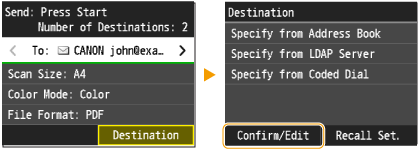 |
|
2
|
Tap a destination you want to delete.
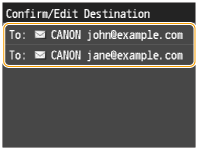 |
|
3
|
Tap <Remove>
<Yes>.If you specified destinations in Group Dial in step 2, "X destination(s)"is displayed on the screen. Tapping this item displays destinations registered in the group.
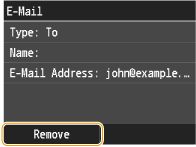 |
|
|
If you want to easily and quickly delete destinations without displaying a list of destinationsBefore tapping <Confirm/Edit> in step 1, you can tap
 / / to toggle the destinations you specified. Display a destination you want to delete, and press to toggle the destinations you specified. Display a destination you want to delete, and press  . . |
Selecting Destinations Directly by Entering Coded Dial Numbers
1
Tap <Scan>.
2
Tap <Destination> <Specify from Coded Dial>.
<Specify from Coded Dial>. 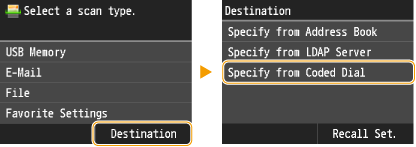
You can also use <E-Mail> or <File> <Destination> <Specify from Coded Dial>.
<Destination> <Specify from Coded Dial>.3
Use the numeric keys to enter a three-digit number (001 to 281).
If you enter the wrong characters, press . (Press to delete each character one by one; press and hold to delete all the input characters at once.)
. (Press to delete each character one by one; press and hold to delete all the input characters at once.)
If a confirmation screen appears
When <Coded Dial TX Confirmation> is set to <On>, a screen is displayed that shows the destination and the name for the number. (For Group Dial, the destination name and the number of destinations are shown.) Check the contents and if everything is correct, and tap <OK>. To specify another destination, tap <Cancel>, and enter a three-digit number again. Displaying Destinations in Address Book
If you want to specify multiple destinations (e-mail)
Repeat the following steps. Up to 100 destinations can be specified.
<Destination> <Specify from Coded Dial> Enter a coded dial number.
<Specify from Coded Dial> Enter a coded dial number.To delete destinations (e-mail)
If you specified multiple destinations, you can delete destinations as necessary.
|
1
|
Tap <Destination>
<Confirm/Edit>. |
|
2
|
Tap a destination you want to delete.
|
|
3
|
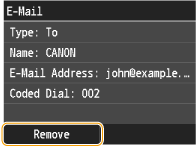
Tap <Remove>
<Yes>.If you specified destinations in Group Dial in step 2, "X destination(s)" displayed on the screen. Tapping this item displays destinations registered in the group.
 |
|
|
If you want to easily and quickly delete destinations without displaying a list of destinationsBefore tapping <Confirm/Edit> in step 1, you can tap
/ to toggle the destinations you specified. Display a destination you want to delete, and press . |