A Message Appears in the Printer Status Window
Perform solutions according to the displayed message.
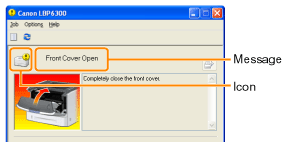
The message type varies depending on the icon.
|
||
 |
||
|
|
||
|
||
|
|
||
|
|
||
|
|
||
|
|
||
|
||
|
|
" Cannot Print"
|
|
|
|
||
|
|
||
|
|
||
|
|
" Out of Paper"
|
|
|
|
||
|
|
||
|
||
|
|
||
 Service Error
<Cause> The printer is in an abnormal condition.
|
Solution
|
Turn the printer OFF, wait for a while, and then turn it ON again.
If the service error appears even after cycling the power of the printer, turn the printer OFF, and then contact your local authorized Canon dealer.
When contacting your Canon dealer, please report the displayed error code and problems.
|
 Incompatible Printer
<Cause> The connected printer cannot be used.
|
Solution
|
Connect to the supported printer.
|
Cannot Communicate with Server
<Cause> The client computer cannot communicate with the print server.
|
Solution
|
Check the status of the print server and your computer.
|
Communication Error
<Cause> The USB cable is not connected, or the printer is not turned ON.
|
Solution 1
|
Connect the USB cable.
|
|
Solution 2
|
Turn the printer ON.
|
Network Board Error
<Cause> The LAN cable is not connected, or the printer is not turned ON.
|
Solution 1
|
Connect the LAN cable.
|
|
Solution 2
|
Turn the printer ON.
|
Cannot Communicate with Printer
<Cause 1> Because the bi-directional communication function is not enabled, the computer cannot communicate with the printer.
|
Solution
|
Enable bi-directional communication and restart the computer and printer.
|
<Cause 2> The computer cannot communicate with the printer redirected in the terminal connection environment.
|
Solution
|
The Firewall settings and so on may be the cause.
Check the communication settings for the server, clients, and so on.
|
Incorrect Port
<Cause> The printer is connected to a port which the printer does not support.
|
Solution
|
Check the port.
|
 Cannot Print
<Cause> Printing cannot be performed due to security restrictions.
|
Solution
|
Contact your administrator.
|
Could Not Print
<Cause> Data transfer to the printer timed out, or a transfer error has occurred.
|
Solution 1
|
Clicking [
 ] (Resolve Error) continues printing. ] (Resolve Error) continues printing.However, the error message may appear again.
|
|
Solution 2
|
Cancel the print job, and then print again.
|
Check the Printed Output
<Cause> You may not be able to obtain appropriate printout results.
|
Solution 1
|
Clicking [
] (Resolve Error) continues printing.However, the error message may appear again.
|
|
Solution 2
|
Cancel the print job, and then print again.
|
Paper Jam inside Printer
<Cause> A paper jam is occurring.
|
Solution
|
Remove the jammed paper according to the displayed message.
|
Insufficient Disk Space
<Cause> The disk space on the computer or server is insufficient.
|
Solution
|
Delete unnecessary files.
Click [
] (Resolve Error) to resume printing after deleting the unnecessary files. |
No Toner Cartridge
<Cause> The toner cartridge is not installed.
|
Solution
|
Install the toner cartridge.
|
Output Tray Is Full
<Cause> The face-down output tray is filled with printed paper.
|
Solution
|
Remove the paper from the face-down output tray.
|
Updating Firmware
<Cause> The firmware is being updated.
|
Solution
|
Please wait a moment.
|
Front Cover Open
<Cause> The front cover is open.
|
Solution
|
Close the front cover.
|
Insufficient Memory
<Cause> The memory on the computer or server is insufficient.
|
Solution
|
Exit unnecessary applications.
|
Out of Paper
<Cause> The paper to be printed is not loaded in a paper source.
|
Solution 1
|
Load the indicated paper in the paper source.
|
|
Solution 2
|
If the indicated paper is loaded in the paper cassette, register the paper size again.
|
|
Solution 3
|
Clicking [
] (Resolve Error) is enabled and clicked, the printer prints on the paper currently loaded in the multi-purpose tray. |
Specified Paper Different from Set Paper
|
|
 |
If the message <Specified Paper Different from Set Paper> appears, blank paper may be output.
|
<Cause> Paper of the size different from that of the job is loaded.
|
Solution 1
|
Load the indicated paper in the paper source.
|
|
Solution 2
|
If the indicated paper is loaded in the paper cassette, register the paper size again.
|
|
Solution 3
|
Clicking [
] (Resolve Error) allows the printer to print on the currently loaded paper. |
 Start Cleaning
<Cause> The printer is waiting for that the cleaning page is loaded.
|
Solution
|
Load the cleaning page in the multi-purpose tray with the printed side facing up.
|
Check the Paper
<Cause> Printing is stopped to check if the paper loaded in the multi-purpose tray is appropriate.
|
Solution 1
|
If appropriate paper is loaded, click [
] (Resolve Error). |
|
Solution 2
|
Load appropriate paper.
|