
XPS
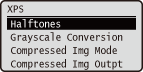 |
All the settings about XPS files available for USB Direct Print and Direct Print are listed with short descriptions. Default settings are marked with a dagger (
 ). ). |
|
|
Asterisks (*)Settings marked with an asterisk (*) are not displayed depending on other settings or whether an optional SD card is installed on the machine.
|
Halftones
You can select the printing method to reproduce halftones (the intermediate range between the lighter and darker areas of an image). Halftones can be specified for each image data type in a single document.
|
Resolution
Gradation
High Resolution
|
 (Settings)
  <XPS>
<XPS>  <Halftones> Select the image data type Select the method to reproduce halftones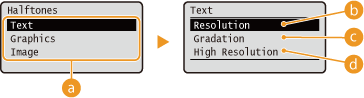
 |
Image data type
Select the image data type for which the settings are changed. Select <Text> for characters, <Graphics> for lines and figures, or <Image> for images such as photos.
|
 |
<Resolution>
Prints gradation and lines with a smooth finish. This print mode is suitable for printing figures and charts with gradation.
|
 |
<Gradation>
Prints vivid images with a tonal contrast effect. This print mode is suitable for printing image data such as photos.
|
 |
<High Resolution>
Performs fine printing by sharply reproducing the edges of characters. This print mode is suitable for printing data of characters and thin lines with a clear finish.
|
Grayscale Conversion
You can select the method to convert color pint data to black-and-white data. You can specify the conversion method for each image data type: <Text>, <Graphics>, and <Image>.
|
sRGB
NTSC
Uniform RGB
|
(Settings) <XPS> <Grayscale Conversion> Select the image data type Select the conversion method 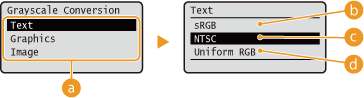
|
|
Image data type
Select the image data type for which you want to specify the conversion method.
|
|
|
<sRGB>
Color data is converted to black-and-white data to generate color-conscious smooth gradation.
|
|
|
<NTSC>
Color data is converted to black-and-white data to generate appearances equivalent to television pictures (NTSC).
|
|
|
<Uniform RGB>
Color data is converted to black-and-white data to equalize all RGB levels based on the brightness only.
|
Compressed Img Mode *
Specify how the machine should behave when the machine is running out of memory during XPS file printing.
|
Image Priority
Output Priority
|
(Settings) <XPS> <Compressed Img Mode> <Image Priority> or <Output Priority> 
|
|
<Image Priority>
Cancels printing before the quality is reduced when insufficient memory is available.
|
|
|
<Output Priority>
Continues printing even if the quality is reduced due to insufficient memory.
|
|
|
|
You can specify this item when no SD card is used. If <SD Card> is set to <On>, the machine always operates with <Output Priority> selected (SD Card).
|
Compressed Img Outpt
If <Compressed Img Mode> is set to <Output Priority>, the quality may be reduced over time depending on image data. You can specify how the machine should behave if the quality is excessively reduced.
|
Output
Display Error
|
(Settings) <XPS> <Compressed Img Outpt> <Output> or <Display Error> 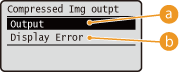
|
|
<Output>
Continues printing regardless of how the quality is reduced.
|
|
|
<Display Error>
Displays an applicable error message and cancels printing when the quality is excessively reduced.
|
|
|
|
This setting is valid when <Compressed Img Mode> is set to <Output Priority> or <SD Card> (SD Card) is set to <On>.
|