Sending PC Faxes
|
IMPORTANT
|
|
When <Allow Fax Driver TX> is set to <Off>, you cannot send faxes from computers.
You need to enable Department ID Management on the fax driver you are using if Department ID Management is enabled on the machine. For more information, click [Help] on the fax driver screen. Setting the Department ID Management
|
1
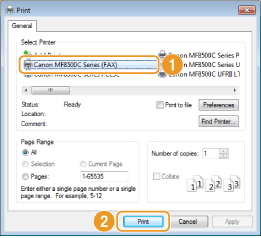
Open a document in an application and display the print dialog box.
How to display the print dialog box differs for each application. For more information, see the instruction manual for the application you are using.
2
Select your fax driver, and click [Print].
NOTE:
In Windows 8/Server 2012, if you want to send a fax from the Windows Store app, display the charm bar to the right of the screen, and tap [Devices]  the machine you are using [Print]. When you send a fax in this way, you can only set some of the fax functions. If the message [The printer requires your attention. Go to the desktop to take care of it.] is displayed, move to the desktop and proceed to step 3.
the machine you are using [Print]. When you send a fax in this way, you can only set some of the fax functions. If the message [The printer requires your attention. Go to the desktop to take care of it.] is displayed, move to the desktop and proceed to step 3.3
From the [Sending Settings] tab, enter [Destination Name] and [Fax Number], and click [Add to Destination List].
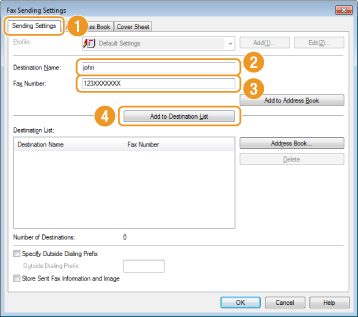
If you need to specify a number to dial an outside line, select [Specify Outside Dialing Prefix] and enter the number in [Outside Dialing Prefix]. The specified number is added to the beginning of the fax number when the machine dials.
To make it easier to specify destinations using the Address Book, see Using Registered Destinations.
Selecting [Store Sent Fax Information and Image] enables you to store the logs for sending documents and check detailed information of a sent document along with its image, including destinations and number of pages. For more information, click [Help] on the fax driver screen.
NOTE:
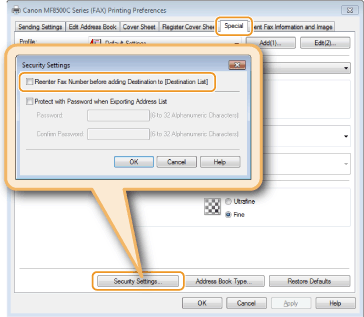
If you have selected [Reenter Fax Number before adding Destination to [Destination List]] in the dialog box that is displayed when [Security Settings] of the [Special] tab is clicked, a dialog box for entering the fax number again is displayed when you click [Add to Destination List]. For more information, click [Help] on the fax driver screen.
4
Attach a cover sheet to the document as necessary. Attaching Cover Sheets to PC Faxes
5
Click [OK] to send the document.