
Loading Paper in the Paper Drawer
Load the paper that you usually use in the paper drawer. When you want to print on paper that is not loaded in the paper drawer, load the paper in the multi-purpose tray. Loading Paper in the Multi-Purpose Tray
|
|
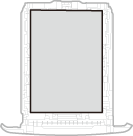
Make sure to load paper in portrait orientationPaper cannot be loaded in landscape orientation. Make sure to load the paper in portrait orientation, as shown in the illustrations below.
 |
 |
|
Follow the procedure below when loading paper into the optional paper feeder.
|
Loading Standard Size Paper
To load paper whose size is found in the paper size markings on the paper drawer, use the following procedure. For paper whose size is not found in the paper size markings, see Loading a Custom Size Paper.
1
Pull out the paper drawer.
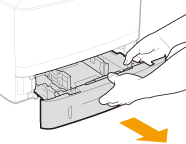

Make sure to hold the paper drawer with both hands, and pull it out gently. Otherwise, you may damage the paper drawer by dropping it, if it slides out too easily.
2
Adjust the positions of the paper guides to the paper size you want to use.
Press the lock release lever ( ) to align the projection (
 ) to the appropriate paper size marking.
) to align the projection () to the appropriate paper size marking.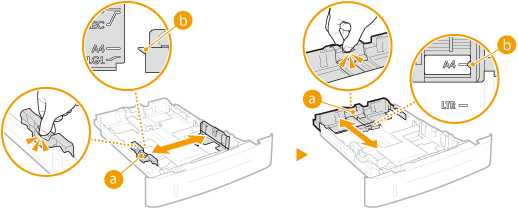
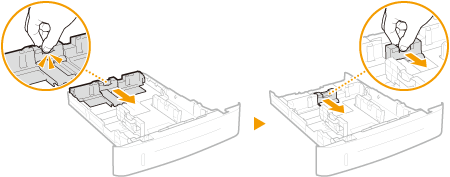
 When loading A6 size paper
When loading A6 size paper, slide the paper guide on the rear side toward the front side and beyond its position for A5 size paper.
|
1
|
Move the paper guides on the left and right sides to their position for A6 size paper.
Press the lock release lever (
) and slide the paper guide to align the protrusion () with the mark for A6 size.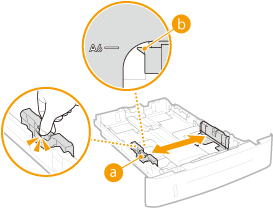 |
|
2
|
Move the paper guide on the rear side to its position for A6 size paper.
Press the lock release lever and slide the central part of the paper guide toward the front side and beyond its position for A5 size paper.
 |
3
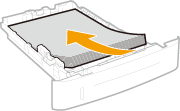
Load the paper so that the edge of the paper stack is aligned against the paper guide on the rear side of the paper drawer.
Load the paper in portrait orientation (with the short edge toward the machine), with the print side face down. Paper cannot be loaded in landscape orientation.
Fan the paper stack well, and tap it on a flat surface to align the edges.
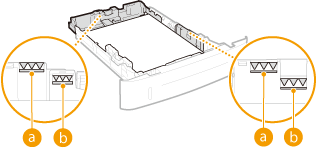
Do not exceed the load limit line when loading paper
Make sure that the paper stack does not exceed the load limit line ( or ). Loading too much paper can cause paper jams.
or ). Loading too much paper can cause paper jams.
 |
|
For A5 or larger paper size For paper size smaller than A5 |
|

When loading paper with a logo, see Loading Preprinted Paper.
4
Insert the paper drawer into the machine.
When you insert the paper drawer with <Notify to Check Paper Settings> set to <On>, a confirmation screen is displayed. Notify to Check Paper Settings
»
When changing the paper size or type
The factory default settings for paper size and type are <LTR> and <Plain>, respectively. If you load a different size or type of paper into the machine, make sure to change the settings. If you do not change the settings, the machine cannot print properly.
|
Printing on the Back Side of Printed Paper (Manual 2-Sided Printing)
|
|
You can print on the back side of printed paper. Flatten any curls on the printed paper and insert it into the multi-purpose tray (Loading Paper in the Multi-Purpose Tray), with the side to print face up (previously printed side face down).
Load one sheet of paper each time you print.
You can use only the paper printed with this machine.
You cannot print on the side that has previously been printed on.
|
Loading a Custom Size Paper
To load custom size paper or other paper whose size is not found in the paper size markings on the paper drawer, use the following procedure.
1
Pull out the paper drawer.
Make sure to hold the paper drawer with both hands, and pull it out gently. Otherwise, you may damage the paper drawer by dropping it, if it slides out too easily.
2
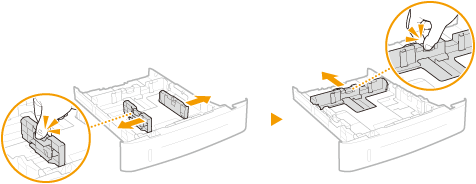
Slide the paper guides apart.
Press the lock release lever to slide the paper guides outward.
3
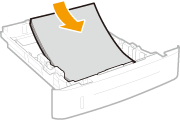
Load the paper so that the edge of the paper stack is aligned against the front side of the paper drawer.
Load the paper in portrait orientation (with the short edge toward the machine), with the print side face down. Paper cannot be loaded in landscape orientation.
Fan the paper stack well, and tap it on a flat surface to align the edges.
Do not exceed the load limit line when loading paper
Make sure that the paper stack does not exceed the load limit line ( or ). Loading too much paper can cause paper jams.
or ). Loading too much paper can cause paper jams.|
|
|
For A5 or larger paper size For paper size smaller than A5 |
When loading paper with a logo, see Loading Preprinted Paper.
4
Align the paper guides against the edges of the paper.
Press the lock release lever and slide the paper guides inward until they are aligned securely against the edges of the paper.
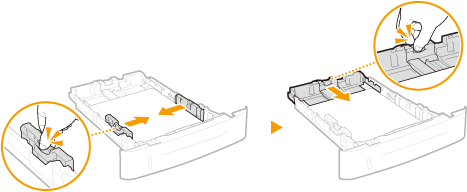
Align the paper guides securely against the edges of the paper
Paper guides that are too loose or too tight can cause misfeeds or paper jams.
When loading paper with length shorter than A5 size length
When loading A6 size paper or other paper with length shorter than 8 1/4" (210 mm), slide the paper guide on the rear side toward the front side and beyond its position for A5 size paper.
|
1
|
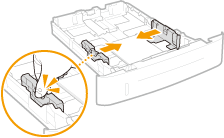
Align the paper guides on the left and right sides against the edges of the paper.
Press the lock release lever and slide the paper guides inward until they are aligned securely against the edges of the paper.
 |
|
2
|
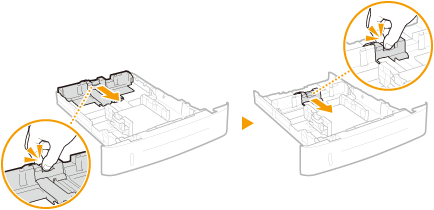
Align the paper guide on the rear side against the edge of the paper.
Press the lock release lever and slide the paper guide toward the front side and beyond its position for A5 size paper until it is securely aligned against the edge of the paper.
 |
5
Insert the paper drawer into the machine.
When you insert the paper drawer with <Notify to Check Paper Settings> set to <On>, a confirmation screen is displayed. Notify to Check Paper Settings
»
When changing the paper size or type
The factory default settings for paper size and type are <LTR> and <Plain>, respectively. If you load a different size or type of paper into the machine, make sure to change the settings. If you do not change the settings, the machine cannot print properly.
|
Printing on the Back Side of Printed Paper (Manual 2-Sided Printing)
|
|
You can print on the back side of printed paper. Flatten any curls on the printed paper and insert it into the multi-purpose tray (Loading Paper in the Multi-Purpose Tray), with the side to print face up (previously printed side face down).
Load one sheet of paper each time you print.
You can use only the paper printed with this machine.
You cannot print on the side that has previously been printed on.
|