[Start]
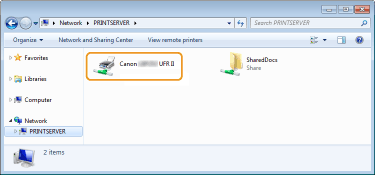
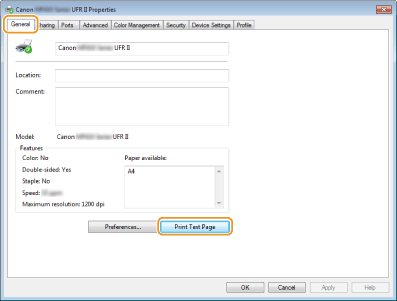
 select [Control Panel] [Printer]. select [Control Panel] [Printer]. select [Devices and Printers]. select [Control Panel] [View devices and printers]. select [Control Panel] [View devices and printers]. select [Printers and Faxes]. select [Control Panel] double-click [Printers]. select [Control Panel] [View network status and tasks] select [Turn on network discovery] under [Network discovery]. select [Control Panel] [View network status and tasks] [Change advanced sharing settings] select [Turn on network discovery] under [Network discovery]. select [Control Panel] [View network status and tasks] [Change advanced sharing settings] select [Turn on network discovery] under [Network discovery]. select [Control Panel] [View network status and tasks] [Change advanced sharing settings] select [Turn on network discovery] under [Network discovery]. select [Control Panel] double-click [Network and Sharing Center] select [Turn on network discovery] under [Network discovery]. select [All Programs] or [Programs] [Accessories] [Windows Explorer]. select [File Explorer]. select [File Explorer].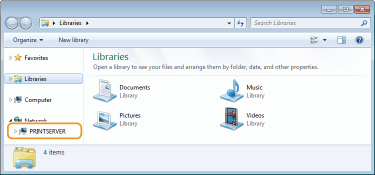
 enter "D:\MInst.exe" in [Search programs and files] or [Start Search] press the [ENTER] key. [Run] Enter "D:\MInst.exe" click [OK] [Run] Enter "D:\MInst.exe" click [OK] [Run] enter "D:\MInst.exe" click [OK]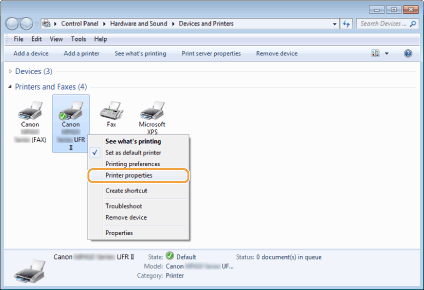
 select [Control Panel]. select [Control Panel]. select [Control Panel]. [System].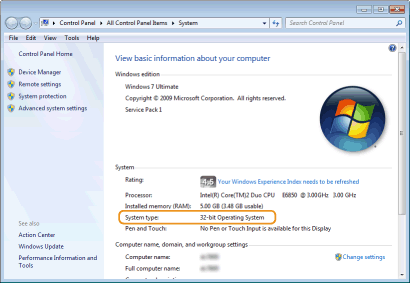
|
1
|
Display [Control Panel].
Windows Vista/7/Server 2008
[Start] select [Control Panel].Windows 8/Server 2012
Right-click the lower-left corner of the screen select [Control Panel].Windows 8.1/Server 2012 R2
Right-click [Start] select [Control Panel] |
|
2
|
Display [System].
Windows Vista/7/8/Server 2008 R2/Server 2012
Click [System and Maintenance] or [System and Security] [System].Windows Server 2008
Double-click [System]. |
|
3
|
Check the computer name.
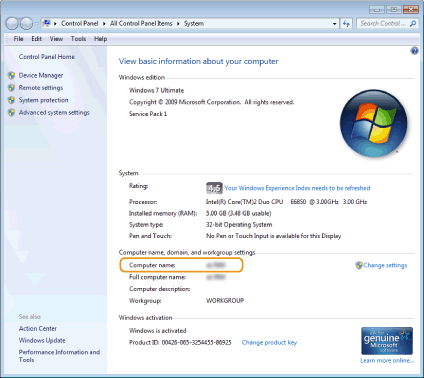 |
|
1
|
[Start]
select [Control Panel] [System]. |
|
2
|
Click [Change] in [Computer Name] tab.
|
|
3
|
Check the computer name.
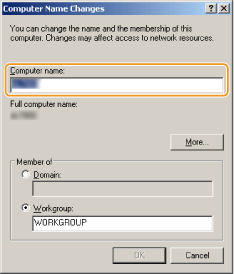 |
 |
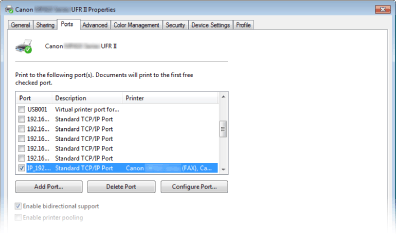
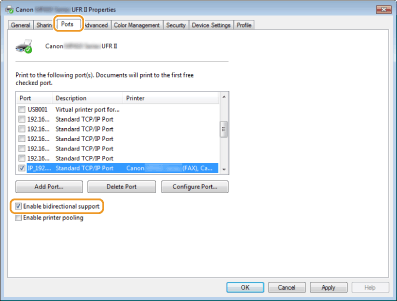
If you are using a network connection and have changed the machine's IP addressIf [Description] for the selected port is [Canon MFNP Port], and the machine and the computer are on the same subnet, then the connection will be maintained. You do not need to add a new port. If it is [Standard TCP/IP Port], you need to add a new port. Configuring Printer Ports
|
 ,
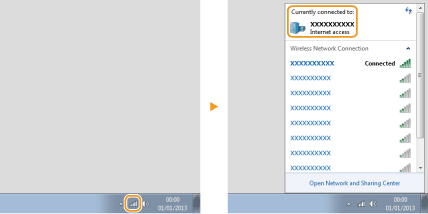
,  , or
, or  in the system tray to display the SSID of the connected wireless LAN router.