Secured Printing
You can save print data in the printer with a PIN (password). This function is useful when printing a confidential document.
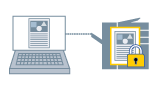 |
|
Protecting and saving print data
|
1.
Display the [Basic Settings], [Page Setup], [Finishing], [Paper Source], or [Quality] tab.
2.
Select [Output Method] → [Secured Print] → click [Yes].
The [Secured Print Details] Dialog Box is displayed.
3.
Set [User Name] and [PIN]/[Password] → click [OK].
4.
Click [OK] in the printer driver screen.
5.
Click the print button in the application.
The [Confirm PIN]/[Confirm Password] Dialog Box is displayed.
6.
Confirm or set the document name, user name, and PIN (password) → click [OK].
The print data is sent to the printer. Select the document you want to output and enter the PIN (password) from the control panel of the printer to print it.
About this Function
Required Conditions
To change the user name for secured printing, deselect [Do Not Allow User Name Changes] in [Device Settings] tab → [User Information Settings] dialog box → [Default Value Settings] dialog box.
Selecting a setting other than [Device Settings] - [User Management] - [User Authentication]
References
Print data that is stored in the printer is erased when the printer is turned off.
You can also set the user name and PIN (password) beforehand (→ User Information Settings).