Making Fax Sending and Receiving More Efficient
By digitizing documents when receiving faxes, you can edit documents and reply to faxes/e-mail more efficiently.
For example, suppose that an order form is received from a business partner via fax. You must then confirm the contents, decide the deadline, and reply to your business partner. This section describes how to perform these tasks efficiently by using the [Fax] tab registered when you installed Desktop. The [Fax] tab is preset with functions specialized for sending and receiving faxes.
[Fax] Tab Initial Settings
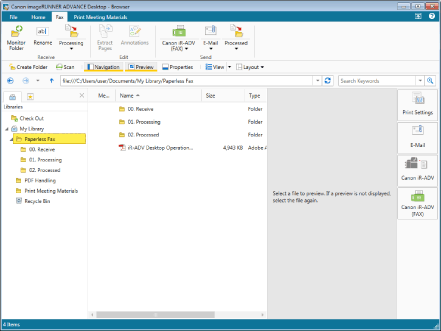
The following functions are set on the [Fax] tab by default.
[Receive]
Folder monitoring settings
Renaming
Document Destination Folder (Processing)
[Edit]
Extracting the selected pages
Starting the annotation function of Desktop Editor
[Send]
[Fax] output button
[E-Mail] output button
Document Destination Folder (Processed)
|
NOTE
|
|
Detected drivers are automatically registered on the [Fax] output button.
|
Customization
The [Fax] tab registered during installation can also be customized. Customize the tab according to the actual work that is performed. For information on customizing the tab, see the following.
|
NOTE
|
|
Commands automatically created when starting for the first time cannot be deleted.
|
Preliminary Settings
Functions set in advance also need to be prepared before performing work. The preliminary settings required for using the functions of the [Fax] tab are indicated below.
Settings for the device are required to save received faxes as PDF documents in the folder for received documents.
For more information, see the instruction manual for the device.
Mail account and profile settings are required to send e-mail.
Configure settings to suit your environment.
Operation Procedure
Step 1: Monitoring Fax Reception
Configure a notification to be displayed when a fax received by the multifunctional device is saved in the "00. Receive" folder. This eliminates the need to walk to the multifunctional device in order to check whether a fax has arrived.
1.
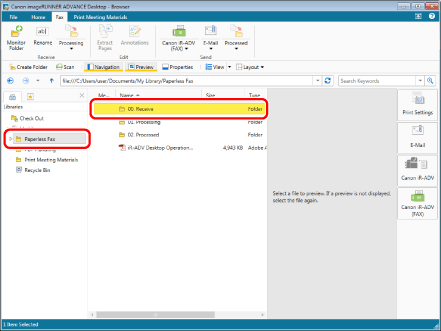
Select the [Fax] tab to switch the ribbon display. Select the "00. Receive" folder in the "Paperless Fax" folder.
2.
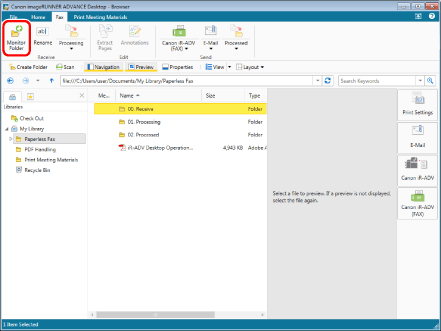
Click [Monitor Folder] on the [Fax] tab.
3.
The "00. Receive" folder icon becomes  , and a notification is displayed on the computer when a fax is saved in the folder.
, and a notification is displayed on the computer when a fax is saved in the folder.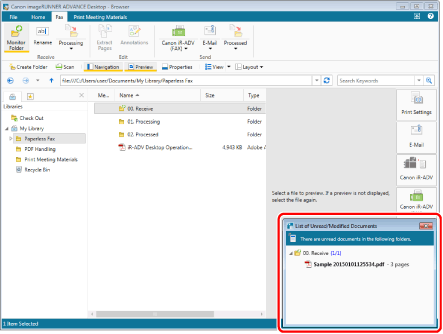
Step 2: Checking and Sorting Received Faxes
When a fax is saved in the "00. Receive" folder, the [List of Unread/Modified Documents] is displayed on the computer screen.
The document names of documents that have not been checked yet appear in bold in Desktop Browser, enabling you to distinguish unchecked documents at a glance. The content of documents can be checked without opening them by using the Preview Window.
After checking the document, sort it into a work folder. You can change the document name and move it with a single click.
1.
If you double-click the "00. Receive" folder in the [List of Unread/Modified Documents], the contents of the folder are displayed. Documents that have been added are displayed in bold.
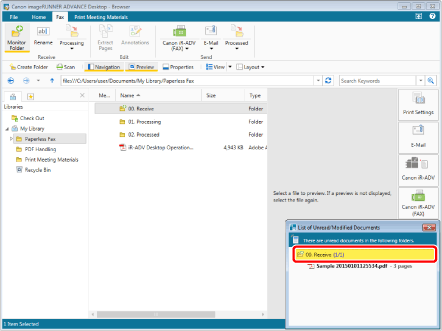
For more information on setting notifications, see the following.
2.
Select "Sample 20150101125534.pdf". A preview of the document is displayed within the red frame on the screen, so view page two to check that it is an order form. You can use  or
or  to change the displayed page.
or to change the displayed page.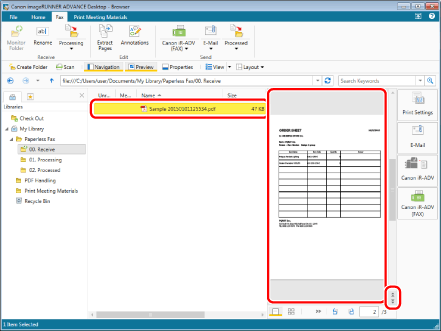
3.
To forward the order form to the person in charge of processing it, click  (Processing) on the [Fax] tab.
(Processing) on the [Fax] tab.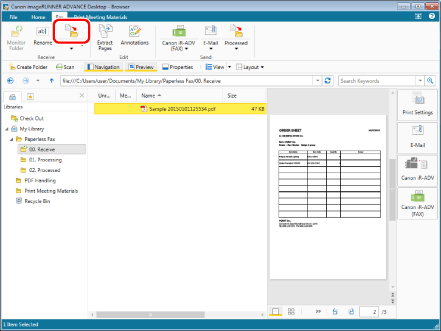
4.
The string entered in [Character Strings] in [Enter Name of Document to Send] is added to the document name. For this example, enter "Order Form", and click [OK].
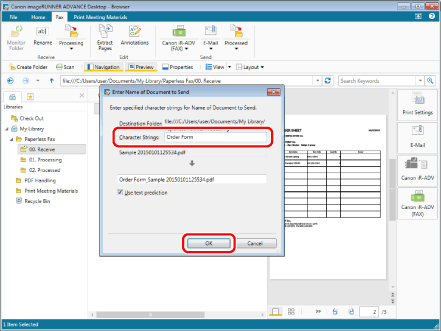
5.
The document name is changed to "Order Form_Sample 20150101125534.pdf", and the document is moved to the "01. Processing" folder. The name of the document is changed and it is moved simultaneously.
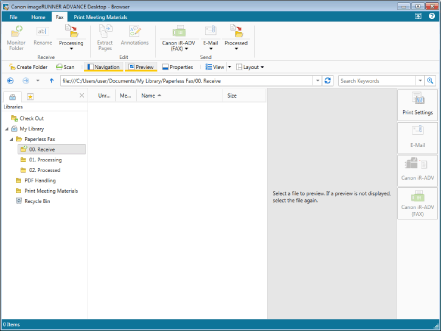
6.
Without selecting a document or folder, click [Processing] on the [Fax] tab. The content of the "01. Processing" folder is displayed. (This can be used as a shortcut.)
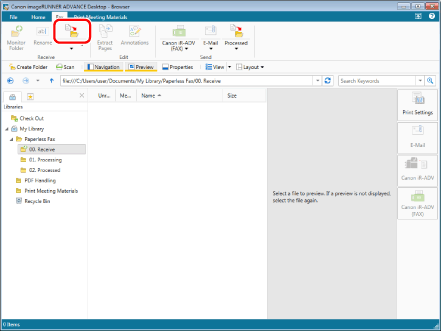
Step 3: Creating a Reply Document
Extract Unnecessary Pages from a Received Fax
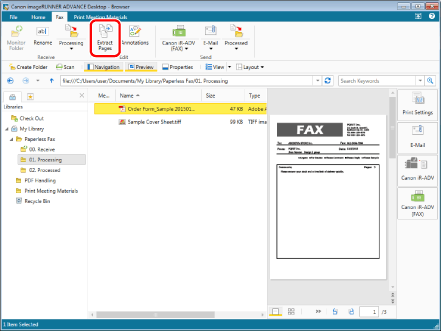
On the preview screen, extract unnecessary pages from a document without opening it. For this example, extract page one, the cover sheet.
1.
Select "Order Form_Sample 20150101125534.pdf", and display the unnecessary page (for this example, page one, the cover sheet) on the preview screen.
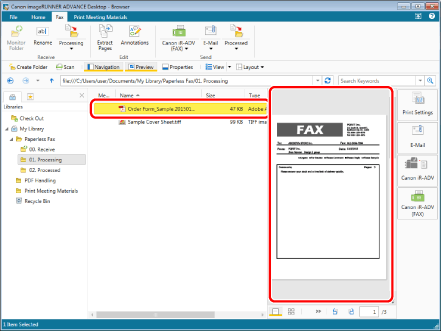
2.
Click [Extract Pages] on the [Fax] tab.
3.
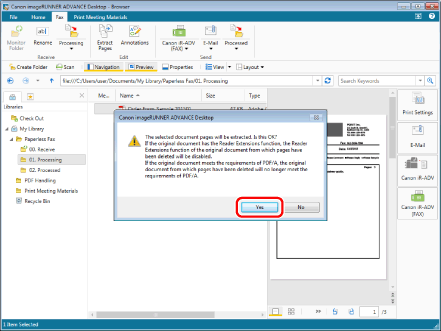
Click [Yes] in the displayed confirmation message. The extracted page is saved. (For this example, "Order Form_Sample 20150101125534_1.pdf").
Insert a Cover Sheet
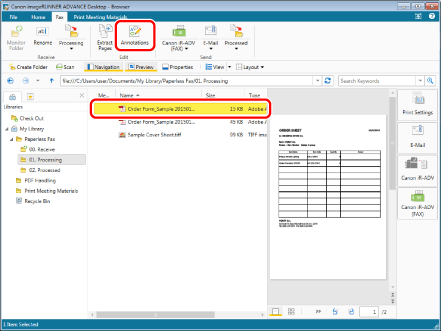
To reply via fax, use Desktop Editor to add a cover sheet to the beginning of the order form. You can use a document created with an application such as Word or Excel as a cover sheet.
1.
Select "Order Form_Sample 20150101125534.pdf", and click [Annotations] on the [Fax] tab. Desktop Editor is started in a separate screen.
2.
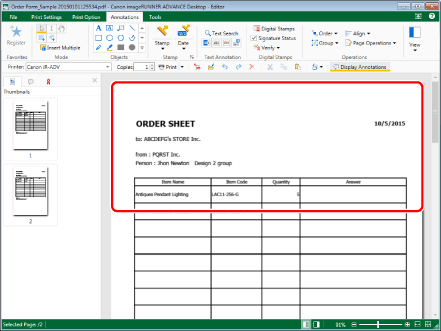
Drag "Sample Cover Sheet.tiff" in the "01. Processing" folder within the red frame in the Desktop Editor screen, then confirm that the mouse pointer displays a pop-up reading [Add to Beginning of Document] before dropping. The content of "Sample Cover Sheet.tiff" is added to the start of the document.
Input a Deadline
Use Desktop Editor to input a deadline into an order form.
1.
Click  (Text Box) on the [Annotations] tab, then insert a text box and input a deadline.
(Text Box) on the [Annotations] tab, then insert a text box and input a deadline.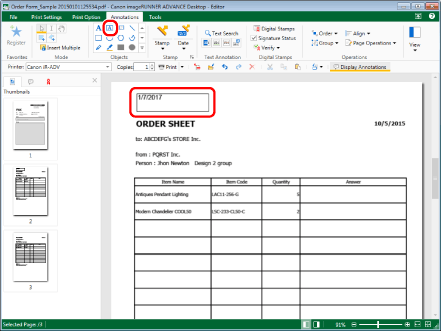
For details on inserting text boxes, see the following.
Apply the Stamp of the Person in Charge
Use Desktop Editor to insert the stamp of the person in charge into the order form.
1.
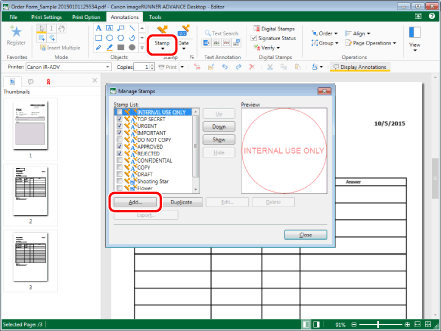
Select [Stamp] on the [Annotations] tab > [Manage Stamps], and click [Add] in [Manage Stamps].
2.
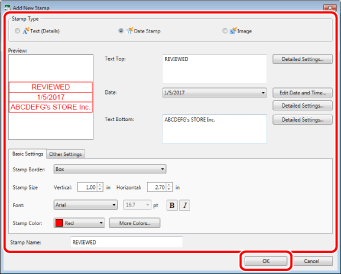
Using the screen shown here as a reference, input the contents of the stamp. Once finished, click [OK], and click [Close] in the [Manage Stamps].
3.
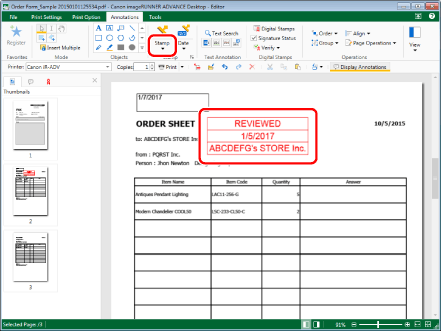
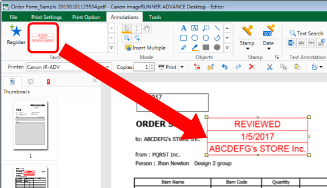
Select the stamp that you created from [Stamp] on the [Annotations] tab, and insert it into the document. After inserting the stamp, click  .
.
.
For more information on inserting stamps, see the following.
4.
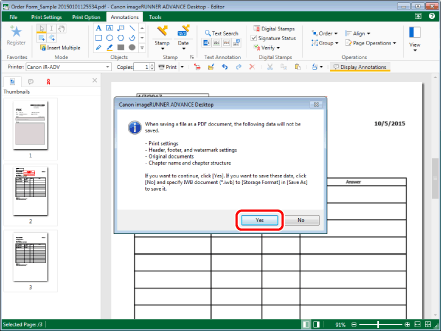
Click [Yes] in the displayed confirmation message, and click [Yes] again in the next confirmation message. The document is saved, and Desktop Editor closes.
|
NOTE
|
|
You can register a stamp to Favorites by selecting the inserted stamp, and then clicking [Register] on the [Annotations] tab. Registering a stamp enables you to easily and conveniently insert stamps via Favorites.
 |
Step 4: Sending a Fax
Send the order form into which you inputted a deadline, etc. to a recipient as a reply via fax.
1.
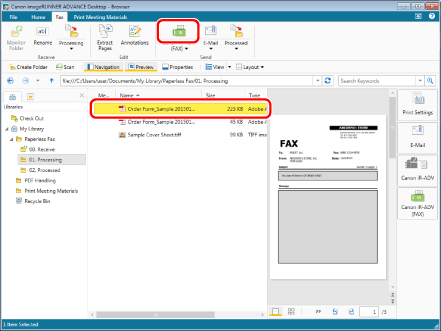
Select the order form for reply (for this example, "Order Form_Sample 20150101125534.pdf"), and click [Fax] output button on the [Fax] tab.
2.
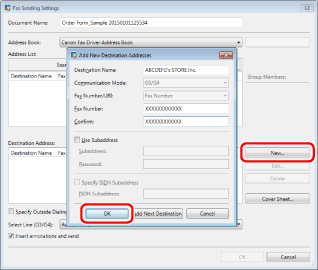
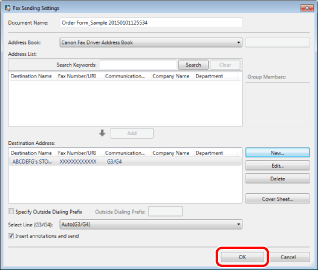
Click [New] in [Fax Sending Settings], enter the recipient information in [Add New Destination Addresses], and click [OK].
3.
Click [OK] to send the fax to the recipient.
Step 5: Marking a Sent Fax as Processed
To distinguish processed order forms, move faxed documents to the "02. Processed" folder.
1.
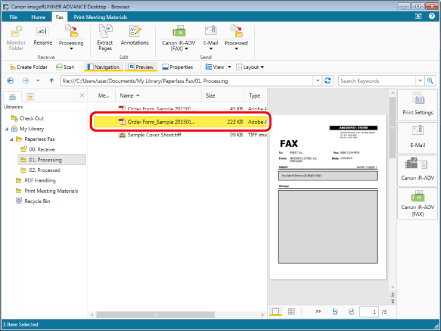
Select the sent fax in the "01. Processing" folder (for this example, "Order Form_Sample 20150101125534.pdf").
2.
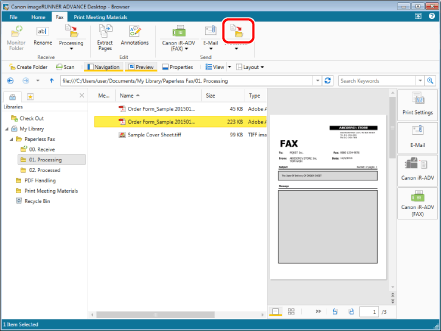
Click [Processed] on the [Fax] tab.
3.
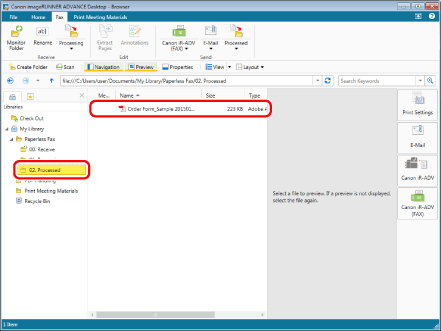
After confirming that the document was moved to the "02. Processed" folder, the work is complete.