Desktop Installation
The following programs are installed when you install Desktop.
Desktop Browser
Printer Monitor
Quick Printing Tool
Document Monitor
Desktop Editor
Desktop Document Writer
Desktop Monitor Setup
System Information Viewer
Import & Export Tool
Notification
|
NOTE
|
|
When you install Desktop, the imageRUNNER ADVANCE Desktop SharePoint Server Plugin is also installed. For more information on using documents in MicrosoftSharePoint Server, see "User's Guide" or "imageRUNNER ADVANCE Desktop Administrator Guide".
|
Flow of Desktop Installation
The installation of Desktop is performed in the following order.
|
NOTE
|
|
To use Desktop, the following programs are required.
.NET Framework 4.6/.NET Framework 4.6 Language Pack or .NET Framework 4.7/.NET Framework 4.7 Language Pack
SPS Library
License Information Management
If the required programs are not installed in the computer, they are automatically installed when installing Desktop.
Use the version of .NET Framework that corresponds to the language used in Desktop.
Preparations are required for using the full text search function. For more information, see the following.
|
1. Selecting the Installation Language
2. Confirming the License Agreement, Selecting the Installation Location (Folder), and Selecting Whether to Install the Offline Manual
3. Starting Installation
4. Confirming the Completed Installation
5. License Authentication
Installing Desktop
When using Desktop for the first time, follow the procedure below to install it.
|
IMPORTANT
|
|
Before installing Desktop, execute Windows Update to update the computer.
If you are using commercial firewall software, register the following applications in the firewall exceptions list after installing Desktop.
For information on registering programs to the exceptions list, see the manual for your firewall software.
Executable Files to Register (Default Installation Path)
Desktop Browser
C:\Program Files\Canon\Desktop\iWDT.Browser.MainBrowser.exe
Printer Monitor
C:\Program Files\Canon\Desktop\iWDT.TaskTray.PrinterMonitor.exe
If Encrypting File System (EFS) is used in the installation destination folder or another folder used by Desktop, the operations of Desktop are not guaranteed.
|
|
NOTE
|
|
Do not install Desktop while Windows Update is running on your computer. Install Desktop after confirming that the Windows Update is complete. Also, do not execute Windows Update while installing Desktop.
|
1.
Start Windows and log in to the system as a user with Administrator privileges.
2.
Insert the "Desktop Installation Media" disc into the disc drive.
Desktop Setup Wizard is started.
|
NOTE
|
|
If the Desktop Setup Wizard does not start or the installation media was not provided on disc, double-click the following file according to your operating system.
For 32-bit operating systems: "setup.exe" in the "32bit" folder of "Desktop Installation Media"
For 64-bit operating systems: "setup.exe" in the "64bit" folder of "Desktop Installation Media"
|
3.
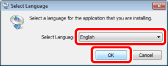
Select the display language of Desktop to install from the pull-down list.
|
NOTE
|
|
Installation screens are displayed in the selected language for subsequent steps.
|
4.
Confirm the content of the license agreement, and click [Agree and Install] if you accept.
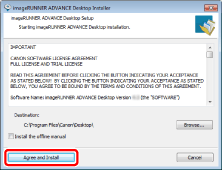
The installation of the program starts.
|
NOTE
|
|
To change the installation location, click [Browse], specify the installation location, and click [OK].
If you want to install the offline manual, select the [Install the offline manual] check box.
A message prompting you to stop applications may be displayed during the installation process, depending on your environment. Follow the displayed message to proceed with the Desktop installation.
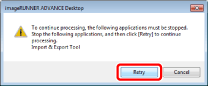 If the programs required for Desktop to operate are not installed in the computer, the required programs are automatically installed.
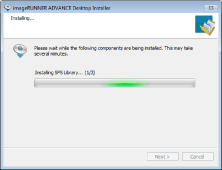 If the .NET Framework required for Desktop to operate is not installed in the computer, another screen is displayed from the above screen and it is automatically installed.
When the required programs have been installed, these screens automatically close and the Desktop installation continues.
|
5.
Click [Exit].
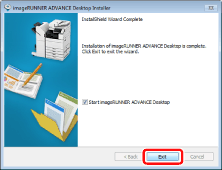
If you select the [Start imageRUNNER ADVANCE Desktop] check box and click [Exit], the license authentication wizard is displayed after installation is complete.
Follow the instructions in the wizard to perform license authentication. For more information, see "Software License Registration Guide".
Follow the instructions in the wizard to perform license authentication. For more information, see "Software License Registration Guide".
|
IMPORTANT
|
|
Also execute Windows Update after installing this product to use the product with an updated computer.
|
|
NOTE
|
|
If you selected the [Start imageRUNNER ADVANCE Desktop] check box, Desktop Editor starts after starting Desktop Browser, and "Desktop for Beginners" is displayed.
If you selected a language to install, "Desktop for Beginners" is displayed in the language selected in the pull-down list when the installer was started.
After installing this product, shortcuts to start Desktop Browser and Desktop Editor are automatically created on the [Desktop] screen of Windows.
You may be prompted to restart your computer during the installation or after the installation is complete, depending on your environment. If the computer is restarted during installation, by logging in as a user with Administrator privileges after the restart, you can continue the installation.
|
Upgrading a Desktop Installation
Even if an older version of Desktop is installed, you can perform an upgrade installation by following the same procedure as with a regular installation. When you perform an upgrade installation, the older version of Desktop is automatically deleted before the installation.
|
NOTE
|
|
If the older version of Desktop is running when performing the upgrade installation, it will be automatically closed. However, if the older version is 1.0.x, manually close the TasktrayIcon running in the Taskbar.
Do not install Desktop while Windows Update is running on your computer. Install Desktop after confirming that the Windows Update is complete. Also, do not execute Windows Update while installing Desktop.
Information set in the older version can be carried over after performing an upgrade installation.
Libraries set in the older version can also be carried over after performing an upgrade installation.
Manually uninstall Desktop before the upgrade, depending on your computer environment.
For printers/faxes to which an application-enabled ports were assigned in the older version, Quick Printing Tool is created after performing an upgrade installation.
After upgrading, annotations added using Desktop V2.0.1 or earlier cannot be displayed in Desktop. When using documents with such annotations added, perform annotation conversion with the Annotation Convert Tool. For more information, see the "Administrator Guide".
|
Carrying Over Settings from the Older Version
Information set in the older version can be carried over to this version after performing an upgrade installation.
The basic information (libraries, registered documents, registered stamped images, etc.) set in the older version can be carried over to this version. However, some Desktop settings cannot be carried over.
Specify the settings that cannot be carried over in Desktop again.
|
NOTE
|
|
As this version does not use an application-enabled port, when an application-enabled port is used, it is converted to a standard TCP/IP port.
If the port information settings are not carried over, it is necessary to set them again in Desktop Monitor Setup. For more information, see the "User's Guide".
|
Carrying Over Settings
The settings of the older version are carried over when one of the Desktop Browser, Desktop Editor, Printer Monitor (old version of Desktop Monitor), or Document Monitor (old version of Desktop Monitor) is started after performing the upgrade installation. This section describes an example using Desktop Browser.
1.
Select the [Start] menu > [All Programs] > [Canon imageRUNNER ADVANCE Desktop] > [imageRUNNER ADVANCE Desktop].
The settings are carried over with all modules.
|
NOTE
|
|
For Windows 8.1, click the
 on the [Start] screen > [imageRUNNER ADVANCE Desktop]. on the [Start] screen > [imageRUNNER ADVANCE Desktop].For Windows 10, select the [Start] menu > [Canon imageRUNNER ADVANCE Desktop] > [imageRUNNER ADVANCE Desktop].
|
2.
Desktop Browser starts with the settings of the older version carried over.