Specifying from Address Book
 |
|
The Address Book enables you to specify a destination by selecting from a list of registered destinations or by searching by name for destinations with recipient names.
|
 |
|
You need to register destinations in the Address Book before using this feature.
|
1
Press  and tap <Address Book>.
and tap <Address Book>. 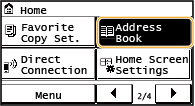
2
Use  /
/ to select a tab.
/ to select a tab.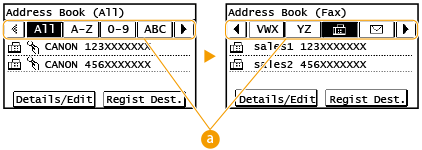
 <All>
<All>Displays all the destinations registered in the Address Book.
< >
>
>Only destinations for one-touch dialing are displayed.
<A-Z>/<0-9>/<ABC> to <YZ>
Displays destinations with recipient names whose first characters correspond to the characters of the selected tab.
< >
>
>Displays destinations for faxes.
< >
>
>Displays destinations for sending e-mail. Do not use in this procedure.
< >
>
>Displays destinations for shared folders. Do not use in this procedure.
< >
>
>Displays a list of destinations registered in Group Dial.
3
Select a destination.
When the logon screen appears, use the numeric keys to enter the user name and password. Then select the authentication server and press  . Logging on to the Machine
. Logging on to the Machine
If you want to specify multiple destinations
Repeat the following steps. You can specify up to 104 destinations.
<Destination> <Specify from Address Book> Select a tab Select a destination.
<Destination>
<Specify from Address Book> Select a tab Select a destination.To specify any additional destinations with the numeric keys, tap <Destination> <Specify Using Numeric Keys>.
<Specify Using Numeric Keys>. 4
Specify the scanning settings as necessary.
Select the settings. Various Fax Settings
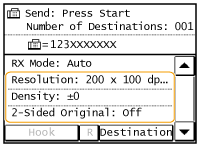
5
Press  to start sending.
to start sending.Scanning starts.
If you want to cancel sending, press  Tap <Yes>.
Tap <Yes>. To delete destinations
If you specified multiple destinations, you can delete destinations as necessary.
|
1
|
Select <Destination>
<Confirm/Edit>. |
|
2
|
Select a destination you want to delete.
 |
|
3
|
Tap <Remove>
<Yes>.If you specified Group Dial in step 2, "XX destination(s)" is displayed. Tapping <Number of Destinations> displays destinations registered in the group.
 |
|
|
If you want to easily and quickly delete destinations without displaying a list of destinationsBefore tapping <Destination> in step 1, you can press
/ to toggle the destinations you specified. Display a destination you want to delete, and press  . . |