Correcting Color Mismatch and Hues
When color mismatch occurs or when images are printed in colors that are different from the ones in the original, execution of calibration allows you to correct the problem. Processing for this correction requires a sufficient amount of toner, so it is recommended that beforehand you check the remaining amount of toner and you replace the toner cartridge(s) as necessary. Checking the Toner Cartridge Status
Correcting Color Mismatch
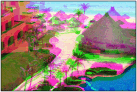
Print color mismatch refers to a shift in the positions of colors that may occur when printing one image with multiple toner cartridges. Color mismatch can cause printouts to appear blurry. When color mismatch occurs, you need to correct the problem.
When color mismatch occurs | When color mismatch does not occur | |
 |  |
Correcting Hues
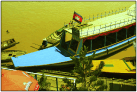
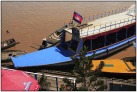
Hue refers to the density of a color such as red, yellow, green, blue, or purple. When hues in the printed image are different from those in the original or when some colors are darker or the overall density of the print is thinner than in the original, you need to make a correction.
Hues are not reproduced correctly |  | Original | | Hues are reproduced correctly |
 |  |  |  | |
 |
Frequent calibration may affect the lifetime of toner cartridges. If the lifetime of toner cartridge(s) has been reached, calibration may not end correctly. In this case, replace the toner cartridge(s) and try again calibration. How to Replace Toner Cartridges |
 |
Normally, calibration is automatically performed in accordance with the usage condition of the machine or changes in the environmental conditions. You can make a setting so that calibration is automatically performed immediately after the machine is turned ON or you can set the calibration frequency. First Calibration Calibration Freq. |
1
Press ( ).
).
().2
 /
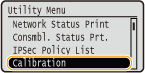
/ to select <Calibration>, and press
  .
.
3
Select the type of calibration and press .
.If you want to correct the color mismatch that has occurred in POP printing, select <POP Prnt Calibration>.
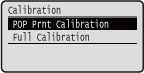

Correction by calibration takes longer time with <POP Prnt Calibration> than with <Full Calibration>.
4
Select <Yes>, and press .
.The adjustment starts.
 |
You can make a setting so that calibration is automatically performed at a specified time. Calibration Timer Calibration Time Although normally the type of calibration that is performed automatically is the same as <Full Calibration>, you can change this to <POP Prnt Calibration>. Auto POP Calibration |