
User Maintenance
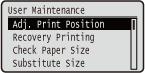 | The settings about adjustment of the machine including print position correction for each paper source and print quality improvement are listed with short descriptions. You can specify those settings when the machine is offline. Default settings are marked with a dagger (  ). ). |
|
Asterisks (*)Settings marked with an asterisk (*) may not be displayed depending on the model you are using, options, or other setting items. |
Adj. Print Position
You can adjust the print position for each paper source. Adjusting Print Position
Common
You can adjust the vertical/horizontal print position for printing on the first page (front side) in 2-sided printing mode. The print position on the second page (back side) follows the settings for the paper source available when the printing is started.
Offset Y (2-Sided)/Offset X (2-Sided) -5.0 to 0.0 to +5.0 (mm) |
Multi-Purpose Tray
You can adjust the vertical/horizontal print position for printing on paper from the multi-purpose tray.
Offset Y (MP Tray)/Offset X (MP Tray) -5.0 to 0.0 to +5.0 (mm) |
Drawer 1 to 4 *
You can adjust the vertical/horizontal print position for printing on paper fed from a paper drawer.
Offset Y (Drawer 1 to 4)/Offset X (Drawer 1 to 4) -5.0 to 0.0 to +5.0 (mm) |
Recovery Printing
Select whether to print again the page of which printing was interrupted by a paper jam or an error.
Off On |
 (
( )
)  <User Maintenance>
  <Recovery Printing> <Off> or <On>
 Check Paper Size
Select whether to check the size of paper that is fed from the paper source with the paper size set to <Free Size>. If you select <On>, the message for confirming the paper size is displayed and the printing is stopped when the size of the paper fed from the paper source does not match the print data.
Off On |
() <User Maintenance> <Check Paper Size> <Off> or <On> |
If the difference in size between the fed paper and the print data is not so large, it is possible that no message will be displayed and the printing will be continued even when the selected setting is <On>. |
Substitute Size
Select whether to print by substituting A4 size paper and Letter size paper with each other. If you select <On>, Letter size paper is used for printing when you have specified A4 size paper for printing from a computer but the A4 size paper is not loaded in the machine.
Off On |
() <User Maintenance> <Substitute Size> <Off> or <On> Short Edge Fd. Prty.
When printing on paper of a size that allows for loading both in portrait and landscape orientations, set this item to <On> if you want the paper in portrait orientation to be fed preferentially. This setting applies only when <Paper Source> to <Auto>.
Off On |
() <User Maintenance> <Short Edge Fd. Prty.> <Off> or <On> Sp. Transfer Mode
When you use the machine in an environment with low humidity, printed images or text may be smudged. In this case, setting this item to <On> may solve the problem.
Off On |
() <User Maintenance> <Sp. Transfer Mode> <Off> or <On> |
When you set this item to <On> and use the machine in an environment with high humidity, the print density may become lighter or uneven. |
Special Print Mode A
Streaks may appear on printouts depending on the paper type or the environmental conditions. In this case, setting this item may solve the problem. The improvement effect is weakest with <Mode 1> and strongest with <Mode 4>.
Off Mode 1 Mode 2 Mode 3 Mode 4 |
() <User Maintenance> <Special Print Mode A> Select the mode |
As the improvement effect is increased, the print density becomes lighter. In addition, the edges may be blurred or roughness may be slightly emphasized. If you select <Mode 3> or <Mode 4>, the print speed will be slower. |
Adj. Scndry Transfer
When you use the machine in an environment with high humidity, the print density may become lighter or uneven. In this case, setting this item to <On> may solve the problem.
Off On |
() <User Maintenance> <Adj. Scndry Transfer> <Off> or <On> |
If you select <On> and use the machine in an environment with low humidity, printed images or text may be smudged. |
Wrinkle Correction
If printouts crease, set this item to <On>.
Off On |
() <User Maintenance> <Wrinkle Correction> <Off> or <On> Afterimage Corr.
When you print on large size paper after printing on small size paper, afterimages may appear in blank areas. In this case, setting this item to <On> may solve the problem.
Off On |
() <User Maintenance> <Afterimage Corr.> <Off> or <On>  |
If you select <On>, the print speed may be slower. |
Sp. Transfer Mode 2
If blurring of graphics or text persists with <Sp. Transfer Mode> specified, setting this item to <On> may solve the problem.
Off On |
() <User Maintenance> <Sp. Transfer Mode 2> <Off> or <On> |
If you select <On> and use the machine in an environment with high humidity, the print density may become lighter or uneven. |
Special Deliv. Mode
Printouts may crease or black horizontal streaks may appear in the leading edge of paper depending on the paper type or environmental conditions. In this case, setting this item may solve the problem.
Off On |
() <User Maintenance> <Special Deliv. Mode> <Off> or <On> |
If you select <On>, the print speed may be slower. |
Improve Toner Fixing
When you perform 2-sided printing after the machine is left unused for a long time, void may occur in printed images. In this case, setting this item to <On> may solve the problem.
Off On |
() <User Maintenance> <Improve Toner Fixing> <Off> or <On> |
If you select <On>, the print speed may be slower. |
SD Card Maintenance *
When an error occurs in an SD card or when you want to discard an SD card, you can erase all the data stored on that card.
Format
Initializes the SD card. All the stored data is erased from the card.
() <User Maintenance> <SD Card Maintenance> <Format> <Yes> Completely Del. Data
All the stored data is erased from the SD card. Perform this operation as necessary, such as when you want to discard an SD card after erasing all the stored data including those fragments that cannot be erased normally. Deleting All Data in an SD Card
Special Print Mode
Provides items you can set when printing cannot be performed properly.
Curl Correction
If the printed paper curls, set this item to <On>.
Off On |
() <User Maintenance> <Special Print Mode> <Curl Correction> <Off> or <On> |
If you select <On>, the print speed may be slower. Also, printouts may be faded. |
Reduce Ppr. Sticking
In 2-sided printing, printed paper may stick to each other depending on the image density of print data. In this case, setting this item to <On> may solve the problem.
Off On |
() <User Maintenance> <Special Print Mode> <Reduce Ppr. Sticking> <Off> or <On> |
If you select <On>, the print speed may be slower. |
Rough Paper Adj.
When you print on envelopes, toner may come off printed images depending on the environmental conditions. In this case, setting this item to <On> may solve the problem. However, the printing speed will be slower.
Off On |
() <User Maintenance> <Special Print Mode> <Rough Paper Adj.> <Off> or <On> |
<Rough Paper Adj.> functions only when the paper type setting is <Envelope H>. Specifying Paper Size and Type If you set to <On>, the <Curl Correction> setting will be disabled. |
2-Sd Prnt Speed Prty
Printing speed may be slower during 2-sided printing. To avoid slower printing speed, set to <On>.
Off On |
() <User Maintenance> <Special Print Mode> <2-Sd Prnt Speed Prty> <Off> or <On> |
If you set to <On>, streaks may appear on printouts. |
Incr Pcard Fix. Qlty
When you print on postcard, toner may come off printed images depending on the environmental conditions. In this case, setting this item to <On> may solve the problem. However, the printing speed will be slower.
Off On |
() <User Maintenance> <Special Print Mode> <Incr Pcard Fix. Qlty> <Off> or <On> Special Print Adj. C
Set this item to <On> when printing noise is noticeable.
Off On |
() <User Maintenance> <Special Print Adj. C> <Off> or <On> |
If you set this item to <On>, the printing speed becomes slower. |
Update Firmware
Upgrades the firmware of the machine.
() <User Maintenance> <Update Firmware> Select the connection method <Yes> 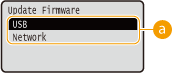
 Connection method selection
Select the method to connect a computer that performs the firmware update.
Paper Feed Method
Specify this setting when you print a document on paper with logos. To print on paper with logos, you need to change how the paper loaded in the paper source is facing depending on whether you are performing 1- or 2-sided printing. However, if you change the setting to <Print Side Priority>, you can just load the paper face down for both 1- and 2-sided printing. For more information, see Loading Preprinted Paper.
Speed Priority Print Side Priority |
() <User Maintenance> <Paper Feed Method> Select the paper source <Speed Priority> or <Print Side Priority> 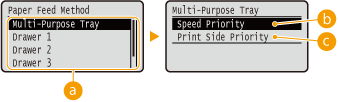
Paper source selection
Select the paper source for which you want to change the setting of Paper Feed Mode.
 <Speed Priority>
When using paper that has been preprinted with a logo, you need to change which side is up depending on 1-sided or 2-sided printing.

We recommend selecting <Speed Priority> if you do not need to consider which side to print on.
 <Print Side Priority>
To print on a specific side of paper, you do not need to flip over paper in the paper source regardless of whether 1- or 2-sided printing is selected.
Even if <Print Side Priority> is selected for the paper source (Available Paper), it is disabled and the machine operates in the same way as when <Speed Priority> is selected. In this case, load the paper in the same way as when <Speed Priority> is selected (Loading Preprinted Paper).
If you select <Print Side Priority>, 1-sided printing speed will be slower.
Show Job List
Select whether to display a list of data that is being printed and waiting to be printed when you press  (
( ) on the operation panel.
() on the operation panel.Off On |
() <User Maintenance> <Show Job List> <Off> or <On> |
If you press () when <Off> is selected, the current print job in progress is canceled. |
Rdc Thin Ppr Curling
If printing on thin paper produces curled printouts, setting this item to <On> may solve the problem.
Off On |
() <User Maintenance> <Rdc Thin Ppr Curling> <Off> or <On> |
<Rdc Thin Ppr Curling> functions only when the paper type setting is <Thin 1>. Specifying Paper Size and Type If you set to <On>, automatic 2-sided printing with <Thin 1> is disabled. Further, printouts may be faded due to poor fixing of toner. |
Import/Export Set.
You can transfer and save the data registered in the machine and the setting data of the menu options to the USB memory device attached to the machine. The exported data can be imported. If the machine model is the same, other machines can import the data exported from this machine and vice versa.
IMPORT
You can import data that was written to a USB memory device from the machine.
() <User Maintenance> <Import/Export Set.> <IMPORT> <Yes> Select the file to be imported  Enter the password Check the message
 EXPORT
You can save the data registered in the machine and the setting data of the menu options to a USB memory device.
() <User Maintenance> <Import/Export Set.> <EXPORT> Enter the password Password (Confirm) Check the message |
For these purposes, you can only use the USB port provided on the right side of the machine. If the <Ready to print files from USB memory.> screen is displayed when USB memory is connected, press ( ). ).For details about import/export of settings data, see Saving/Loading Registered Data. |
Notify to Clean
Select whether to display a message that prompts you to clean the fixing unit.
Off On |
() <User Maintenance> <Notify to Clean> <Off> or <On> Clean. Notif. Timing *
When you have set <Notify to Clean> to <On>, you can specify the timing to display a prompt message for cleaning the fixing unit, in terms of the number of printed pages and in units of 1,000. The Configuration Page allows you to check how many pages you can print before the prompt message is displayed. (Configuration Page)
1000 to 50000 |
() <User Maintenance> <Clean. Notif. Timing> Enter the number of printed pages Toner Check Timing
To change the timing to display a message when the toner remaining amount is low, select <Custom>.
Default Custom |
() <User Maintenance> <Toner Check Timing> <Default> or <Custom> Spec Tnr Chk Timing *
When you have set <Toner Check Timing> to <Custom>, specify the timing to display the message.
() <User Maintenance> <Spec Tnr Chk Timing> Use the numeric keys to enter the toner cartridge remaining amount Control Condensation
When the temperature changes rapidly in the environment where the machine is installed, condensation occurs, which may cause fading or bleeding in images and text. If this item is set to <On>, condensation inside the machine will be removed.
Off On |
() <User Maintenance> <Control Condensation> <Off> or <On>  |
While condensation removal is being performed, printing may not be performed properly and blank paper may be output. If you set to <On>, you need to keep the machine turned ON to maintain the effect of condensation removal. |
Rdc Drk Aftr Cart Ch
Immediately after replacing toner cartridges with new ones, black streaks may appear on printouts or printing on heavy paper may result in grayish printouts. In this case, setting this item to <On> may solve the problem.
Off On |
() <User Maintenance> <Rdc Drk Aftr Cart Ch> <Off> or <On> |
If you set to <On>, the setting will become effective with next replacement of toner cartridges. Immediately after cartridge replacement, a certain amount of time is required for toner to be evenly distributed inside the cartridge. |