Scanning with the Basic Settings
This explains the procedure for using the driver to scan with the basic settings.
 NOTE
NOTEWhen using this driver with the WIA-TWAIN compatibility mode of the operating system, etc., a UI dependent on the operating system is displayed and the procedure differs from that described here.
Prerequisites
Selecting the scanner in the Color Network ScanGear 2 Tool
Confirming that the scanner is online
Procedures
1.
Place the originals in the device.
The orientation of the originals differs according to where the originals are placed.
Feeder: Place the originals with the side to scan face up.
Platen glass: Place the originals with the side to scan face down.
2.
Select the scan function from the application menu → select [Color Network ScanGear 2].
The scan settings screen of Color Network ScanGear 2 is displayed.
The procedure for displaying the scan settings screen may vary according to the application.
NOTEDepending on the TWAIN supported application, both a TWAIN compatible driver and WIA compatible driver via the WIA-TWAIN compatibility mode may be displayed with the same name when selecting the driver.
Information for the selected scanner can be checked in [File] > [Scanner Information] on the scan settings screen.
3.
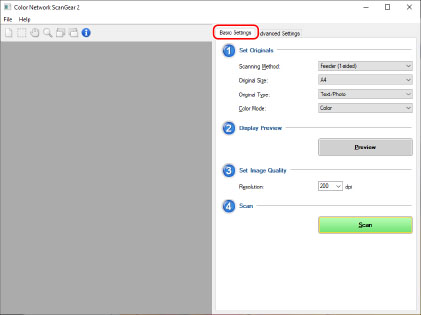
Display the [Basic Settings] sheet.
4.
Select the location where the originals are placed in [Scanning Method] → select the original size for scanning in [Original Size].
5.
Select [Original Type] and [Color Mode].
6.
When scanning from the platen glass, click [Preview] → specify the range to scan as required.
When something other than [Auto] is selected in [Original Size], you can specify the range to scan by dragging the mouse in the preview area.
The range enclosed with dotted lines is scanned. You can perform the following operations on the specified range.
Move: Drag the dotted line frame.
Resize: Drag the handle (black square) above the frame lines.
Cancel scan range: Click outside the specified range.
7.
Set the resolution for scanning the originals in [Resolution], as required.
8.
Click [Scan].
The scanned image is displayed in the application.
If the Color Network ScanGear 2 screen does not automatically close after scanning, click the close button on the top of the screen.
 IMPORTANT
Do not operate the Color Network ScanGear 2 screen until the scanning dialog box is displayed after clicking [Scan].