Selecting the Scanner
This explains the procedure for selecting a device in the Color Network ScanGear 2 Tool and using it as a scanner.
Devices to use can be specified via IP address or host name, or selected from the devices discovered on the same subnet (network with the same network ID).
The selected scanner can also be changed.
Prerequisites
Driver installation
Closing the Color Network ScanGear 2 screen
The Color Network ScanGear 2 Tool cannot be running at the same time.
Confirm the IP address or host name of the device to use.
For details about the network settings of the device, refer to the manual of the device.
Confirming the settings of the authentication function to use (if you can use the authentication function)
 IMPORTANT
To display a device in discovery results via its host name, you need to register the device in the DNS and set reverse DNS lookup. If it is not registered, the discovery time increases and the result will be an IP address. For details about DNS settings, refer to the manual of the device or consult your network administrator.
Procedures
1.
Start the Color Network ScanGear 2 Tool → click [Select Scanner].
The [Select Scanner] dialog box of the Color Network ScanGear 2 Tool automatically starts after installing the driver. Proceed to step 2.
The Color Network ScanGear 2 Tool can be started with the following procedure.
Display Start menu → click the button displayed above the pinned apps to show all apps → click [Color Network ScanGear 2] > [Color Network ScanGear 2 Tool].
If the button is not displayed above the pinned apps on the Start menu, use the following procedure.
Click Start menu > list of apps > [Color Network ScanGear 2] > [Color Network ScanGear 2 Tool].
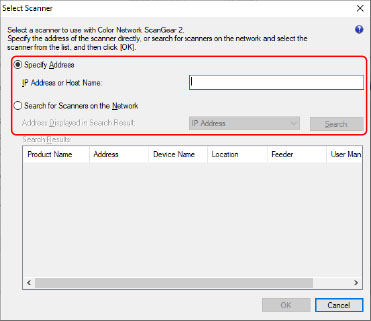
In the [Select Scanner] dialog box, select the scanner → click [OK].
Use either of the following methods to select the scanner.
To specify the IP address or host name of the scanner
Select [Specify Address] → enter the IP address or host name of the device to use in [IP Address or Host Name].
To discover scanners on a network
(1) Select [Search for Scanners on the Network].
(2) Select [IP Address] or [IP Address or Host Name] from [Address Displayed in Search Result] → click [Search].
(3) Select the scanner to use from [Search Results].
3.
Confirm [Scanner Information] displayed in the Color Network ScanGear 2 Tool.
[User Management]: When multiple authentication methods are displayed, select the authentication method to use. You can configure the settings to use for the authentication function in [Settings].
[Test Connection]: You can confirm whether the selected scanner can be used.
4.
Click [Exit].