Printing Reports and Lists
You can print reports and lists to check information such as the total number of copied pages, communication results, and machine settings.
Printing a Report on the Number of Copied and Printed Pages
Counter Report
You can print a report to check the total number of all printed pages.
 (Counter/Device Information)
  <Print List> <Yes>
Page Count List
You can print a list to check the total number of pages* that were copied, printed, and scanned for each Department ID. To print this list, you need to log in with administrator privileges. Logging into the Machine
 (Settings/Registration) <Management Settings> <User Management> <Department ID Management> <On> <Page Totals> <Print List> Select the items to print <Start Printing>
 |
Department ID Management must be set in order to calculate the Page Count List for each Department ID. Setting the Department ID Management With the Remote UI Page Count List, you can check how many pages have been printed by individual user names linked to a Department ID. To display the list, Starting the Remote UI click [Settings/Registration] [User Management] [Department ID Management]. However, note that user names will not be displayed if multiple users are allocated to the same Department ID, or if you are using DepartmentID Authentication as the login service.The Page Count List can also be saved as a CSV file using the Remote UI. Starting the Remote UI click [Settings/Registration] [User Management] [Department ID Management] [Store in CSV Format...]. |
* In this report, the numbers are based on printed sides of the page. For example, the count is 1 if you print on one side of a page, and the count is 2 if you print on both sides of the page.
Printing a List of Usage History
When you press  (Status Monitor), the Status Monitor screen is displayed, allowing you to check the usage history for each function, such as copying, printing, sending e-mail, sending/receiving I-faxes, etc. From this screen, you can also print the usage history for each function.
(Status Monitor), the Status Monitor screen is displayed, allowing you to check the usage history for each function, such as copying, printing, sending e-mail, sending/receiving I-faxes, etc. From this screen, you can also print the usage history for each function. |
If "NG" appears in the "RESULT" column in the printed list, check the three-digit number preceded by "#" to find the reason and solutions. If (Settings/Registration) <Management Settings> <Device Management> <Restrict Access to Other User Jobs> is set to <On>, jobs other than those of the logged-in user are displayed as "***" and cannot be operated. If you log in with administrator privileges, the jobs of all users are displayed. |
1
Press (Status Monitor).
(Status Monitor).2
Display the usage history of each function and print a list.
 Print log
1 | Press <Job> <Job Log>. |
2 | Select the items you want to print, and press <Print List>. 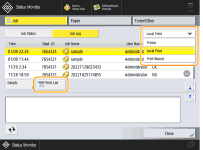 |
3 | Press <Yes>. |
Outputting a Communication Result Report
You can print a list of results for sending/receiving e-mail, or I-fax, and results for storing items in the file server or Mail Box (machine's temporary storage space). A report is set to be printed automatically or printed only when an error occurs. However, you can change the setting to print only at a specified time or not to print at all. In addition, you can send the report to a specified destination as a CSV file.
|
If "NG" appears in the "RESULT" column in the printed list, check the three-digit number preceded by "#"to find the reason and solutions. If (Settings/Registration) <Management Settings> <Device Management> <Restrict Access to Other User Jobs> is set to <On>, jobs other than those of the logged-in user are displayed as "***" and cannot be operated. If you log in with administrator privileges, the jobs of all users are displayed. |
Device Information Communication Log Report
You can configure the machine to automatically print the report when the specified number of results for device information distribution or reception is reached. You can also configure the setting to print the report at a specified time. You are required to log in with administrator privileges to change the report setting.
(Settings/Registration) <Management Settings> <Device Management> <Device Information Distribution Settings> <Communication Log> Report Settings Set the report <OK> |
When you are logged in with administrator privileges, you can manually print the device information communication history as a list. Press (Settings/Registration) <Management Settings> <Device Management> <Device Information Distribution Settings> <Communication Log> <Print List> <Yes>.When setting to print a report at a specified time If a report is set to print at a specified time, the 100 most recent results are printed, with the most recent results first. If the number of results exceeds 100, the older results are not printed. |
Printing a List of Settings
Information and settings registered in the machine such as registered destinations, send/receive settings, forwarding conditions, files in a Mail Box, etc. can be printed as a list.
Mail Box File List
You can print a list of temporarily saved files in a Mail Box on the machine.
Network Setting List
You can print a list of the settings configured for <Network> in <Preferences> under Settings/Registration.
(Settings/Registration) <Preferences> <Network> <Output Report> <Yes> |
Items that have been changed from their default settings are printed with an asterisk (*) next to them. The following items are automatically generated from unique information of the machine by default and when the settings are initialized, and have an asterisk (*) next to them. IPv4 Host Name IPv6 Host Name mDNS Name (mDNS Settings) Current Transmission Speed (Ethernet Driver Settings) |
System Information list
You can print a list of information such as MEAP applications and licenses. You are required to log in with administrator privileges to print this list.
(Settings/Registration) <Management Settings> <License/Other> <MEAP Settings> <Print System Information> <Yes>Device Information Distribution Destination List
You can print a list of devices registered as information distribution destinations. You are required to log in with administrator privileges to print this list.
(Settings/Registration) <Management Settings> <Device Management> <Device Information Distribution Settings> <Register Destinations> <Print List> <Yes>