
POD Deck-F/POD Deck-F + Path Kit
If the "POD Deck-F" is attached, it can provide three additional paper sources.
Up to 1,500 sheets of paper (80 g/m2) each can be loaded into the upper and middle decks, and up to 2,000 sheets of paper (80 g/m2) can be loaded into the lower deck of the "POD Deck-F."
Also, you can connect the "POD Deck Lite XL-A," or "Stack Bypass-D" to the machine using the optional "POD Deck Path Kit-A."
Up to 1,500 sheets of paper (80 g/m2) each can be loaded into the upper and middle decks, and up to 2,000 sheets of paper (80 g/m2) can be loaded into the lower deck of the "POD Deck-F."
Also, you can connect the "POD Deck Lite XL-A," or "Stack Bypass-D" to the machine using the optional "POD Deck Path Kit-A."
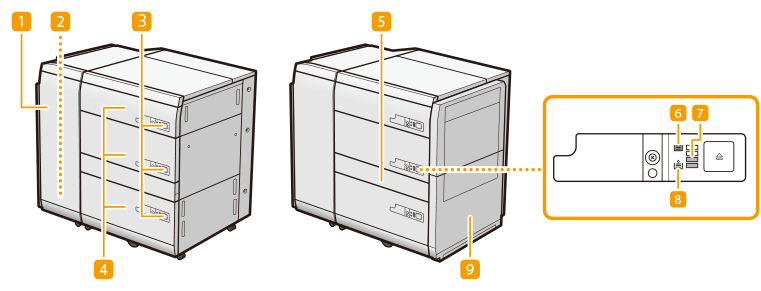
 Front cover (Buffer Pass)
Open this when a paper jam occurs. Paper Jams in the POD Deck-F (Optional)
 Escape tray
The paper is output to the escape tray if the machine detects multiple sheet feeding.
 Open button
Press to open the paper deck such as when loading paper.
 Paper deck
Load Paper. Loading Paper into the POD Deck-F
 Through Path Cover
Open this cover to remove jammed paper. Paper Jams in the POD Deck-F (Optional)
* This cover does not open if the optional "POD Deck Path Kit-A" is not connected.
 Paper loaded icon
Lights up when paper is loaded in the paper deck.
 Remaining paper
Displays the remaining paper in the paper deck in 25% increments.
 Paper feed icon
Lights up when the paper deck needs to be loaded with paper.
 POD Deck Path Kit-A
Use the "POD Deck Path Kit-A" to attach additional paper sources to the "POD Deck-F."
|
Be sure to ground the "POD Deck-F" before connecting its power plug to the power source. Also, be sure to remove the power plug from the power source before disconnecting the ground connection. Do not place heavy objects on the "POD Deck-F." That may result in damage. When handling paper, take care not to cut your hands on the edges of the paper. |
 |
If the machine is in the Sleep mode, you may be unable to open the paper deck. In this event, reactivate the machine and then press the open button on the "POD Deck-F." If coated thin paper is used for printing, it may become creased depending on the latest print jobs. In that case, keep the paper deck open for about 10 minutes to lower the temperature of the paper deck, and then start printing again. |
 |
For information on basis weight and paper size that can be used, see items for the "POD Deck-F" in Available Paper. |
Loading Paper into the POD Deck-F
|
The lifter inside the paper decks rises and descends automatically. When loading paper, be careful not to get your fingers caught, as this may result in personal injury. |
|
If paper runs out and printing is stopped when you are printing with the staple setting, do not remove the output sheets that are waiting to be stapled. (Printing and stapling resume after you clear the paper jam.) If you need to lift up the lifter (for example, if you drop objects inside the paper deck), do not lift up the lifter more than 50 mm or diagonally, as this may result in a malfunction or damage to the machine. Do not lift up the lifter inside the paper decks while the main power is ON, as this may result in a malfunction or damage to the machine. If you need to lift up the lifter, for example, if you drop objects, turn OFF the main power with the paper decks open. For instructions on shutting down the machine, see Turning OFF the Machine. 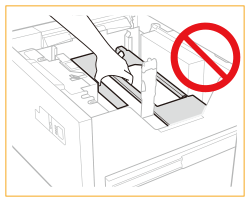 |
|
You can load custom size paper if both of the paper sides are between 182 mm and 487.7 mm in length, and between 139.7 mm and 330.2 mm in width. You cannot load custom size paper if either one of the sides is smaller or larger than the paper sizes that can be loaded. If a message prompting you to load paper appears during printing, the remaining prints are automatically made after you load the correct paper. If you select a different paper source, the remaining prints are made after you press <OK>. To cancel printing, press <Cancel>. Check the Specialty Media Handling Guide and make appropriate settings for the paper to be loaded into the "POD Deck-F." When not using the tab feeding attachment, keep it in a safe place and do not lose it. |
1
Open the paper deck.
1 | Press the open button. |
2 | Open the paper deck. The inside lifter automatically descends to the paper loading position. 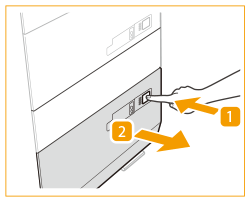 |
 When tab paper is loaded
Remove the tab feeding attachment kit.
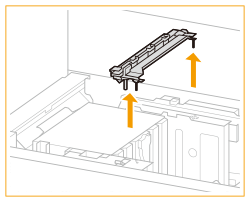

It may take some time for the paper deck to open, even if you press the open button.
2
Prepare the paper to load.
Fan the four edges of the sheets several times and align the edges to facilitate feeding.
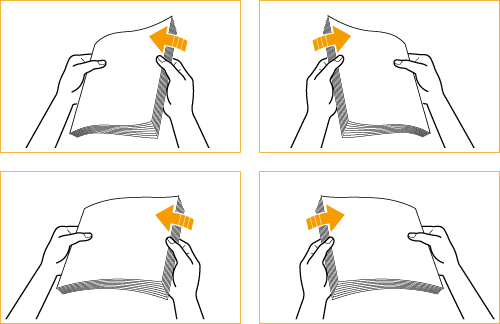
For high-quality printouts, use paper recommended by Canon.
Before loading paper, always fan the sheets several times, and align the edges to facilitate feeding.
3
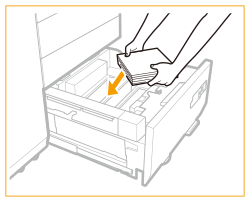
Load the paper.
Load the paper stack against the left wall of the paper deck.
When loading tab paper
Set the tab feeding attachment kit according to the size of the loaded tab paper.
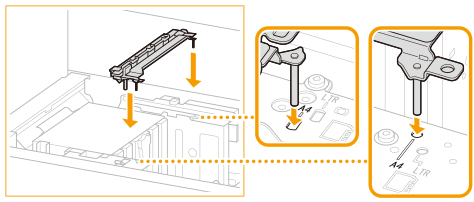
Be sure to check the markings and set the tab feeding attachment kit in the position that matches the paper size.
Loading a thick stack of paper at once may cause printing problems due to the edge of the paper being damaged or curled. Load the paper in stacks no thicker than 20 mm at a time.
When you load paper with a logo mark, pay attention to the loading orientation. Loading Preprinted Paper in POD Deck-F
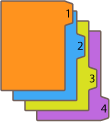
When you load tab paper, load it in normal tab order with the tabs on the opposite side of the feeding direction.
4
Gently push the paper deck back into the machine until it clicks into place in the closed position.
The inside lifter automatically ascends, and prepares the paper deck for printing.
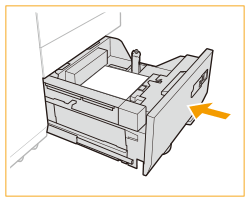
|
When closing the paper deck, be careful not to get your fingers caught, as this may result in personal injury. |
|
In the following situations, adjust the size change plates to match the paper size being loaded. Changing the Paper Size for the POD Deck-F When you load paper into the paper deck for the first time. When you load paper and the edges of the paper stack may become curled in the paper deck or there are gaps between the edge of paper and the size change plates, because the size of paper being loaded does not match the paper size that the size change plates currently set for. Do not give a strong shock to the rear edge retainer when loading paper into the paper deck, as this may result in a malfunction or damage to the machine. 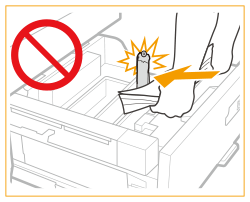 Do not give a strong shock to the paper deck when opening/closing the paper deck, as this may result in a malfunction, damage to the machine or the image misalignment. 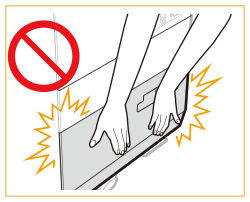 Do not load incompatible paper in the "POD Deck-F." Doing so may result in paper jams. Available Paper Paper which is curled must be straightened out before loading it into the paper deck unit. Never place paper or any other items in the empty part of the paper deck unit next to the paper stack, as this may result in a malfunction or damage to the machine. A paper blower is attached inside of the "POD Deck-F." Do not insert paper clips or other foreign objects into the blower port. You will not be able to make copies or print if you load paper that exceeds the loading limit mark (  ), or if the paper drawer is not completely pushed into the paper deck unit. ), or if the paper drawer is not completely pushed into the paper deck unit.Make sure that the height of the paper stack does not exceed the loading limit mark ( ).Always check that the paper deck unit is in place. If the first output sheet cannot be output onto the output tray smoothly, we recommend that you place a blank sheet of the same or larger size than the output paper on the output tray in advance. |
|
When loading paper into the paper deck, make sure that the paper size setting is the same size of the paper that is being loaded. Load the paper below the rollers of the rear edge retainer. 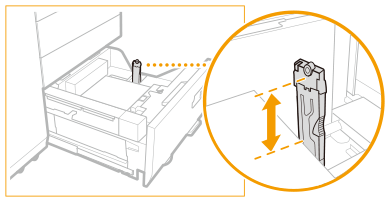 When loading paper, make sure that the height of the paper stack does not exceed 20 mm. If the height of the paper stack exceeds 20 mm, the edges of the paper stack may become curled or creased, and poor print quality may result. If there are instructions on the paper package about which side of the paper to load, follow those instructions. When paper is loaded in the paper deck unit, the side facing up is the one printed on. If problems occur when printing, try turning the paper stack over, and reload it. However, textured paper, paper coated on one side, and paper printed differently on the front and reverse sides cannot be turned over. Replace such paper with new paper. For more information on the print direction of preprinted paper (paper which has logos or patterns already printed on it), see Orientation of The Paper To Be Loaded. Rewrap any remaining paper in its original package, and store it in a dry place, away from direct sunlight. If paper runs out and printing is stopped, load a new paper stack. Printing restarts after the new paper stack is loaded. 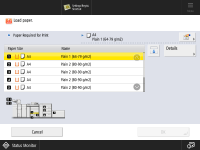 Make sure you loaded paper properly into the stack area when opening the paper deck. If the paper is loaded improperly or paper remains in the stack area, load the paper properly again. It may cause paper to be folded or paper jams to occur. |
Changing the Paper Size for the POD Deck-F
1
Press 
 <Preferences> <Paper Settings> <Paper Settings> and register the desired paper size.
<Preferences> <Paper Settings> <Paper Settings> and register the desired paper size.When loading standard size paper, the paper size is automatically detected.
If you want to load free size paper, see Specifying Paper Size and Type in the Paper Drawer, and register the paper size.
2
Open the paper deck.
1 | Press the open button. |
2 | Open the paper deck. The inside lifter automatically descends to the paper loading position. 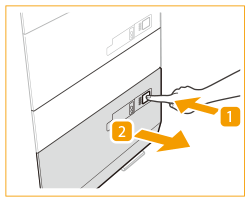 |
It may take some time for the paper deck to open, even if you press the open button.
3
Slide the rear edge retainer until it does not catch on the paper to set.
The rear edge retainer slides by holding as the diagram shows.
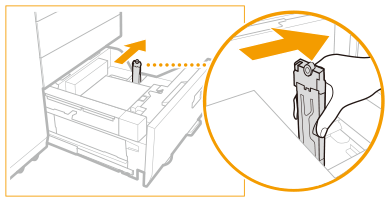
When tab paper is loaded
Remove the tab feeding attachment kit.
4
Remove all of the loading paper.
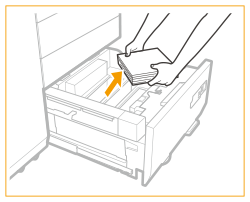
5
Move the size change plates to a position where they do not catch on the paper.
1 | Remove the size change plates lock. |
2 | Slide the size change plates to a position where they do not catch on the set paper. 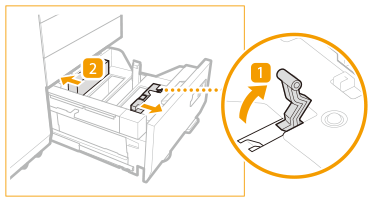 |
6
Adjust the position of the size change plates to align with paper.
1 | Set the paper of the target size to approximately 10 mm high. |
2 | Slide the size change plates (front) and size change plates (back) to match the paper size. 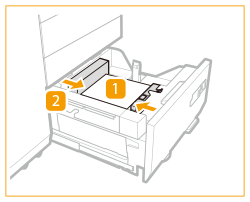 |
Set the paper flush against the left side wall of the paper deck.
When you load paper with a logo mark, pay attention to the loading orientation. Loading Preprinted Paper in POD Deck-F
When you load tab paper, load it in normal tab order with the tabs on the opposite side of the feeding direction.
7
Lock the lever of the size change plate and fix it.
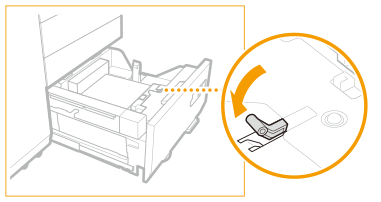
8
Squeeze the lever on the rear edge retainer as shown below. Without releasing the lever, slide the paper holder plate to align it with the desired paper size.
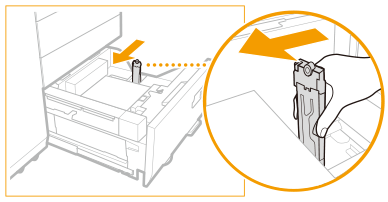
If the rear edge retainer detaches from the loaded paper, slide the rear edge retainer to align it with the desired paper size.
9
Load all the remaining paper of the size you want to change into the paper deck.
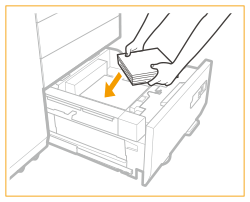
When loading tab paper
Set the tab feeding attachment kit according to the size of the loaded tab paper.
Be sure to check the markings and set the tab feeding attachment kit in the position that matches the paper size.
10
Gently push the paper deck back into the machine until it clicks into place in the closed position.
The inside lifter automatically ascends, and prepares the paper deck for printing.
11
Change the paper size on the media sheet and insert it into the media plate.
1 | Pull the media sheet out of the media plate. |
2 | Stick the paper size label to match the new paper size on the media sheet. |
3 | Insert the media sheet into the media plate. 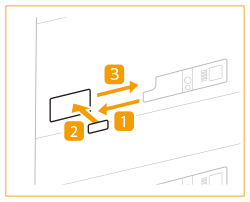 |
Loading Envelopes in POD Deck-F
Available Envelope Type and Loading Limit
The loading limit varies, depending on the type of envelope.
Envelope Type | Upper, Middle and Lower Decks Loading Limit (Height) | Loading Limit Mark |
Kakugata 2, 9" x 12", 10" x 13" | Upper/Middle: 50 mm Lower: 100 mm | - |
When the Envelope Feeder Attachment-J is attached | ||
Nagagata 3, Yougatanaga 3, 6" x 9", ISO-C5, Monarch, No.10 (COM10) | Upper/Middle: 50 mm Lower: 100 mm | |
|
Make sure that the height of the envelope stack does not exceed the loading limit mark. |
|
The custom paper sizes that you can specify for an envelope are as shown below: When the Envelope Feeder Attachment-J is not be attached: 139.7 mm x 182.0 mm to 330.2 mm x 487.7 mm When the Envelope Feeder Attachment-J is attached: 98.0 mm x 182.0 mm to 330.2 mm x 487.7 mm Make sure that the height difference on the top of the stacked envelopes is within 10 mm. If you are using custom size envelopes with a width of 162 mm or less, it is recommended to use the Envelope Feeder Attachment-J. |
1
Prepare for loading envelopes. Before Loading Envelopes
2
Load the envelopes.
Attaching the Envelope Feeder Attachment-J and loading envelopes 
1
Open the paper deck.
1 | Press the open button. |
2 | Open the paper deck. The inside lifter automatically descends to the paper loading position. |
Depending on the usage conditions, it may take time to be able to open the paper drawer after pressing the open button.
2
Fully open the size change plates.
1 | Unlock the size change plates. |
2 | Slide the size change plates to the fully opened positions. |
3
Lock the lever of the size change plate and fix it.
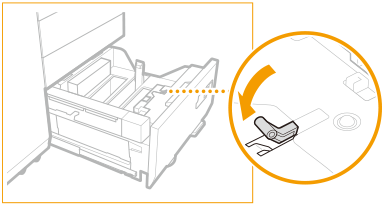
4
Slide the rear edge retainer outward to a position where it does not interfere with the installation operation.
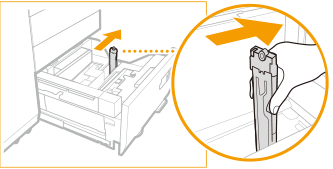
5
Attach the middle attachment (A) to the lifter.
With the marking A on the middle attachment (A) facing upward, insert its protrusion fully into the opening of the lifter. Then slide the middle attachment in the direction of the arrow and make sure that the lifter plate descends.
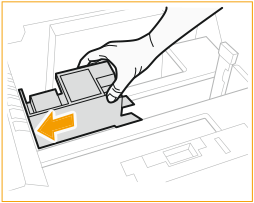
If the lifter plate does not descend, set the middle attachment to the correct location again.
If the paper drawer is closed without attaching the middle attachment, an error message is displayed. In this case, open the paper drawer again and attach the middle attachment.
6
Attach the outer attachment (B)
Hold the left edge of the sub-guide of the outer attachment (B) with your left hand. Place your right thumb in the opening at the center of the outer attachment (B) and support the bottom edge with your index and middle fingers. Align the ▽ mark on the paper drawer and the △ mark on the outer attachment (B) to attach it.
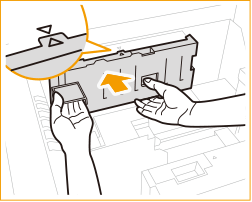
The sub-guide on the left end of the inner attachment (B) slides up and down. Move the sub-guide upward to attach it to the inner attachment (B).
7
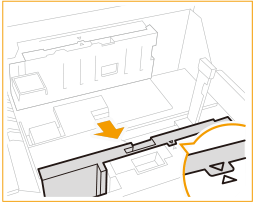
Attach the inner attachment (C).
Hold the side of the inner attachment (C) with your left hand. Place your right thumb in the opening at the center of the inner attachment (C) and support the bottom edge with your index and middle fingers. Align the △ mark on the paper drawer and the ▽ mark on the inner attachment (C) to attach it.
8
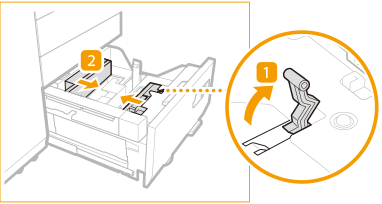
Open the size change plates a little wider than the width of the envelope that you want to load.
9
Align the envelopes.
See "Before Loading Envelopes" to prepare the envelopes you want to load.
10
Load a stack of envelopes about 10 mm high.
Load the envelopes on the middle attachment (A).
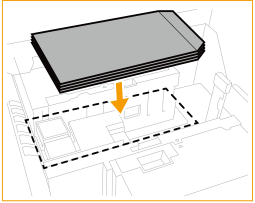
Do not load all of the envelopes at this point.
See "Envelope Feeding Direction " for the loading direction
Place the envelopes with the printed side facing up.
11
Adjust the size change plates with the width of the envelopes.
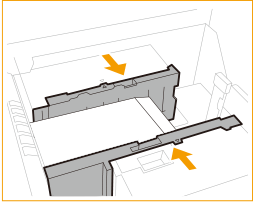
Due to curling of the envelopes, the size change plates may be set a little narrower than the actual width of the envelopes. This may cause misfeeding or paper jams. Make sure to adjust the size change plates correctly.
12
Lock the lock lever.
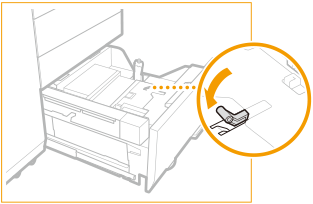
13
Adjust the rear edge retainer to the envelope size.
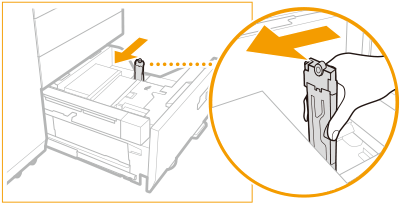
While holding the lock release lever, move the rear edge retainer to match the envelope size.
14
Load the remaining envelopes.
Make sure that the stack does not exceed the load limit mark ().
).Make sure that the height difference on the top of the stacked envelopes is within 10 mm.
15
Gently push the paper deck back into the machine until it clicks into place in the closed position.
Envelope Feeding Direction
When the Envelope Feeder Attachment-J is not used
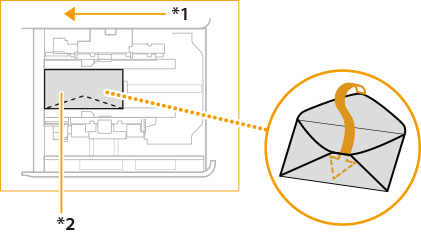
When you load envelopes into the "POD Deck-F," follow the illustration below.
If you are using Kakugata 2, 9" x 12", 10" x 13":
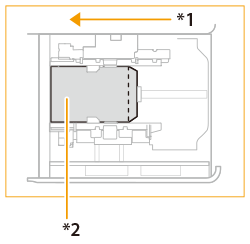
*1 Feeding Direction
*2 Print Side Up
| |||||||
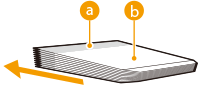
Make sure that the height of the top surface of the stacked envelopes meets the following conditions: The height difference between the highest portion and the lowest portion must be 10 mm or less. The height difference between the highest portion at the leading edge (  ) and the lowest portion in the other area ( ) and the lowest portion in the other area ( ) must be 8.5 mm or less. ) must be 8.5 mm or less.
* If multiple envelopes are fed or a paper jam occurs when using the loading method above, reduce the number of envelopes loaded. If the envelopes cannot be fed normally, if a paper jam occurs, or if the envelopes become creased, load the envelopes as shown below: Fold the flaps inside the envelopes before loading Fold the flaps and rotate the envelopes 180° before loading * When you fold the flaps inside the envelopes, change the custom size setting to match the actual envelope size.
When you print on envelopes with the flaps folded and rotated 180° before loading, also rotate the paper orientation in the print settings of the printer driver. For details, see the help of the printer driver. When copying on envelopes with the flaps folded and rotated 180° before loading, rotate the orientation of the original. When loading envelope into the "POD Deck-F," the side facing up is the one printed on. |

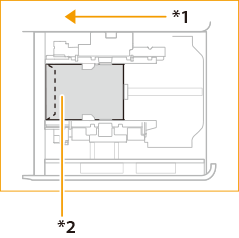
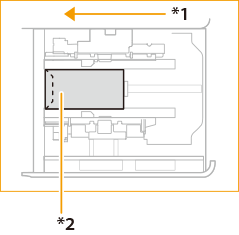
When the Envelope Feeder Attachment-J is used
Nagagata 3 | Yougatanaga 3, 6" x 9", ISO-C5, Monarch, No.10 (COM10) | |
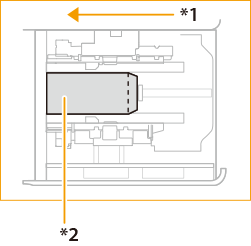 | 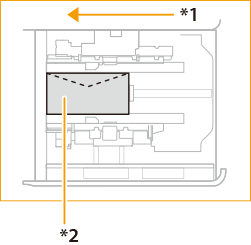 | |
*1 Feeding Direction *2 Print Side Up |
| ||||||||||||
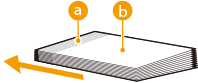
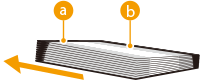
Make sure that the height of the top surface of the stacked envelopes meets the following conditions: The height difference between the highest portion and the lowest portion must be 10 mm or less. The height difference between the highest portion at the leading edge ( ) and the lowest portion in the other area () must be 8.5 mm or less.
* If multiple envelopes are fed or a paper jam occurs when using the loading method above, reduce the number of envelopes loaded. If the envelopes cannot be fed normally, if a paper jam occurs, or if the envelopes become creased, load the envelopes as shown below: For envelopes loaded with the flap at the tail edge relative to the feeding direction Fold the flaps inside the envelopes before loading Fold the flaps and rotate the envelopes 180° before loading * When you fold the flaps inside the envelopes, change the custom size setting to match the actual envelope size.
For envelopes loaded with the flap on the right-hand side relative to the feeding direction Fold the flaps into the envelopes and rotate the envelopes 180° before loading * When you fold the flaps inside the envelopes, change the custom size setting to match the actual envelope size. In addition to the standard height restriction on the top surface, make sure that the height difference between the highest portion on the left side ( ) relative to the feeding direction and the lowest portion on the right side () is 5 mm or less.
When you print on envelopes with the flaps folded and rotated 180° before loading, also rotate the paper orientation in the print settings of the printer driver. For details, see the help of the printer driver. When copying on envelopes with the flaps folded and rotated 180° before loading, rotate the orientation of the original. When loading envelope into the "POD Deck-F," the side facing up is the one printed on. |
Removing the optional Envelope Feeder Attachment-J
1
Open the paper deck.
1 | Press the open button. |
2 | Open the paper deck. The inside lifter automatically descends to the paper loading position. |
Depending on the usage conditions, it may take time to be able to open the paper drawer after pressing the open button.
2
Fully open the size change plates.
1 | Unlock the size change plates. |
2 | Slide the size change plates to the fully opened positions. |
3
Slide the size change plates to the fully opened positions.
4
Slide the rear edge retainer outward to a position where it does not interfere with the removal operation.
5
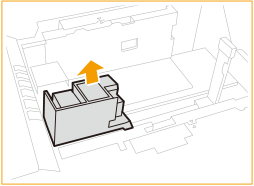
Remove the middle attachment (A).
6
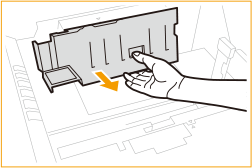
Remove the inner attachment (B).
Place your right thumb in the opening at the center and support the bottom edge with your index and middle fingers. Move the attachment in the direction of the arrow to remove it.Place your right thumb in the opening at the center and support the bottom edge with your index and middle fingers. Move the attachment in the direction of the arrow to remove it.
7
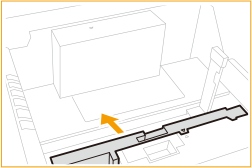
Remove the outer attachment (C).
Place your right thumb in the opening at the center and support the bottom edge with your index and middle fingers. Move the attachment in the direction of the arrow to remove it.
8
Gently push the paper deck back into the machine until it clicks into place in the closed position.
Loading Preprinted Paper in POD Deck-F
When you use paper preprinted with a logo, pay attention to the orientation of the paper when loading it. Load the paper properly so that printing is performed on the same side as the logo.
|
When performing a copy operation, pay attention to the orientation of the original to be placed. Placing Originals |
|
Set <Image Orientation Priority> and <Speed Priority for Copying from Feeder> to <Off> in advance. |
Loading portrait orientation paper with a logo

Load the paper with the logo face up as shown in the following figure according to the paper size.
A4 | A3 | |
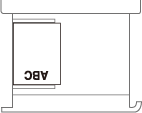 | 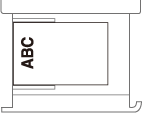 |
Loading landscape orientation paper with a logo

Load the paper with the logo face up as shown in the following figure according to the paper size.
A4 | A3 | |
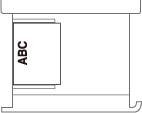 | 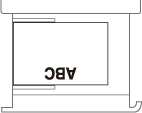 |