Executing an Inspection
This section describes the procedure for executing an inspection job.
1.
From the inspection job list on the main screen, select the inspection job you want to start
Refer to the following for details on how to display the main screen.
2.
Display the [Inspection] screen using any of the following methods
Click [Open [Inspection] Screen] from [Inspection] in the menu bar.
Click [Inspection] in the toolbar.
Right-click the selected inspection job and click [Open [Inspection] Screen].
3.
Enter the [Number of Copies to Inspect] and click [OK]
NOTE |
The paper size and output method show the content from when the inspection job was created. The settings cannot be changed. |
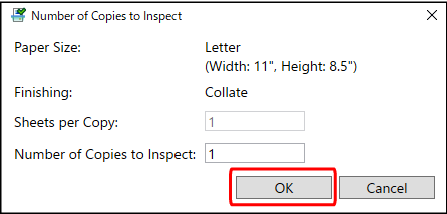
Click [OK] to display the [Inspection] screen.
4.
Click [Start Inspection]
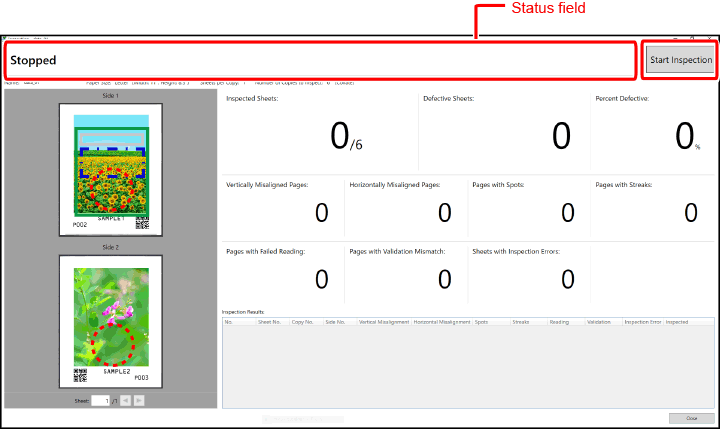
The status field changes to [Waiting to inspect].
To cancel the inspection, click [Stop Inspection].
The status field changes to [Stopped].
5.
After the status field changes to [Waiting to inspect], execute the print job to inspect from the controller
IMPORTANT |
Set the print job settings other than the number of copies to the same settings as when the master images were registered. Set the number of copies to the same as the number of copies you entered on the [Number of Copies to Inspect] screen in Step 3. If you execute the print job using different settings, the inspection might not complete successfully. |
The inspection starts and the status field changes to [Inspecting].
If the [Output Mode] setting is [Separate defective sheets] on the [Preferences] screen
If the High Capacity Stacker is mounted, output paper with problems in the inspection results is ejected to the top tray of the High Capacity Stacker.
If the [Output Mode] setting is [Do not separate defective sheets] in the [Preferences] screen
Output paper with problems in the inspection results is ejected to the same location as the output paper with no problems.
NOTE |
Refer to the following for details on [Output Mode]. |
6.
Check the status field display and proceed depending on each of the statuses and messages
If the status field changes to [Stopped]
Inspection has been completed.
The number of sheets inspected and the inspection results are displayed on the [Inspection] screen. Proceed to Step 7.
If the status field changes to [Waiting to inspect]
Printing stopped before scanning the number of copies of images as specified on the [Job Settings] screen for inspection has finished. (This state occurs if the number of printed copies is smaller.)
The number of sheets inspected and the inspection results are displayed on the [Inspection] screen. If there are no problems in the number of copies, click [Stop Inspection] to finish the inspection. Proceed to Step 7. If the number of copies specified on the controller side is not reached, there may be a problem such as a paper jam. Check the display on the printer and controller.
If the status field changes to [Warning]
Printing stopped for one of the following reasons.
There are multiple consecutive defective sheets. (The number of multiple consecutive defective sheets has reached the number specified in [Consecutive Defective Sheet Threshold] under [Temporarily stop inspection] set on the [Preferences] screen.)
Printing continued even after the number of copies entered on the [Number of Copies to Inspect] screen when the inspection started was reached.
Output paper that is printed after the Inspection Tool has decided to stop is output without inspection. The output destination differs depending on the [Output Mode] setting on the [Preferences] screen. Refer to the following for details on [Output Mode].
Resolution:
The printer has stopped with a paper jam. Stop the print job.
Refer to the following for the resolution when there are multiple consecutive defective sheets.
If printing continues for beyond the number of copies specified in the Inspection Tool, copy the inspection job where the problem occurred as needed and specify the number of copies in the Inspection Tool so that it matches the number of copies of the print job to be inspected and then perform additional inspection.
If the status field changes to [Error] and a message is displayed
Refer to the following for details on how to handle.
7.
Check the inspection results and take out the output pages ejected
Refer to the following for details of the content displayed on the [Inspection] screen and how to perform each operation.
8.
Click [End Inspection]
The [Inspection] screen closes.
To execute an inspection job again, you can create a new inspection job by reusing an already executed inspection job.