
Clearing Paper Jams
If a paper jam occurs, a message, the location of the paper jam, and the procedure for clearing it are displayed on the screen. If you do not know how to clear the paper jam from viewing the screen, see Paper Jam Locations to clear the paper jam. For information on cautions when clearing paper jams, see the "Important Safety Instructions" included with the machine and Optional Equipment.
|
Do not forcibly remove the jammed paper from the machine. Forcibly removing the paper may result in personal injury or damage parts of the machine. If you cannot remove the paper, contact your dealer or service representative. When all paper jams have been cleared, immediately remove your hands from the machine and optional equipment so that your clothing and hands do not get caught in the rollers. |
 |
Cautions when clearing paper jamsWhen clearing paper jams, do not turn the power OFF. Data being printed is erased when you turn the power OFF. Take particular care when a fax is being received. When the paper gets torn, be sure to remove it so that no pieces remain. Copies and prints may be output to optional equipment while you are clearing paper jams. Take care when handling optional equipment that is installed. |
If Paper Jams Frequently Occur 
If paper jams frequently occur even though there are no problems with the machine and its optional equipment, check the following.
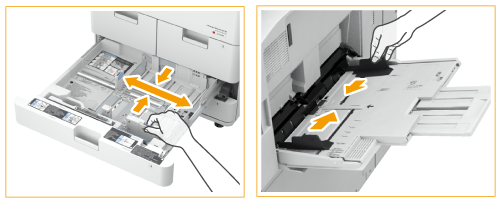
Are the paper guides misaligned?
Match the paper guides with the paper loaded in the paper source.
Do sheets of paper overlap when being fed?
If paper jams occur due to overlapping of sheets of paper when being fed, reload the paper by changing the orientation.
Is the paper type correct?
On the <Status Monitor> screen, check the paper type. <Status Monitor> Screen
If the paper loaded in a paper source differs from the paper type setting, see Loading Paper to set the paper type again.
If you use heavy paper or coated paper by loading it in the multi-purpose tray, paper jams may occur due to the grain direction. In this case, changing the paper orientation (portrait/landscape) may prevent paper jamming.
Do pieces of paper remain in the machine?
Pieces of paper may remain in the machine after removing a paper jam. Open the location where the paper was jammed, and remove any pieces of paper. (Do not forcibly remove the jammed paper from the machine. Forcibly removing the paper may result in personal injury or damage parts of the machine. If you cannot remove the paper, contact your dealer or service representative.)
Paper Jam Locations
If a paper jam occurs, the location of the jam and solutions are displayed on the touch panel display. Follow the on-screen instructions to solve the problem. For details on how to clear the paper jams, see the following sections.
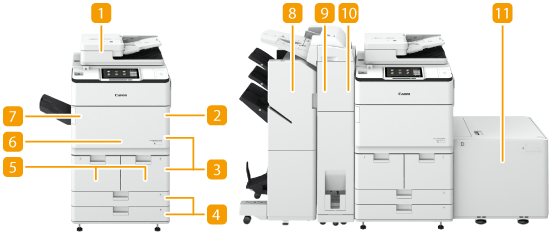
 Document Jams in the Feeder
 Paper Jams in the Multi-Purpose Tray
 Paper Jams inside the Right Covers of the Main Unit
 Paper Jams in the Paper Drawer
 Paper Jams in the Paper Deck
 Paper Jams in the Main Unit (Fixing Transport Unit)
 Paper Jams in the Copy Tray-R/Shift Tray-F
 Paper Jams in the Staple Finisher-AC/Booklet Finisher-AC
 Paper Jams in the Document Insertion / Folding Unit-J
 Paper Jams in the Document Insertion Unit-P
 Paper Jams in the POD Deck Lite-C/Paper Deck Unit-E
NOTE |
Paper may not actually be jammed in the location you check. Even in this case, follow the instructions on the screen to check all the locations. The screen indicating that there is a paper jam is repeatedly displayed until you clear the paper jam. If you press <Close> on the screen indicating that there is a paper jam, you may be able to continue to perform operations and specify settings without immediately removing the paper jam. Do not remove paper from a location other than that displayed as a paper jam location on the screen. This may cause paper jams in other locations or missing pages in output documents. |