
Starting the Remote UI
To start the Remote UI, enter the IP address of the machine in your Web browser. Check the IP address configured for the machine before performing this operation. Setting an IP Address
For security reasons, you cannot log in to the Remote UI using the default password (7654321) for the Administrator user. Log in to the Remote UI after changing the password of the Administrator user from the control panel.
 (Settings/Register)
  <Management Settings> <User Management> <Authentication Management> <Register/Edit Authentication User> change the password for "Administrator"
 |
Make sure that you do not forget your password. If you forget your password, contact your dealer or service representative. When both the machine and the Active Directory server are set as user authentication devices (Configuring the User Login Methods and Authentication Devices), the time setting of the Active Directory server needs to match that of the machine. |
 |
Using TLS encryption for communicationWhen you want to encrypt the Remote UI communication, configure the TLS key and certificate (Configuring the Key and Certificate for TLS), go to the <Remote UI Settings> setting (<Remote UI Settings>) and set <Use TLS> to <On>, then turn the machine OFF and back ON. Logging in to the Remote UI using the default password of the Administrator userYou can also set to allow logging in to the Remote UI using the default password of the Administrator user. ( (Settings/Register) <Management Settings> <Security Settings> <Authentication/Password Settings> <Password Settings> <Allow Use of Default Password for Remote Access> <On>) |
Starting the Remote UI
1
Start the Web browser.
2
Enter the IP address of the machine, and press the [ENTER] key on the computer keyboard.
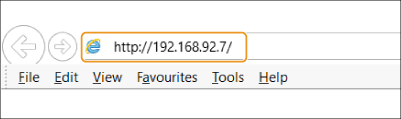
Enter "http://<IP address of the machine>/" in the address input field.
When using an IPv6 address, enclose the IP address portion in brackets ([ ]) (Example: http://[fe80:2e9e:fcff:fe4e:dbce]/).

If the Remote UI does not start
If the login screen is not displayed in step 3 of this procedure, clear the Web browser's cache and enter the IP address again.
If a message related to security is displayed
A warning message may be displayed if the Remote UI communication is encrypted. If there are no problems with the certificate or TLS settings, you can continue using the Web browser.
3
Log in to the Remote UI.
Enter a registered user name and password in [User Name] and [Password], select the login destination in [Login Destination], and click [Log In].
If [Log In (Guest)] is displayed, unregistered users can click this button and log in as general users.
With some user authentication settings, the Remote UI may skip the login screen and display the main screen (portal page) directly. Remote UI Screen
 If two-factor authentication is enabled
You must enter a one-time password to log in, in addition to the password set in "Registering User Information."
|
To obtain a one-time password, a mobile app (Microsoft Authenticator or Google Authenticator) must be installed to a mobile device such as a smartphone or tablet. The time of the mobile device must also match that of the machine. |
1 | Enter a registered user name and password in [User Name] and [Password], select the login destination in [Login Destination], and click [Log In]. If you have already registered an account to the mobile app, proceed to step 4. If two-factor authentication is disabled for a user account but the account is set to require the use of two-factor authentication in [Always Require Two-Factor Authentication:], two-factor authentication must be enabled with the mobile app. |
2 | Check the displayed message and press [OK]. |
3 | Start the mobile app and use it to scan the QR code displayed on the screen of the Remote UI. If you cannot scan the QR code, enter the key displayed in [Manual Entry Key:]. |
4 | On the [One-Time Password:] screen, enter the one-time password displayed in the mobile app. For subsequent logins, you can log in simply by entering the one-time password for the account registered in the mobile app. |
|
If you cannot log in to the Remote UI because the mobile device was lost or the account information registered to the mobile app was accidentally deleted, see "Enabling Two-Factor Authentication." |
4
Check that the Remote UI portal page is displayed. Remote UI Screen
|
When using the Remote UI to operate the machine, do not use the Web browser's [Back] button. The page may not change properly if you use the [Back] button. |
Setting the Timeout Time after Logging In to the Remote UI
The user is automatically logged out if no operations are performed for a certain period of time after logging in to the Remote UI. You can set the time until the user is logged out.
Start the Remote UI [Settings/Registration] [Network Settings] [Session Settings] [Timeout After Logging in to Remote UI] set the timeout time after login [OK]
[Settings/Registration] [Network Settings] [Session Settings] [Timeout After Logging in to Remote UI] set the timeout time after login [OK]Remote UI Screen
The portal page shown below is displayed when you log in to the Remote UI. This section describes the items displayed on the portal page and the basic operations.
|
Some display items and functions are only available if you log in with Administrator privileges. If multiple users are operating the Remote UI at the same time or the control panel of the machine is being operated at the same time as the Remote UI, the last operation that is performed is effective. |

 Device information
The current machine status is displayed, along with information about errors, consumables, etc.
 Display language
You can switch the language that is displayed on the Remote UI screen.
 [Log Out]
Log out from the Remote UI and return to the login page.
 [E-Mail to System Manager]
Create an e-mail message to send to the administrator. The administrator's e-mail address can be set in [Settings/Registration] [User Management] [System Manager/Contact Person Information Settings].
[User Management] [System Manager/Contact Person Information Settings]. [Status Monitor/Cancel]
You can check the status of jobs or cancel processing. You can also check detailed information about the amount of remaining toner and paper, etc. Checking the Status and Logs
 [Settings/Registration]
You can change the machine settings. You can save the setting details to a computer, or import them from a computer to the machine. Importing/Exporting the Setting Data
You can use either the control panel or the Remote UI to change most machine settings, but some settings can only be changed using one or the other.
 [Basic Tools]
You can perform operations such as printing documents or registering/editing destinations.
 [Management Tools]
You can perform management for items such as MEAP applications or user setting information (Deleting User Setting Information).
 [Portal Display Settings]
You can change the order in which the [Basic Tools] and [Management Tools] buttons are displayed on the portal page.
 Messages/support
Messages from the administrator are displayed, along with links to machine support information. Displaying Messages from the Administrator
|
To update the current page with the latest information, click  . . |