STM (Stacking Module)
A large quantity of printed media can be stacked in the STM. Printed media is collected in the stack tray inside the STM. When the tray is full, media removal notification occurs. When the eject button on the STM control panel is pressed, the stack tray is passed to the dolly and the printed media can be removed. If the stack tray becomes full during continuous operation, the print operation stops. If multiple STMs are connected, you can configure the press to switch the output destination to an STM which has space when the stack tray is full. It enables you to remove the printed media from the full STM while printing continues.
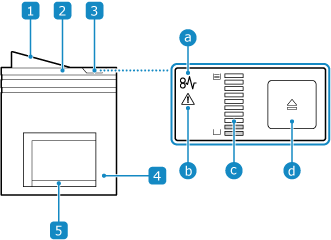
 Top tray
The printed media (prints and proof prints) are output here.
 Top cover
Open this cover when clearing a paper jam in the paper path.
 STM control panel
Enables you to check the amount of printed media stacked and output the printed media.
 Paper jam light
When a paper jam occurs, this light turns red. Follow the instructions on the main control panel to remove the paper jam.
 Warning light
When an error occurs, this light turns red. Perform the operations indicated below.
If the stack tray or dolly is not inserted, insert the stack tray and dolly into the stack area.
If the top cover is not closed, close the top cover.
If the stack tray is full, press the eject button and remove the printed media.
If media is in the top tray, remove the printed media in the top tray.
If the warning light turns on but none of the above problems have occurred, contact your service representative.
 Stack height indicator
Indicates the amount of space used in the stack tray.
 Eject button
When this button is pressed, the light flashes and the stack tray is passed to the dolly. Removing Printed Media from the STM
 Front door
Open this door when taking out the dolly or clearing a paper jam.
 Stack tray
The printed media is output here.