Color Validation Preparations
Flow of Color Validation Preparations
Follow the steps below to prepare to perform color validation.
Step 1. Configuring Cloud Proxy
Install Cloud Proxy, configure the initial settings, and register printers.
NOTE |
This step requires administrator privileges for your workstation (the computer using the PRISMA application) and PRISMA. |
1.
Install the latest version of Cloud Proxy to your workstation.
For details on the procedure, see "CloudProxy Installation."
2.
Configure the initial settings of Cloud Proxy, and register the printer for color validation to PRISMA Home.
For details on the procedure, see "Configure Cloud Proxy and add Devices."
Step 2. Starting to Use PRISMAcolor Manager
1.
Launch PRISMA Configuration.
If another application is running, click the  icon on the top left of the screen to return to the PRISMA Home screen, then launch PRISMA Configuration.
icon on the top left of the screen to return to the PRISMA Home screen, then launch PRISMA Configuration.2.
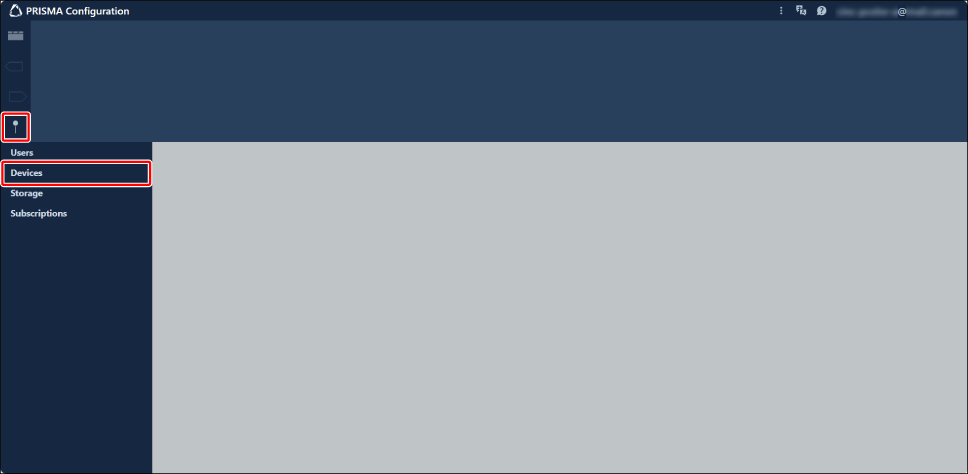
Click the hamburger menu > [Devices].
3.
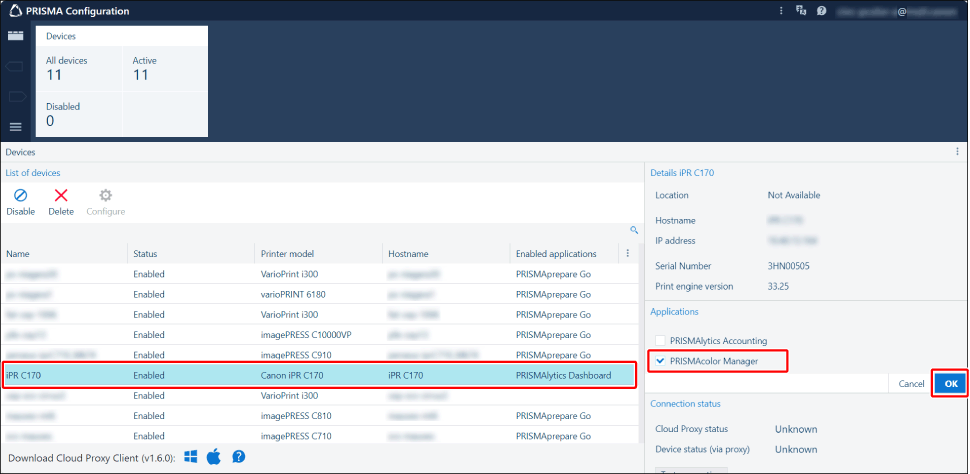
Select the printer for color validation, select the [PRISMAcolor Manager] check box in [Applications], then click [OK].
4.
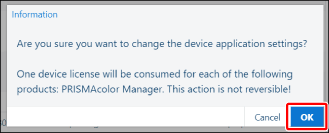
Click [OK] in the displayed dialog box.
Color measurement can now be performed in PRISMAcolor Manager for the selected printer.
5.
Click the icon on the top left of the screen to return to the PRISMA Home screen.
icon on the top left of the screen to return to the PRISMA Home screen.Step 3. Installing the Spectrophotometer Connection Application
Install the "PRISMA color measurement connector" application for connecting PRISMAcolor Manager to a spectrophotometer to your workstation.
1.
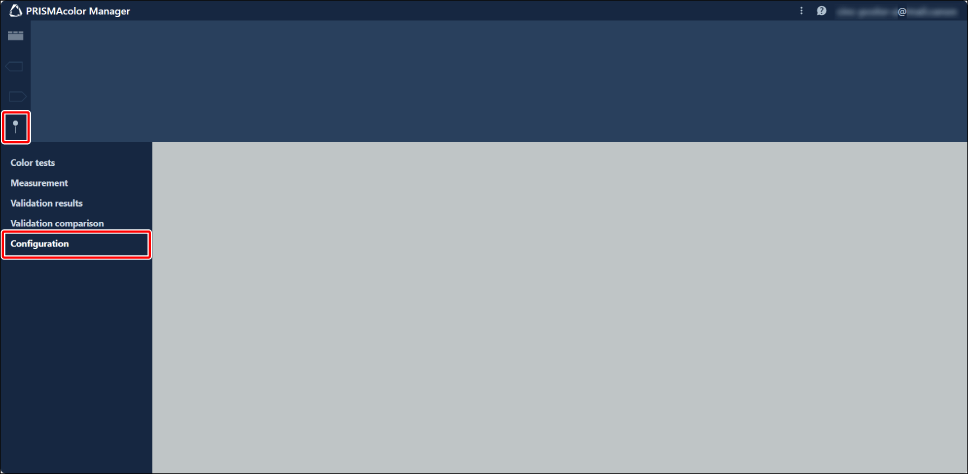
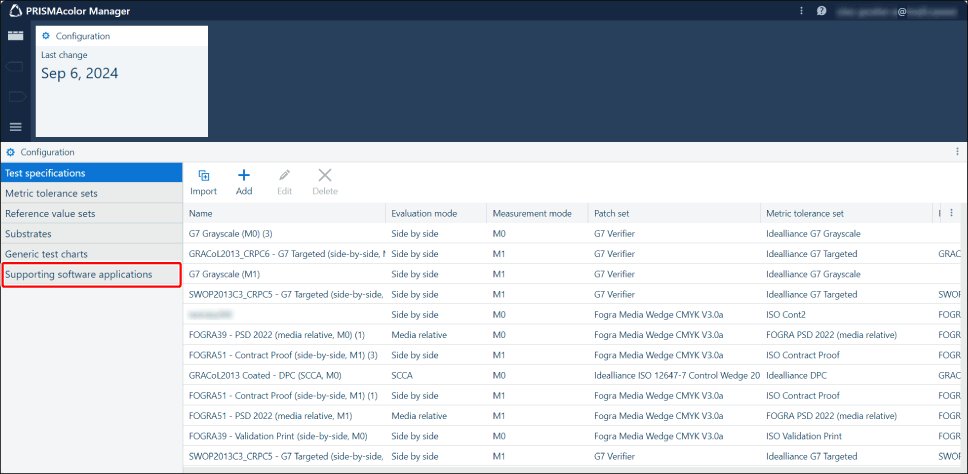
Launch PRISMAcolor Manager, then click the hamburger menu > [Configuration].
2.
Click [Supporting software applications].
3.
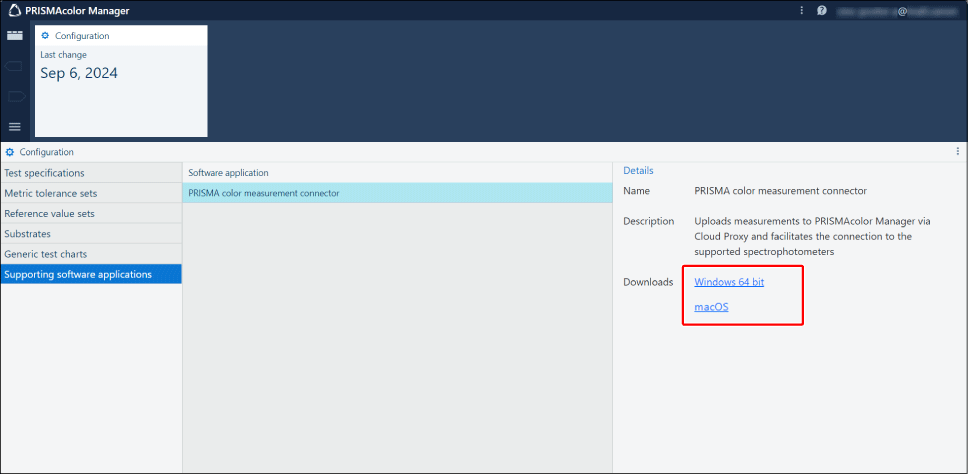
Click the corresponding operating system to download the installer and save it to the workstation.
4.
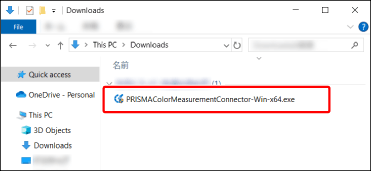
Launch the installer, and follow the instructions on the screen to install the application.
5.
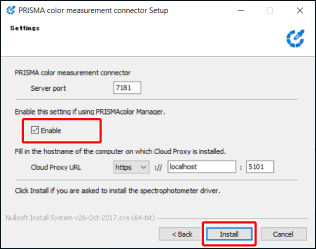
When this screen is displayed, select the [Enable] check box, then click [Install].
6.
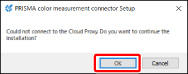
If this screen is displayed, click [OK] to proceed with the installation.
7.
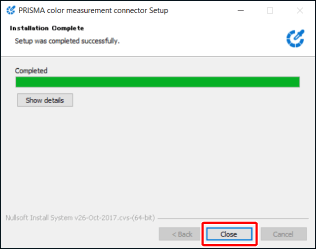
When the screen indicating that installation is complete is displayed, click [Close].
Step 4. Checking the Connection Status of the Cloud Proxy Server
1.
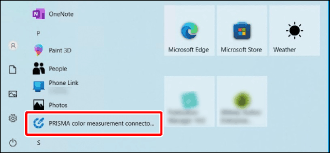
Launch [PRISMA color measurement connector Configuration Tool] from the Start menu of the workstation.
2.
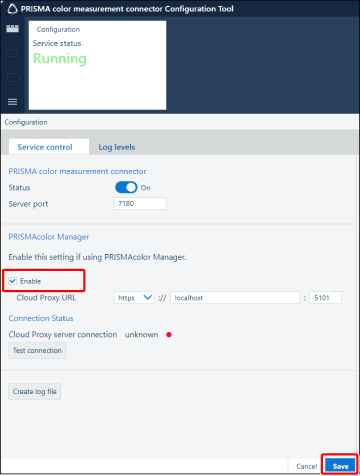
Check whether the [Enable] check box is selected.
If the [Enable] check box is not selected, select it, then click [Save] and proceed to the next step.
3.
Check the status displayed for [Cloud Proxy server connection].
If [active] (with a green circle) is displayed, color validation can start.
If [unknown] (with a red circle) is displayed, refer to the following to correct the problem with the connection status.
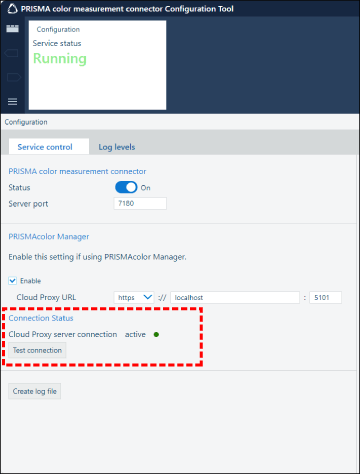 | 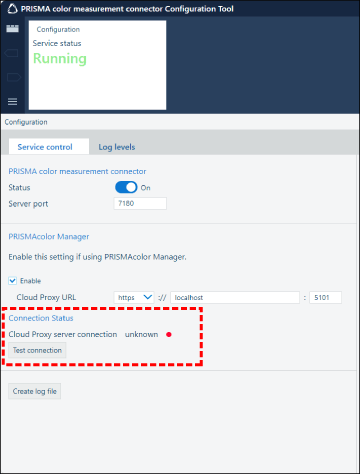 |
If [unknown] is Displayed for [Cloud Proxy server connection]
If [unknown] is Displayed for [Cloud Proxy server connection], there is a problem with the connection status. Follow the procedure below to correct the problem with the connection status.
1.
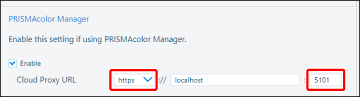
Correct the value in [Cloud Proxy URL].
[https]: Select [http] in the pull-down menu.
Server port number after [:]: Manually enter '5100'.
NOTE |
To connect to an instance of Cloud Proxy installed on another workstation, also edit the field to the right of [://]. Manually delete the default value of 'localhost', then enter the IP address of the destination workstation to connect to. |
2.
Click [Save].
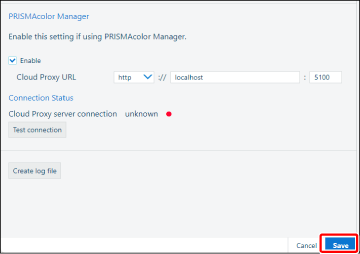
3.
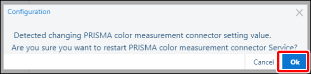
Click [OK] in the displayed dialog box.
4.
Wait a while, then check the status displayed in [Connection Status].
If [active] (with a green circle) is displayed, color validation can start.
NOTE |
If the status displayed in [Connection Status] does not change to [active] (with a green circle) after performing the above operations, contact your network administrator. |