
Configuring the Default Settings (Setup Guide)
When you turn ON the machine for the first time, the screen (Setup Guide) for setting the items required for using the machine is displayed. Configure the settings using the procedure below by following the instructions on the screen.
|
These settings can only be configured one time using the Setup Guide when starting the machine for the first time. To change the settings configured with the Setup Guide at a later time, set the items in Steps 1 to 5 individually. For the details of each setting, see the following. Setting the Date and Time Setting the ID and PIN for the Administrator Setting the Password to Use for Remote UI Calibrating the Gradation Setting Up the Network |
Step 1: Setting the Display Language and Country or Region
Set the language displayed on the control panel screen and reports to be printed. Next, set the country or region where the machine is used.
1
On the [Language] screen, select the display language.
2
Press [Yes].
The display language is set, and the [Select Country/Region] screen is displayed.
Depending on the country or region, the [Select Country/Region] screen is not displayed and the [Time Zone] screen is displayed. When the [Time Zone] screen is displayed, proceed to "Step 2: Setting the Date and Time." Step 2: Setting the Date and Time
Depending on the country or region, the [Select Country/Region] screen is not displayed and the [Time Zone] screen is displayed. When the [Time Zone] screen is displayed, proceed to "Step 2: Setting the Date and Time." Step 2: Setting the Date and Time
3
On the [Select Country/Region] screen, select the country or region.
The country or region is set, and the [Time Zone] screen is displayed.
Step 2: Setting the Date and Time
The date and time are used as the reference for the functions using date and time information, and therefore, they need to be set accurately.
1
On the [Time Zone] screen, select your time zone.
Set the time zone (UTC*1) and Daylight Saving Time according to the region where this machine is installed.
*1 The UTC (Coordinated Universal Time) is a coordinated universal time that is standard for all parts of the world. Internet-based communication relies on the UTC being set correctly.
*1 The UTC (Coordinated Universal Time) is a coordinated universal time that is standard for all parts of the world. Internet-based communication relies on the UTC being set correctly.
2
On the [Current Date/Time Settings] screen, enter the date and time, and press [Apply].
The time and date are set, and the Remote UI confirmation screen is displayed.
Step 3: Setting Remote UI
With Remote UI, you can use a Web browser on a computer to check the operation status of the machine, change the settings, and perform other operations.
Set the Administrator ID and Remote UI Password to prevent unauthorized access to the machine.
Set the Administrator ID and Remote UI Password to prevent unauthorized access to the machine.
1
On the Remote UI confirmation screen, press [Yes].
To use Administrator Mode to view and change important settings, set the Administrator ID. Administrator ID and PIN
To set the Administrator ID at a later time, press [No] and proceed to 2.
To set the Administrator ID at a later time, press [No] and proceed to 2.
 When Setting the Administrator ID
On the [Administrator Mode Settings] screen, press [Yes], and set the Administrator ID and PIN by following the instructions on the screen.
Set the Administrator ID and PIN by specifying any number. You cannot set an ID or PIN consisting of all zeros, such as "00" or "0000000."
Specify any number other than "7654321" for the Administrator PIN. You cannot set a PIN consisting of all zeros, such as "00" or "0000000."
2
On the [Configure General User Mode] screen, press [Yes].
Restrict the use of Remote UI to only those users who know the Remote UI Password.
3
Enter the Remote UI Password, and press [Apply].
Specify alphanumeric characters. You cannot set a password consisting of all zeros, such as "0000."
4
Enter the password again, and press [Apply].
After the message [Settings configured.] appears, the color correction confirmation screen is displayed.
Step 4: Correcting the Color
By correcting the color, you can improve the color reproducibility when copying.
It is recommended that you correct the color to ensure better copy results.
It is recommended that you correct the color to ensure better copy results.
Required Preparations |
Load the following paper in the paper drawer: Loading Paper in the Paper Drawer Paper size: A4 or letter Paper type: Plain 1 to Plain 3, Recycled 1 or Recycled 2, or Thin |
1
On the color correction confirmation screen, press [Yes].
If you pressed [No], proceed to "Step 5: Connecting the Machine to a Network or Computer." Step 5: Connecting the Machine to a Network or Computer
2
Check that paper is loaded in the paper drawer, and then press [OK].
3
Check the operating procedure, and press [Start].
The calibration image (image used for calibration) is printed.
4
Place the paper with the calibration image printed on the platen glass.
1 | Open the feeder. |
2 | Place the paper on the platen glass in the landscape orientation while aligning the corner of the paper with the top left corner of the platen glass. 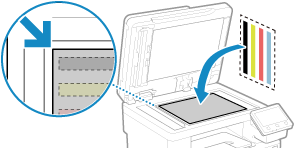 Place the print side of the calibration image face down with the black band at the back of the machine. |
3 | Gently close the feeder. |
5
Press [Start Scanning].
The color is corrected.
When color correction is completed, the message [Finished.] appears, and the [Select Connection Method] screen is displayed.
When color correction is completed, the message [Finished.] appears, and the [Select Connection Method] screen is displayed.
6
Remove the paper with the printed calibration image from the platen glass.
Step 5: Connecting the Machine to a Network or Computer
1
Select the connection method on the [Select Connection Method] screen.
To configure this setting at a later time, press [Do Not Connect Now].
The Setup Guide closes and the [Home] screen is displayed. [Home] Screen
The Setup Guide closes and the [Home] screen is displayed. [Home] Screen
Set up the network or configure the initial settings from Remote UI, as needed.
Setting Up the Network
Configuring the Initial Settings for Remote UI, Fax, and Scan
Setting Up the Network
Configuring the Initial Settings for Remote UI, Fax, and Scan
2
Configure the settings by following the instructions on the screen.
After the settings are complete, the [Home] screen is displayed. [Home] Screen
Step 6: Configuring the Initial Settings Using Remote UI
1
Configure the initial settings using Remote UI. Configuring the Initial Settings for Remote UI, Fax, and Scan