Paper Jams Inside the Main Unit
Remove the paper jammed inside the main unit. Follow the instructions on the control panel to check the location of the paper jam and remove the jammed paper.
If the paper tears, be sure to remove all parts so that no pieces remain.
If you cannot remove the paper, do not try to remove it forcibly. Check the control panel and remove the jammed paper at another location.
If the paper tears, be sure to remove all parts so that no pieces remain.
If you cannot remove the paper, do not try to remove it forcibly. Check the control panel and remove the jammed paper at another location.
The operating procedure is different when you are using Long Sheet paper.
* If the optional inner finisher is installed, see the following:
IMPORTANT
When Opening the Right Cover of the Main Unit
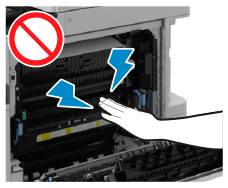
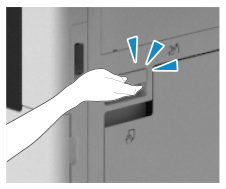
Touching the inside of the main unit with an electrostatic charge on your hands may damage the components. Before performing work such as replacing parts or removing paper jams inside the main unit, grip the handle securely and open the right cover of the main unit. A metal plate located behind the handle discharges any static electricity.
If you interrupt work such as replacing parts or removing paper jams inside the main unit, close the right cover of the main unit. When resuming work, grip the handle securely and open the right cover of the main unit. This ensures that any static electricity on your hands is discharged.

If Paper Other Than Long Sheet Paper Is Jammed
Required Preparations
If the optional paper deck unit is installed, press the release lever and pull the paper deck unit away from the main unit.
Close the cover and paper drawer if they are open.
1
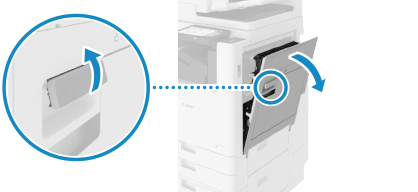
Pull the lever and open the right cover of the main unit.
2
If paper is jammed inside the reversing unit, gently pull it out in the direction of the arrow.
3
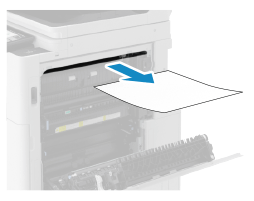
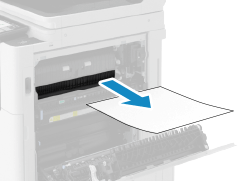
If paper is jammed in the output area, gently pull it out in the direction of the arrow.
4
Check whether paper is jammed inside the fixing assembly.
1
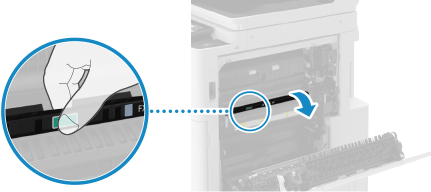
Open the top cover of the fixing assembly.
2
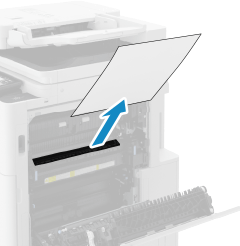
If paper is jammed, gently pull it out in the direction of the arrow.
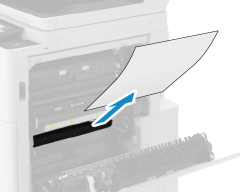
If Paper Cannot Be Removed
Gently pull out the paper from the bottom.
3
Close the top cover of the fixing assembly.
5
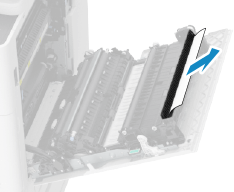
If paper is jammed in the output area inside the right cover of the main unit, gently pull it out in the direction of the arrow.
6
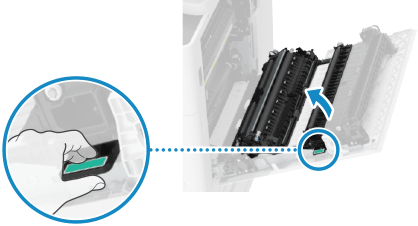
Check whether paper is jammed inside the duplex unit.
1
Raise the green lever and open the duplex unit.
2
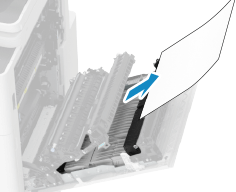
If paper is jammed, gently pull it out in the direction of the arrow.
3
Close the duplex unit.
4
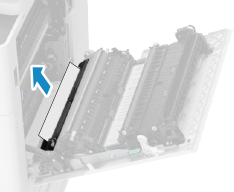
If paper is jammed at the bottom of the duplex unit, gently pull it out in the direction of the arrow.
7
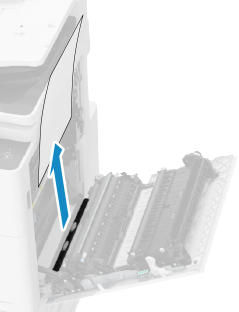
If paper is jammed in the vicinity of paper drawer 1, gently pull it out in the direction of the arrow.
8
Gently close the right cover of the main unit until you hear a click.
When the paper jam is cleared, the screen indicating a paper jam disappears, and printing resumes automatically.
If a screen indicating a paper jam at a different location appears, continue following the instructions on the screen to remove the jammed paper.
If a screen indicating a paper jam at a different location appears, continue following the instructions on the screen to remove the jammed paper.
If Long Sheet Paper Is Jammed 
 [Asia/Oceania][Americas]
1
Remove any paper loaded in the multi-purpose tray.
2
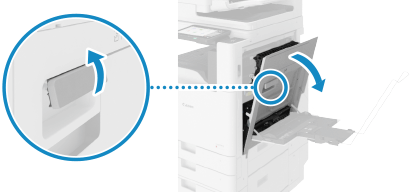
Pull the lever and open the right cover of the main unit.
3
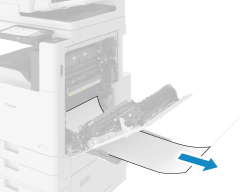
If paper is jammed in the multi-purpose tray, gently pull it out in the direction of the arrow.
4
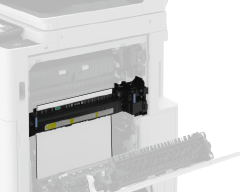
Check whether paper is jammed in the fixing assembly.
If You Cannot Grasp the Top Edge of the Paper
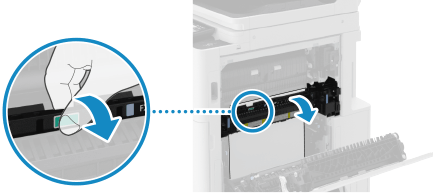
1
Hold the green lever and open the fixing assembly.
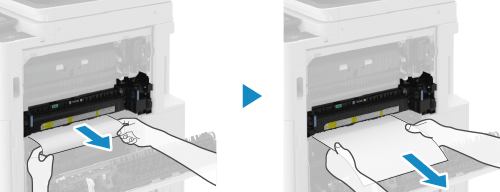
2
Gently pull out the paper in the direction of the arrow until the bottom edge of the paper comes out.
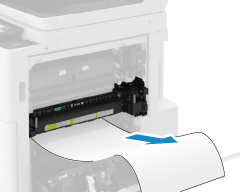
3
Gently pull out the remaining paper in the direction of the arrow.
4
Close the fixing assembly.
If You Can Grasp the Top Edge of the Paper
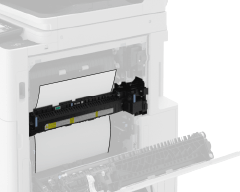
1
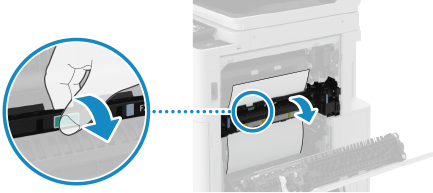
Hold the green lever and open the fixing assembly.
2
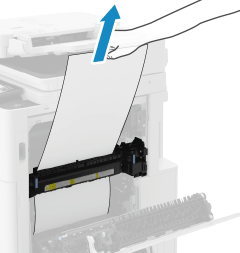
Gently pull out the paper in the direction of the arrow.
3
Close the fixing assembly.
5
Check whether paper is jammed in the output unit.
If Paper Is Partially Jammed in the Output Unit
1
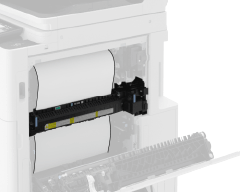
Hold the green lever and open the fixing assembly.
2
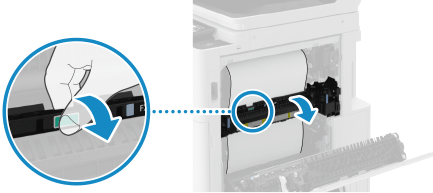
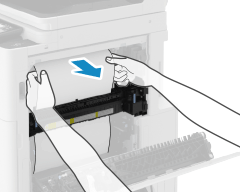
If the edge of the paper has entered at the top, pull the paper out slowly in the direction of the arrow until the edge comes out.
3
Gently pull out the remaining paper in the direction of the arrow.
4
Close the fixing assembly.
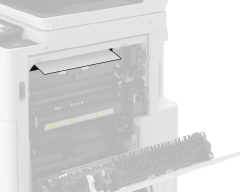
If Only the Edge of the Paper Is Coming out of the Output Unit
1
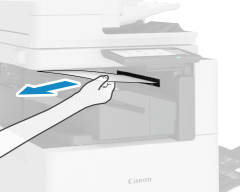
Gently pull out the paper from the output tray side in the direction of the arrow.
6
Gently close the right cover of the main unit until you hear a click.
When the paper jam is cleared, the screen indicating a paper jam disappears, and printing resumes automatically. If a screen indicating a paper jam at a different location appears, continue following the instructions on the screen to remove the jammed paper.
NOTE
If Paper Jams Occur Repeatedly
Check the status of the machine and paper. Paper Jams That Occur Repeatedly