Loading Paper in Multi-drawer Paper Deck-E (Option)
For the size of paper that can be loaded in Multi-drawer Paper Deck-E, see the following. Loading paper of a different size (other than the usable size) may result in a malfunction.
Usable Paper
Usable Paper
When loading envelopes, pay attention to the orientation and which side is face up. Orientation for Loading Envelopes (Multi-drawer Paper Deck-E) (Option)
When using paper with a logo, be careful of the orientation of the loaded paper and which side is face up. Orientation for Loading Paper with a Logo
When using paper with a logo, be careful of the orientation of the loaded paper and which side is face up. Orientation for Loading Paper with a Logo
Loading Paper in Multi-drawer Paper Deck-E

The lifter inside the paper decks rises and descends automatically. When loading paper, be careful not to get your fingers caught, as this may result in personal injury.
IMPORTANT
If paper runs out and printing is stopped when you are printing with the staple setting, do not remove the output sheets that are waiting to be stapled. (Printing and stapling resume after you clear the paper jam.)
If you need to lift up the lifter (for example, if you drop objects inside the paper deck), do not lift up the lifter more than 50 mm (2") or diagonally, as this may result in a malfunction or damage to the machine.
Do not lift up the lifter inside the paper decks while the main power is ON, as this may result in a malfunction or damage to the machine. If you need to lift up the lifter, for example, if you drop objects, turn OFF the main power with the paper decks open. Turning OFF the Machine

A paper separation fan is attached inside of Multi-drawer Paper Deck-E. Do not insert paper clips or other foreign objects into the blower port.
NOTE
When changing the paper to load into Multi-drawer Paper Deck-E from plain paper to coated paper, you may wait a moment because temperature control of the warm air which fans a paper is required.
1
Pull the paper deck toward you until it stops.
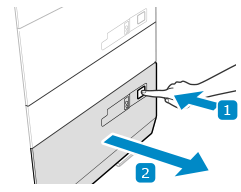
The internal lifter lowers automatically to the paper refill position.
Depending on the use conditions, it may take some time for the paper deck to open after pressing the button.
2
Fan the paper and align the edges.
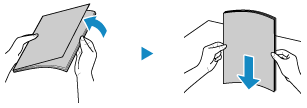
Fan the four edges of the paper in small batches, and align the edges by tapping the paper on a flat surface a few times.
3
Load the paper with the print side face up.
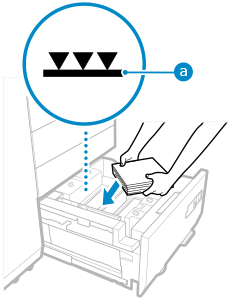
Load the paper with the edge of the paper against the left side of the paper deck.
Make sure the loaded paper does not exceed the load limit line ( ). If it exceeds the load limit line, there may be misfeeds or a paper jam.
). If it exceeds the load limit line, there may be misfeeds or a paper jam.When loading paper, make sure that the height of the paper stack does not exceed 20 mm (3/4"). If the height of the paper stack exceeds 20 mm (3/4"), the edges of the paper stack may become curled or creased, and poor print quality may result.
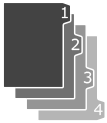
When Loading Tab Paper
Load it in right tab order with the tabs on the opposite side of the feeding direction.
4
Push the paper deck all the way into the machine.
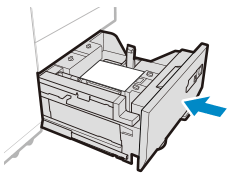
The internal lifter rises automatically.
When closing the paper deck, be careful not to get your fingers caught, as this may result in personal injury.
IMPORTANT
In the cases described below, position the side guide plates according to the paper to be used. Changing the Paper Size for Multi-drawer Paper Deck-E
When loading paper in the paper deck for the first time
When the size of the loaded paper is different from the position of the side guide plates, and the paper is bent or has a gap at the edges
Do not give a strong shock to the rear edge retainer when loading paper into the paper deck, as this may result in a malfunction or damage to the machine.
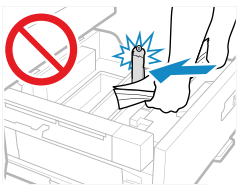
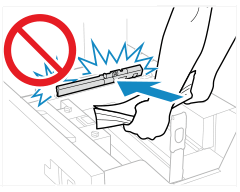
Do not give a strong shock to the feeding roller when loading paper into the paper deck, as this may result in a malfunction or damage to the machine.
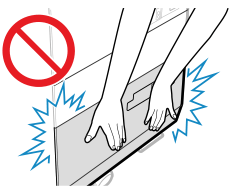
Do not give a strong shock to the paper deck when opening or closing the paper deck, as this may result in a malfunction, damage to the machine or the image misalignment.
Never place paper or any other items in the empty part of the paper deck unit next to the paper stack, as this may result in a malfunction or damage to the machine.
Do not load anything other than paper in the area where you load the paper. This can result in a malfunction.
NOTE
When loading paper into the paper deck, make sure that the paper size setting is the same size of the paper that is being loaded.
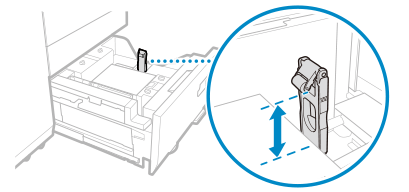
Load the paper below the rollers of the rear edge retainer.
If there are instructions on the paper package about which side of the paper to load, follow those instructions.
If a problem occurs during printing, you may be able to solve it by turning the paper over and reloading it. However, textured paper, paper coated on one side, and paper printed differently on the front and reverse sides cannot be turned over. Replace such paper with new paper.
If the feeding rollers are lowered, close the paper deck once, and then open the paper deck again.
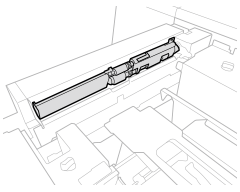
Make sure you loaded paper properly into the stack area. If the paper is loaded improperly or paper remains in the stack area, it may cause paper to be folded or paper jams to occur.
Changing the Paper Size for Multi-drawer Paper Deck-E
1
Register the desired paper size. Setting the Paper Size and Type for the Paper Deck and Paper Drawer
The paper size is detected automatically.
* If the detected paper size does not match the loaded paper, the paper may not be loaded correctly. Reload the paper.
2
Pull the paper deck toward you until it stops.
The internal lifter lowers automatically to the paper refill position.
Depending on the use conditions, it may take some time for the paper deck to open after pressing the button.
3
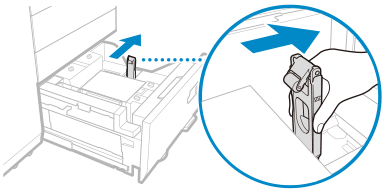
Hold the lever and slide the rear edge retainer until it does not catch on the paper to load.
4
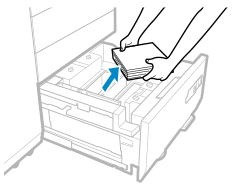
Remove all of the loaded paper.
5
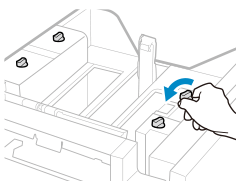
Loose the lock tabs (4 places) on the side guide plates.
6
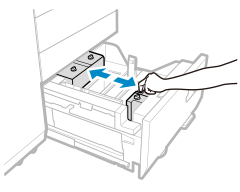
Hold the lever and slide the outer side guide plate and inner side guide plate until it does not catch on the paper to set.
7
Load the paper of the desired size with the print side face up.
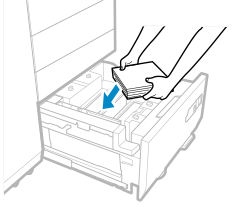
Before loading the paper, close the paper deck once and raise the inside lifter to the intermediate position. If you perform paper alignment when the inside lifter is lowered too much and the paper does not make contact with the paper guides, the side guide plates will narrow, causing a paper jam and preventing paper feeding.
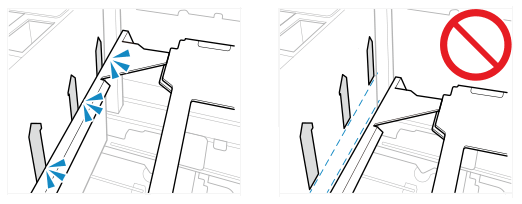
Load the paper stack to approximately 10 mm (3/8") in height.
Load the paper stack with the edge of the paper stack against the left side of the paper deck.
When Loading Tab Paper
Load it in right tab order with the tabs on the opposite side of the feeding direction.
8
Hold the lever and slide the outer side guide plate and inner side guide plate to align them with the desired paper size.
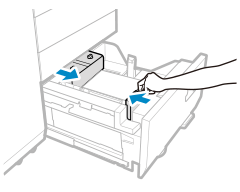
9
Tighten the lock tabs (4 places) on the side guide plates.
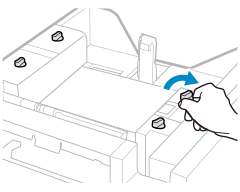
10
Hold the lever and slide the rear edge retainer to align it with the size indicator of the loaded paper.
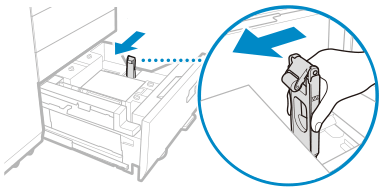
11
Load all remaining paper with the print side face up.
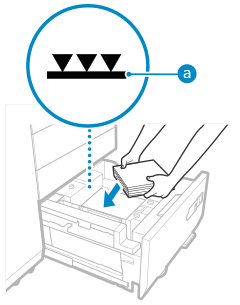
Make sure the loaded paper does not exceed the load limit line (). If it exceeds the load limit line, there may be misfeeds or a paper jam.
). If it exceeds the load limit line, there may be misfeeds or a paper jam.12
Push the paper deck all the way into the machine until it clicks into place.
The internal lifter rises automatically.
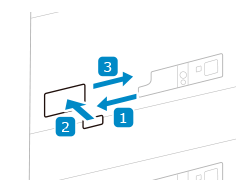
13
Change the paper size on the media sheet and insert it into the media plate.
1
Pull the media sheet out of the media plate.
2
Stick the paper size label to match the new paper size on the media sheet.
3
Insert the media sheet into the media plate.
IMPORTANT
Do not give a strong shock to the rear edge retainer when loading paper into the paper deck, as this may result in a malfunction or damage to the machine.
Do not give a strong shock to the feeding roller when loading paper into the paper deck, as this may result in a malfunction or damage to the machine.
Do not give a strong shock to the paper deck when opening or closing the paper deck, as this may result in a malfunction, damage to the machine or the image misalignment.
Never place paper or any other items in the empty part of the paper deck unit next to the paper stack, as this may result in a malfunction or damage to the machine.
Do not load anything other than paper in the area where you load the paper. This can result in a malfunction.
A paper separation fan is attached inside of Multi-drawer Paper Deck-E. Do not insert paper clips or other foreign objects into the blower port.
NOTE
If there are instructions on the paper package about which side of the paper to load, follow those instructions.
If a problem occurs during printing, you may be able to solve it by turning the paper over and reloading it. However, textured paper, paper coated on one side, and paper printed differently on the front and reverse sides cannot be turned over. Replace such paper with new paper.
If the feeding rollers are lowered, close the paper deck once, and then open the paper deck again.