[Details/Edit] Screen
The [Details/Edit] screen is displayed when you press [ Settings/Registration]
  [Preferences] [Paper Settings] [Paper Type Management Settings], select the paper type, and press [Details/Edit].
You can check and change the paper type information on this screen.
Settings/Registration] [Preferences] [Paper Settings] [Paper Type Management Settings], select the paper type, and press [Details/Edit]. You can check and change the paper type information on this screen.
* You cannot change the paper type information registered by default.
* You can also check and change the paper type information on the same screen displayed in Remote UI. Managing the Machine from a Computer (Remote UI)
* You can also check and change the paper type information on the same screen displayed in Remote UI. Managing the Machine from a Computer (Remote UI)
Administrator or DeviceAdmin privileges are required.
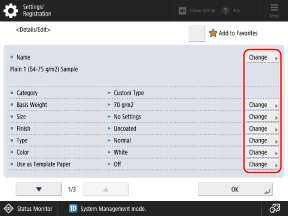
You can press [Change] for each item to change the paper type information.
IMPORTANT
If the following information differs from the information of the paper to be actually used, a paper jam or print problem may be caused.
[Basis Weight]
[Finish]
[Type]
[Color]
[Name]
You can change the name of the paper type.
[Basis Weight]
You can change the paper weight.
[Finish]
You can change the surface quality of the paper (such as fine paper and recycled paper).
[Type]
You can change the characteristics of the paper (such as tab paper and envelops).
[Color]
You can change the paper color.
[Use as Template Paper]
Set this to [On] when you use paper with a logo or other graphic design.
* The loaded paper with this setting set to [On] will not be selected automatically in the following cases:
When the settings are configured so that the paper type to be used is selected automatically for printing
When [Paper Source Auto Selection] is set to [On], and [Consider Paper Type] is set to [Off], for copying [Paper Source Auto Selection]
* When loading paper with this setting set to On, pay attention to the orientation and which side is face up. Orientation for Loading Paper with a Logo
[2nd Side of 2-Sided Page]
Set this to [On] when you register paper with the back side already printed.
[Paper Fiber Direction Settings] (8100 Series Only)
If the output paper is curled, or if paper jams occur frequently after the paper passes through the fixing units under conditions where the temperature and humidity are high, set this to [On].
Select [Perpendicular] when using paper with a fiber direction that is perpendicular to the feeding direction.
Select [Parallel] when using paper with a fiber direction that is parallel to the feeding direction.
* If you set the fiber direction incorrectly, paper jams may occur, and the quality of the image may be adversely affected.
[Adjust Image Position]
You can adjust the print position when the printed images are shifted. Adjusting the Print Position
[Adjust Creep Correction]
You can adjust the amount of creep (shift) correction for each sheet of paper so that the inner pages do not creep out when the layered paper is folded in half.
When you make a saddle stitched booklet using custom paper with [Adjust Creep (Displacement) Correction] performed automatically, the correction is performed according to the correction amount set for this setting.
When you make a saddle stitched booklet using custom paper with [Adjust Creep (Displacement) Correction] performed automatically, the correction is performed according to the correction amount set for this setting.
* For details about [Adjust Creep (Displacement) Correction], see the following:
[Adjust Paper Separation Fan Level] (8100 Series Only)
You can change the air volume of the paper separation fan according to the symptoms of problems that occur. For details on the adjustment method, contact your dealer or service representative.
* You can configure the setting when the optional POD Deck Lite or Multi-drawer Paper Deck is installed to the machine.
[-5] to [-1]: When high-density images are not printed evenly or a large amount of curling occurs on the printed paper
[0]: When normal
[1] to [5]: When paper jams occur frequently or when the machine is used in a hot and humid environment
[Adjust Fan for Paper Conveyance] (8100 Series Only)
If a paper jam often occurs or the output paper is creased and it has a wave like appearance, increase the fan level for paper conveyance before fixation.
Adjust the fan when the paper which length of the parallel edge to the feeding direction is shorter than 200 mm (7 7/8") is jammed in the paper conveyance before fixation repeatedly.
Set to [1] when a plain paper or a thin paper is used.
Set to [-1] when temperature and humidity is high and heavy paper is used.
[Adjust Paper Curve] (8100 Series Only)
The paper curve is a deflection which occurs in paper when adjusting the image position.
If the printed image is skewed, the output paper is creased, or the lead edge/tail end of the paper is curled, Adjust the setting value of the paper curve.
If the printed image is skewed, the output paper is creased, or the lead edge/tail end of the paper is curled, Adjust the setting value of the paper curve.
You can press [±] to switch the entered value between positive and negative.
To improve image skew, increase the setting value.
To improve paper wrinkling, loop formation marks, or curling on the lead edge/tail end of the paper, decrease the setting value.
[Adjust Paper Realignment Speed] (For 6100 Series)
Adjust the paper realignment speed if more roughness occurs in the image compared to when printed on regular paper. For details on the adjustment method, contact your dealer or service representative.
Press [-] if roughness occurs in the printed image.
[Adjust Gloss] (For 6100 Series)
Adjust the glossiness of the printed image when using plain paper, coated paper, or other paper.
Press [-] to decrease the glossiness, or press [+] to increase the glossiness.
Adjust the value gradually to avoid problems that may occur when you change the adjustment value significantly.
Depending on the paper, setting a [-] value may cause a fixing or printing error, and setting a [+] value may cause a paper jam.
[Adjust Gloss/Fine Black] (8100 Series Only)
Adjust the glossiness of the plain or coated paper by adjusting the temperature of the fixing assembly. You can also improve the fine black setting for the plain paper when tiny white grainy dots appear on the black printed areas and when the paper fiber direction partly shows on the printed surface.
Press [+] to increase the gloss, and press [-] to decrease the gloss for the coated paper.
Press [+] to improve the fine black for the plain paper.
Values of the [Gloss] and [Fine Black] are directly related to each other.
You cannot adjust the [Fine Black] setting for the transparency, coated, and vellum paper.
Result of the adjustment may turn out to be the opposite of what you wish because of paper characteristics. Make sure to check the output result while adjusting the value.
Depending on the paper, if the value in this mode is increased, a paper jam may occur. If the value is decreased, fixing or printing errors may occur.
Adjust the value gradually to avoid problems that may occur when you change the adjustment value significantly.
[Adjust Lead/Tail Margins]
You can adjust the length of the margins at the leading edge and trailing edge according to the feed direction. Printing errors such as uneven glossiness, as well as corner folding and misfeeds, may occur when the margins are small. In such cases, increase the margin length.
[Adjust Temp. to Prevent Wrinkles] (8100 Series Only)
Change the wrinkle correction level if wrinkles appear or the paper seems thin and worn.
You can press [±] to switch the entered value between positive and negative.
Changing this setting significantly may have an effect on the paper curl.
[Adjust Primary Transfer Voltage] (8100 Series Only)
Adjust if uneven density occurs in the print area.
You can press [±] to switch the entered value between positive and negative.
[Adjust Secondary Transfer Voltage]
If the overall printed image is lighter in color or distorted compared to when printed on regular paper, you can adjust the secondary transfer voltage (voltage when the image is transferred onto the paper). Adjusting the Transfer Condition of the Printed Image
[Adj. Lead Edge Sec. Transfer Volt.]
If the printed image is lighter in color or distorted only in the leading edge area of the paper according to the feed direction compared to when printed on regular paper, you can adjust the lead edge secondary transfer voltage (voltage when the image is transferred onto the paper).
When you set [Adjustment Level] to a [+] value, the effect on the print problem will be increased. If the set value is too large, white spots may occur in high density areas.
When you set [Adjustment Range] to a [+] value, the adjusted distance from the leading edge of the paper becomes longer (by 1 mm for every "+1").
Making this adjustment may affect the [Correct Tail End Toner Application] and [Adjust Image Position] settings. Readjust those settings, as needed.
[Correct Tail End Toner Application]
If you use curled paper or paper prone to curl during 2-sided printing, white spots or faint colors may occur in the image at the trailing edge area of the paper according to the feed direction. Low density images may also become lighter or deeper in color. If this happens, perform Correct Tail End Toner Application.
When you set [Correction Level] to a [+] value, the effect on the print problem will be increased. If the set value is too large, white spots may occur in high density areas.
When you set [Correction Amount] to a [+] value, the adjusted distance from the trailing edge toward the leading edge of the paper becomes longer (by 1 mm for every "+1").
If the symptoms do not improve even after performing Correct Tail End Toner Application, perform adjustment using [Adjust Secondary Transfer Voltage] or [Adj. Lead Edge Sec. Transfer Volt.]. A certain effect can be expected by making the secondary transfer voltage smaller than the current value, but it may affect images.
[Toner Amount Reduction Mode] (6100 Series Only)
Set this to [On] if printing errors such as uneven glossiness occur, or if misfeeds or fixing errors occur. This reduces the amount of toner used for printing, which may solve the problem.
* The density, color tone, or glossiness may change when this is set to [On], depending on the paper.
[Adjust ITB Image Clearing] (8100 Series Only)
Adjust if toner smudges appear on the printed paper due to an intermediate transfer belt (ITB) that is not sufficiently clean.
You can press [±] to switch the entered value between positive and negative.
If the result is unsatisfactory even after pressing [+], press [-]. If the condition is not improved even after you have adjusted the value in both [-] and [+] directions, adjust the [Adjust Secondary Transfer Voltage] setting. The condition may be improved by adjusting the value of the secondary transfer voltage value in the [-] direction. However, note that changing the value of secondary transfer voltage value abruptly may greatly affect the output result.
[Embossing Depth] (8100 Series Only)
Select [Deep] when printing on textured paper that has significant unevenness.
If the result after performing [Embossing Depth] is not satisfactory, perform [Adjust Secondary Transfer Voltage]. Adjusting the Transfer Condition of the Printed Image
[Adjust Saddle Fold Position]
Adjust the saddle fold position so that it is at the center of the paper.
You can either enter the values directly, or you can print a test page to check the shift amount of the fold position on the test page, and then perform adjustment.
* This item is displayed only on machines with the option installed.
You can either enter the values directly, or you can print a test page to check the shift amount of the fold position on the test page, and then perform adjustment.
* This item is displayed only on machines with the option installed.
When Entering Values Directly
Press [+] to move the fold position to the left, and press [-] to move the fold position to the right.
When Using a Test Page to Check and Adjust the Shift Width of the Fold Position
1
Press [Start] [Next].
[Next].2
Select the paper source with the loaded usable paper, and press [Start Printing].
A test page is printed.
3
Select the current state of the fold position, and adjust the shift width.
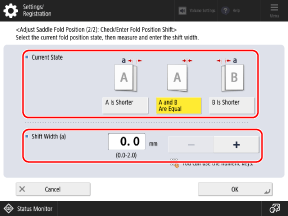
Check the current state of the fold position and the shift width on the test page, then select the current state and set the shift width.
4
Press [OK].
5
Press [Start Printing] to print the test page again, and check the adjustment results.
To end the adjustment without printing the test page, press [Done].
6
Press [Done].
If further adjustment is needed, press [Re-Adjust] and repeat Steps 3 to 5.
[Adjust Saddle Stitch Fold Position] and [Change Fold/Stitch Position]
Adjust the saddle stitch fold position or saddle stitch position so that it is at the center of the paper. Use [Adjust Saddle Stitch Fold Position] to adjust the fold position of the paper without changing the staple position, or use [Change Fold/Stitch Position] to adjust both the staple position and the fold position of the paper.
You can either enter the values directly, or you can print a test page to check the shift width of the fold position and stitch position on the test page, and then perform adjustment.
You can either enter the values directly, or you can print a test page to check the shift width of the fold position and stitch position on the test page, and then perform adjustment.
* This item is displayed only on machines with the option installed.
When Entering Values Directly
For [Adjust Saddle Stitch Fold Position], press [+] to move the fold position toward the right of the print side, and press [-] to move the fold position toward the left of the print side.
For [Change Fold/Stitch Position], press [+] to move the saddle stitch position toward the right of the print side, and press [-] to move the saddle stitch position toward the left of the print side.
When Using a Test Page to Check and Adjust the Shift Width of the Fold Position and Stitch Position
1
Press [Start] [Next].
[Next].2
Select the paper source with the loaded usable paper, and press [Start Printing].
A test page is printed.
3
Select the current state of the fold position, and adjust the shift width.
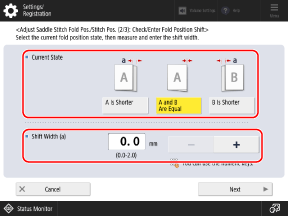
Check the current state of the fold position and the shift width on the test page, then select the current state and set the shift width.
4
Press [Next].
5
Select the current state of the stitch position, and adjust the shift width.
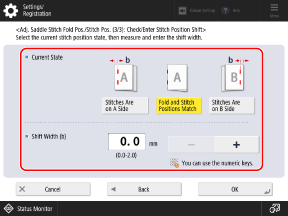
Check the current state of the stitch position and the shift width on the test page, then select the current state and set the shift width.
6
Press [OK].
7
Press [Start Printing] to print the test page again, and check the adjustment results.
To end the adjustment without printing the test page, press [Done].
8
Press [Done].
If further adjustment is needed, press [Re-Adjust] and repeat Steps 3 to 7.
[Adjust Fixing Speed] (6100 Series Only)
When you use heavy paper, adjust the fixing speed if streaks (lines) appear or if the image is blurred at the trailing edge of the paper according to the feed direction. For details on the adjustment method, contact your dealer or service representative.
* If the conditions do not improve even after pressing [+], press [-].
[Adjust Hole Punch Position] (8100 Series Only)
Adjust the hole punch position when the hole punch position of the paper differs according to the paper type.
Increase the setting value to shift down the positions of the punch holes toward the bottom. Decrease the setting value to shift up the positions of the punch holes toward the top.
[Adjust Fixing Pressure] (8100 Series Only)
Adjust if the wrinkling and curling at the trailing edge of the paper do not improve after adjusting the fixing speed.
You can press [±] to switch the entered value between positive and negative.
If the result is unsatisfactory even after pressing [+], press [-].
[Adjust Paper Conveyance] (8100 Series Only)
Adjust the paper conveying speed if image problems or paper jams occur while printing.
Since increasing the value to a great extent may cause paper jams, adjust the values in small increments.
Depending on the type of print quality problem, related items may need to be adjusted.
[Detect Multiple Sheet Feed] (8100 Series Only)
Set the multiple sheet feed detection for each registered paper type in advance.
When [Auto] is set, the multiple sheet feed detection is disabled in accordance with media shapes.