Paper Jams in Multi-drawer Paper Deck-E (Option)
Remove the paper jammed in Multi-drawer Paper Deck-E. Follow the instructions on the control panel to check the location of the paper jam and remove the jammed paper.
If the paper tears, be sure to remove all parts so that no pieces remain.
If you cannot remove the paper, do not try to remove it forcibly. Check the control panel and remove the jammed paper at another location.
If the paper tears, be sure to remove all parts so that no pieces remain.
If you cannot remove the paper, do not try to remove it forcibly. Check the control panel and remove the jammed paper at another location.
Paper Jams Inside the Front Cover
This section describes how to clear paper jams inside the front cover. Follow the instructions on the control panel to check the location of the paper jam and remove the jammed paper.
1
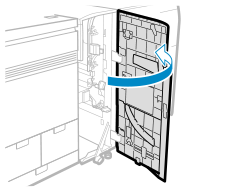
Open the front cover of Multi-drawer Paper Deck-E.
2
If paper is jammed in the escape tray, gently pull it out in the direction of the arrow.
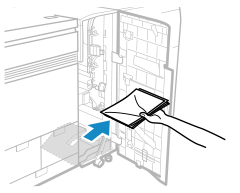
If paper is not removed from the escape tray when the front cover is opened or closed, paper-full notification for the escape tray will not function properly.
3
Check whether paper is jammed in the vertical path upper guide (B1).
1
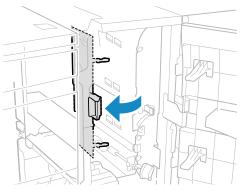
Open the vertical path upper guide (B1).
2
If paper is jammed, gently pull it out in the direction of the arrow.
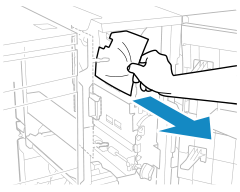
Check that the paper is not jammed from the curved part at the top to the vertical part at the bottom.
4
Check whether paper is jammed in the middle jam guide (B2).
1
Open the middle jam guide (B2).
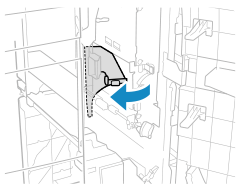
2
If paper is jammed, gently pull it out in the direction of the arrow.
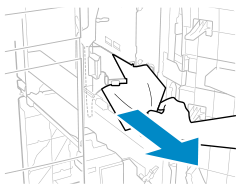
3
Close the middle jam guide (B2).
4
Close the vertical path upper guide (B1).
5
Check whether paper is jammed in the R path jam guide (B3).
1
Open the R path jam guide (B3).
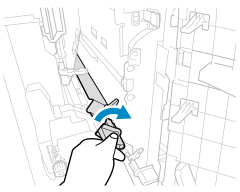
2
If paper is jammed, gently pull it out in the direction of the arrow.
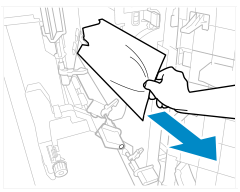
3
Close the R path jam guide (B3).
6
Check whether paper is jammed in the lower jam guide (C1).
1
Open the lower jam guide (C1).
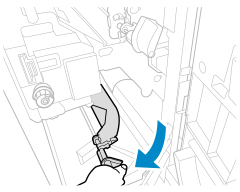
2
If paper is jammed, gently pull it out in the direction of the arrow.
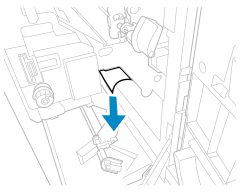
3
Turn the output slot dial (C2) in the direction of the arrow about 10 times.
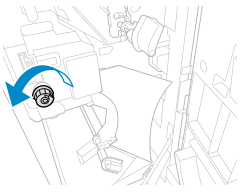
4
If paper is jammed, gently pull it out in the direction of the arrow.
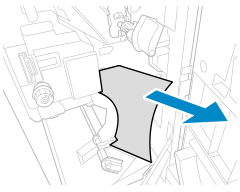
5
Close the lower jam guide (C1).
7
Close the front cover of Multi-drawer Paper Deck-E.
When the paper jam is cleared, the screen indicating a paper jam disappears, and printing resumes automatically.
If a screen indicating a paper jam at a different location appears, continue following the instructions on the screen to remove the jammed paper.
If a screen indicating a paper jam at a different location appears, continue following the instructions on the screen to remove the jammed paper.
NOTE
If Paper Jams Occur Repeatedly
Check the status of the machine and paper. Paper Jams That Occur Repeatedly
Paper Jams in the Paper Deck
This section describes how to clear paper jams in the paper deck. Follow the instructions on the control panel to check the location of the paper jam and remove the jammed paper.
1
Pull the paper deck toward you until it stops.
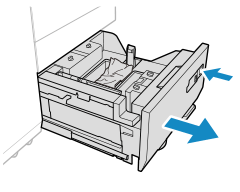
Pull the paper deck indicated on the control panel screen.
If you do not first clear the paper jam inside the front cover, you may not be able to open the paper deck.
If the machine is in Sleep Mode, you may be unable to open the paper deck. In this case, tap the display to cancel Sleep Mode before opening the paper deck.
2
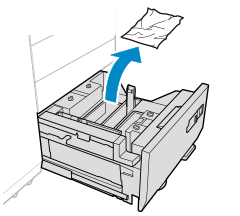
If paper is jammed, gently pull it out in the direction of the arrow.
3
Gently push the paper deck unit until it clicks.
When the paper jam is cleared, the screen indicating a paper jam disappears, and printing resumes automatically.
If a screen indicating a paper jam at a different location appears, continue following the instructions on the screen to remove the jammed paper.
If a screen indicating a paper jam at a different location appears, continue following the instructions on the screen to remove the jammed paper.
When closing the paper deck, be careful not to get your fingers caught, as this may result in personal injury.
Do not give a strong shock to the paper deck when opening or closing the paper deck, as this may result in a malfunction, damage to the machine or the image misalignment.
Make sure you loaded paper properly into the stack area. If the paper is loaded improperly or paper remains in the stack area, load the paper properly again. It may cause paper to be folded or paper jams to occur.
NOTE
If Paper Jams Occur Repeatedly
Check the status of the machine and paper. Paper Jams That Occur Repeatedly
Paper Jams When the Multi-Purpose Tray Is Attached
This section describes how to clear paper jams when the multi-purpose tray is attached to Multi-drawer Paper Deck-E. Follow the instructions on the control panel to check the location of the paper jam and remove the jammed paper.
1
Check whether paper is jammed in the multi-purpose tray.
1
Remove any paper loaded in the multi-purpose tray.
If the Tail Edge of the Jammed Paper Remains on the Multi-Purpose Tray by 25 mm (1”) or More
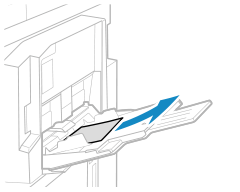
If paper is jammed in the multi-purpose tray, gently pull it out in the direction of the arrow.
When the paper jam is cleared, the screen indicating a paper jam disappears, and printing resumes automatically.
If a screen indicating a paper jam at a different location appears, continue following the instructions on the screen to remove the jammed paper.
2
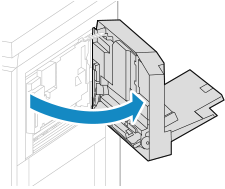
Open the multi-purpose tray.
3
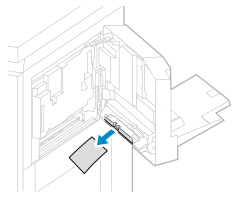
If paper is jammed in the multi-purpose tray, gently pull it out in the direction of the arrow.
4
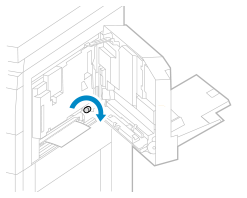
Turn the dial on the Multi-drawer Paper Deck side in the direction of the arrow about 10 times.
5
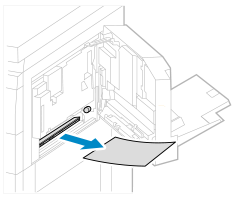
If paper is jammed, gently pull it out in the direction of the arrow.
6
Gently close the multi-purpose tray unit until it clicks.
2
Check whether paper is jammed in the front cover of Multi-drawer Paper Deck-E.
1
Open the front cover of Multi-drawer Paper Deck-E.
2
If paper is jammed on the escape tray, gently pull it out in the direction of the arrow.
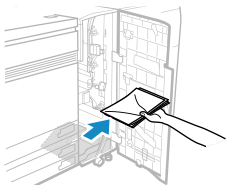
If paper is not removed from the escape tray when the front cover is opened or closed, paper-full notification for the escape tray will not function properly.
3
Open the lower jam guide (C1).
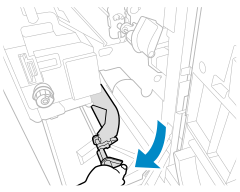
4
If paper is jammed, gently pull it out in the direction of the arrow.
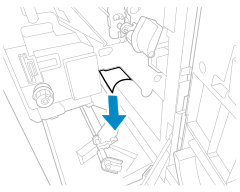
5
Turn the output slot dial (C2) in the direction of the arrow about 10 times.
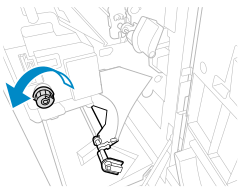
6
If paper is jammed, gently pull it out in the direction of the arrow.
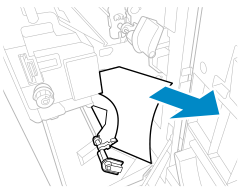
7
Close the lower jam guide (C1).
8
Close the front cover of Multi-drawer Paper Deck-E.
3
Check whether paper is jammed in the through path unit of Multi-drawer Paper Deck-E.
1
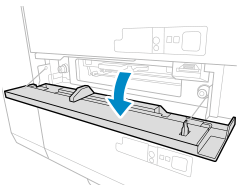
Open the through path cover.
2
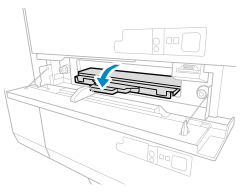
Open the through path jam guide (A2).
3
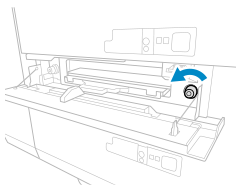
Turn the through path entrance dial (A3) in the direction of the arrow three to 10 times.
4
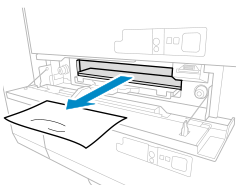
If paper is jammed, gently pull it out in the direction of the arrow.
5
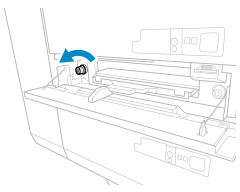
Turn the through path output slot dial (A4) in the direction of the arrow until it becomes lighter.
6
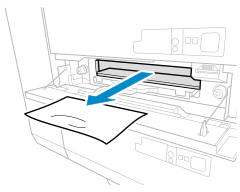
If paper is jammed, gently pull it out in the direction of the arrow.
7
Close the through path jam guide (A2).
8
Close the through path cover.
When the paper jam is cleared, the screen indicating a paper jam disappears, and printing resumes automatically.
If a screen indicating a paper jam at a different location appears, continue following the instructions on the screen to remove the jammed paper.
If a screen indicating a paper jam at a different location appears, continue following the instructions on the screen to remove the jammed paper.
NOTE
If Paper Jams Occur Repeatedly
Check the status of the machine and paper. Paper Jams That Occur Repeatedly