Loading Paper in the High Capacity Cassette Feeding Unit-D (Option)
When using paper with a logo, be careful of the orientation of the loaded paper and which side is face up. Orientation for Loading Paper with a Logo
IMPORTANT
Do Not Load Printed Paper
Loading printed paper in the High Capacity Cassette Feeding Unit-D may result in a malfunction. When printing on the back side of printed paper (Manual 2-sided Printing), be sure to load the paper in the multi-purpose tray. Loading Paper in the Multi-purpose Tray
1
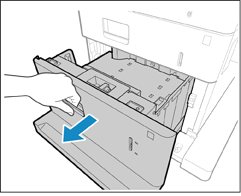
Pull the paper drawer toward you until it stops.
2
Adjust the position of the paper guides.
Align the paper size lever with the paper size indicators for the desired paper size.
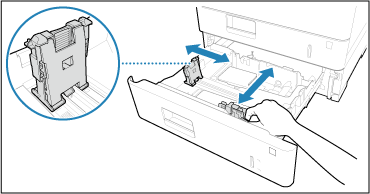
Paper size indicators
The numbers on the paper size indicators in the paper drawer represent the following paper sizes.
11: Letter
14: Legal
3
Fan the paper and align the edges.

Fan the paper in small batches, and align the edges by tapping the paper on a flat surface a few times.
4
Load the paper.
1
Make sure that the paper size setting of the paper drawer matches the size of the paper to load in the paper drawer.
2
Load the paper stack with the print side face up, and against the side wall of the paper drawer.
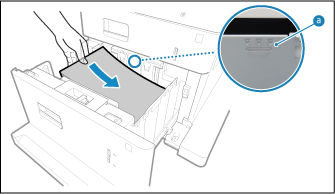
Make sure the loaded paper does not exceed the load limit line ( ). If it exceeds the load limit line, there may be misfeeds or a paper jam.
). If it exceeds the load limit line, there may be misfeeds or a paper jam.5
Push the paper drawer gently into the machine.
6
Set the paper type, as needed. Setting the Paper Size and Type for the Paper Drawer
By default, the paper type is set to Plain 1 or Plain 2. When paper of a different type is loaded, change the paper type setting.
IMPORTANT
When changing the paper size and type
If you load a different type of paper into the machine, make sure to change the settings. If you do not change the settings, the machine cannot print properly. Setting the Paper Size and Type for the Paper Drawer
When changing the paper size, change the paper size label as necessary (Paper Drawer). Note that the paper size label may include paper sizes which are unavailable on the machine.
NOTE
If a problem occurs during printing, you may be able to solve it by turning the paper over and reloading it.