[Details/Edit] Screen
The [Details/Edit] screen is displayed when you press [ Settings/Registration]
  [Preferences] [Paper Settings] [Paper Type Management Settings], select the paper type, and press [Details/Edit].
You can check and change the paper type information on this screen.
Settings/Registration] [Preferences] [Paper Settings] [Paper Type Management Settings], select the paper type, and press [Details/Edit]. You can check and change the paper type information on this screen.
* You cannot change the paper type information registered by default.
* You can also check and change the paper type information on the same screen displayed in Remote UI. Managing the Machine from a Computer (Remote UI)
* You can also check and change the paper type information on the same screen displayed in Remote UI. Managing the Machine from a Computer (Remote UI)
Administrator or DeviceAdmin privileges are required.
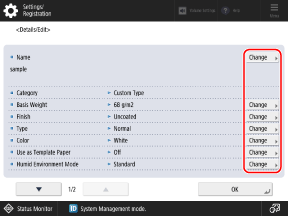
You can press [Change] for each item to change the paper type information.
IMPORTANT
If the following information differs from the information of the paper to be actually used, a paper jam or print problem may be caused.
[Basis Weight]
[Finish]
[Type]
[Color]
[Name]
You can change the name of the paper type.
[Basis Weight]
You can change the paper weight.
[Finish]
You can change the surface quality of the paper (such as fine paper and recycled paper).
[Type]
You can change the characteristics of the paper (such as pre-punched paper and envelops).
[Color]
You can change the paper color.
[Use as Template Paper]
Set this to [On] when you use paper with a logo or other graphic design.
* The loaded paper with this setting set to [On] will not be selected automatically in the following cases:
When the settings are configured so that the paper type to be used is selected automatically for printing
When [Paper Source Auto Selection] is set to [On], and [Consider Paper Type] is set to [Off], for copying [Paper Source Auto Selection]
* When loading paper with this setting set to On, pay attention to the orientation and which side is face up. Orientation for Loading Paper with a Logo
[Humid Environment Mode]
Set the Humid Environment Mode when printed images or text become faded or blurred due to changes in the humidity of the usage environment.
Set to [High Humidity (+1)] if the toner density during printing becomes lighter or the shading of the print result is uneven when using wet paper in a high humid place.
Set to [High Humidity (+2)] if the toner density during printing becomes lighter or the shading of the print result is uneven when using paper that has just been opened in a high humid place.
Set to [High Humidity (+3)] if the [High Humidity (+2)] setting does not provide sufficient effect.
Set to [Low Humidity] if the printed image or text is blurred when the machine is used in a low humid place.
[Adjust Paper Separation]
Set this mode if paper jams occur when printing on thin paper.
This setting is for when the registered custom paper type is [Thin (60 g/m2)] ([Thin (16 lb bond)]). If a paper jam occurs when performing two-sided printing, select [Level 1] or [Level 2]. If [Level 1] is selected, the correction effect becomes weaker, and it becomes stronger if [Level 2] is selected.
* The roughness of the printed image may stand out if [Level 2] is selected.
[Correct Fill Area Void]
If you print using the registered custom paper type and the shaded areas of images or texts has white patches, set this to [On].
[Adjust Fixing Temperature]
When image problems occur because the temperature for fixing the toner to the paper is too high, setting [Low 1] or [Low 2] for registered custom paper may improve the output.