Output Destination Settings (For C611FZ / C611Z / C521FZ / C521Z / C431FZ / C431Z / C331FZ / C331Z)
When there are multiple output trays, you can specify to which output tray to output printed and copied paper. You can assign output destinations to different functions to make it easier to find printed and copied paper.
You can also specify multiple output trays for each function and specify the priority. In this case, when the top priority output tray reaches capacity, the output destination switches automatically to a lower priority tray.
To prevent lost output paper, it is recommended to use one output tray when printing received faxes and I-Faxes.
To prevent lost output paper, it is recommended to use one output tray when printing received faxes and I-Faxes.
NOTE
The paper sizes that can be output to each paper tray vary depending on the installed options. Supported Options
Configuring Output Destinations
This section describes how to configure the settings using Remote UI from a computer.
On the control panel, select [ Settings/Registration] in the [Home] screen or other screen, and then select [Function Settings] to configure the settings. [Output Tray Settings] (For the Model with the Finisher)
On the control panel, select [
Settings/Registration] in the [Home] screen or other screen, and then select [Function Settings] to configure the settings. [Output Tray Settings] (For the Model with the Finisher)1
Log in to Remote UI. Starting Remote UI
2
On the Portal page of Remote UI, click [Settings/Registration]. Remote UI Portal Page
3
Click [Common Settings]  [Output Tray Settings].
[Output Tray Settings].The [Output Tray Settings] screen is displayed.
4
Select the checkboxes to give priority to the output trays for each function.
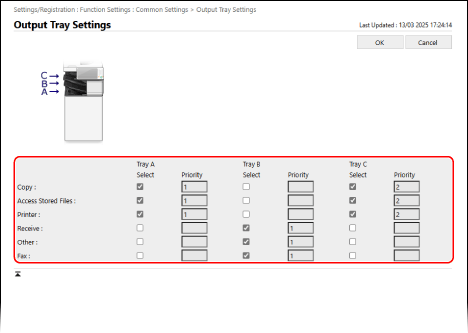
The priority of each function is displayed as "1, 2, 3..." in the order the checkboxes are selected.
[Other] is the output destination when printing reports and lists.
When there are multiple fax lines, numbers are displayed at the end according to the number of lines.
5
Click [OK].
The settings are applied.
6
Log out from Remote UI.
NOTE
Paper may not be output to the specified tray depending on the paper being used or the finishing function.
When the offset setting is enabled in the finishing function, paper is not output to a tray that does not support offset. Finisher Specifications (For C611FZ / C611Z / C521FZ / C521Z / C431FZ / C431Z / C331FZ / C331Z)
Either specify an output tray that supports offset or disable the offset setting using the following method before printing or copying:
Either specify an output tray that supports offset or disable the offset setting using the following method before printing or copying:
Prevent offset from being set automatically [Auto Collate]
Disable the collate setting manually before printing or copying
Device Configuration and Output Tray Position
Device Configuration | Position of Output Tray |
With a finisher | 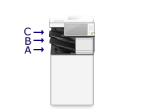 |