Layout Settings
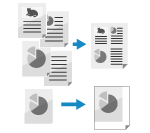
You can configure the layout settings of the original when copying.
Combining Multiple Originals onto One Page (N on 1)
You can reduce the size of a multiple-page original and arrange the pages on the same side of one sheet of paper.
N on 1 is convenient when you want to save paper by copying on fewer sheets of paper than the original.
N on 1 is convenient when you want to save paper by copying on fewer sheets of paper than the original.
* When you use N on 1 to combine pages, place originals of the same size. You cannot use N on 1 to combine pages when copying originals of different sizes.
1
On the copy screen, press [Options]  [N on 1]. Copy Screen
[N on 1]. Copy ScreenThe [N on 1] screen is displayed.
2
Select the number of pages to be combined.
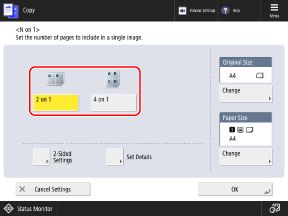
Select the number of pages to be combined on one side of the paper. For example, when you select [4 on 1], four pages are combined onto one side of the paper.
3
Configure the page order, size, paper, and 2-sided copy settings, as needed.
When Changing the Page Order (Layout When Combining Originals)
Press [Set Details], select the page order, and press [OK].
When Changing the Original Size
Press [Change] under [Original Size], select the size of the original, and press [OK].
When Changing the Paper to Use for Copying
Press [Change] under [Paper Size], select the paper to be used, and press [OK].
On the screen for selecting the paper, you can press [ ] to check the details of the selected paper.
] to check the details of the selected paper.When Configuring the 2-Sided Copy Settings
Configure the 2-sided copy settings to combine 1-sided originals on both sides of the paper, or to combine 2-sided originals.
Press [2-Sided Settings], configure the 2-sided copy settings, and press [OK].
* For details on the 2-sided copy settings, see the following:
4
Press [OK] [Close].
[Close].The copy screen is displayed again.
NOTE
When N on 1 is set, the copy ratio (enlarge or reduce setting) is set automatically according to the following. You can also change the copy ratio setting manually. Ratio and Orientation Settings
Number of pages to be combined
Original size
Size of paper used for copying
When N on 1 is set, the position of the original is automatically set to the center. You can also change the original position manually. Adjusting the Position of the Original (Shift)
Adjusting the Position of the Original (Shift)
You can shift the position of the entire original to an edge or the center of the paper, or specify the shift distance in millimeters.
You can adjust the margins around the copied original when copying to a larger paper size than that of the original, or when copying at a reduced size.
You can adjust the margins around the copied original when copying to a larger paper size than that of the original, or when copying at a reduced size.
1
On the copy screen, press [Options] [Shift]. Copy Screen
[Shift]. Copy ScreenThe [Shift] screen is displayed.
2
Adjust the position of the original.
When Shifting the Copied Original to an Edge or the Center of the Paper
Press [By Position], and press an arrow button or [Center] to specify the direction to shift the original.
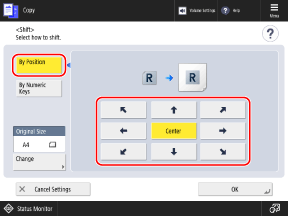
If the size displayed in [Original Size] is different from the size of the original you set, press [Change] to select the size.
When Specifying the Shift Distance in Millimeters or Inches
1
Press [By Numeric Keys], and press [Set] for the side on which to adjust the position.
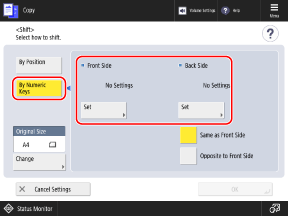
When making 1-sided copies, set the front side.
When making 2-sided copies, set the front side and back side separately.
To configure the back side using the same settings as the front side, select [Same as Front Side].
To position the back side symmetrically opposite to the front side, select [Opposite to Front Side].
If the size displayed in [Original Size] is different from the size of the original you set, press [Change] to select the size.
2
Specify the shift directions and shift distances, and press [OK].
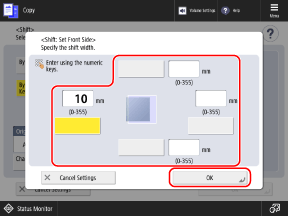
Press the top, bottom, left, or right button, and specify the shift distance using the numeric keys.
3
Press [OK] [Close].
[Close].The copy screen is displayed again.