To automatically enlarge or reduce the image according to the paper size, press [Auto].
When you select [Auto], select the paper size for specifying the copy ratio, and then press [OK], the copy ratio is automatically set according to the paper size selected in [Select Paper]. Selecting the Paper to Use for Copying
Ratio and Orientation Settings
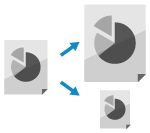
You can set the ratio and original orientation when copying.
Setting the Ratio
Set the ratio for enlarging or reducing copies.
1
On the copy screen, press [Copy Ratio]. Copy Screen
The [Copy Ratio] screen is displayed.
2
Configure the enlarge or reduce setting.
If part of the image at the edge of the original is missing in the copy, you can copy with the [Fit to Page] setting to fit the image on the page.
* When you select [Fit to Page], the position of the original is automatically set to the center. You can also change the original position manually. Adjusting the Position of the Original (Shift)
When Automatically Setting the Copy Ratio According to the Paper Size
When Manually Setting the Copy Ratio
Select a fixed copy ratio from the list or enter a custom copy ratio.
You can specify a value from 25% to 400% in 1% increments.
You can specify a value from 25% to 400% in 1% increments.
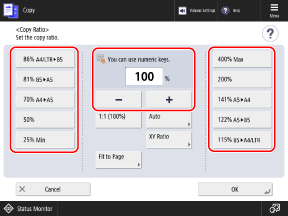
To enlarge or reduce using a separate copy ratio for the vertical and horizontal dimensions, press [XY Ratio]. Enter the ratio of [X] and [Y] from 25% to 400% in 1% increments, and press [OK].
* Depending on the copy ratio that you entered, the image may be rotated 90 degrees.
3
Press [OK].
The copy screen is displayed again.
Setting the Original Orientation
Set the orientation of the original placed on the platen glass or feeder.
1
Press [Orig. Content Orientation] on the copy screen, or press [Options]  [Orig. Content Orientation]. Copy Screen
[Orig. Content Orientation]. Copy ScreenThe [Orig. Content Orientation] screen is displayed.
2
Select [Top at Far Edge] or [Top at Side Edge] according to the placed original.
3
Press [OK] or press [OK] [Close].
[Close].The copy screen is displayed again.