Front Side
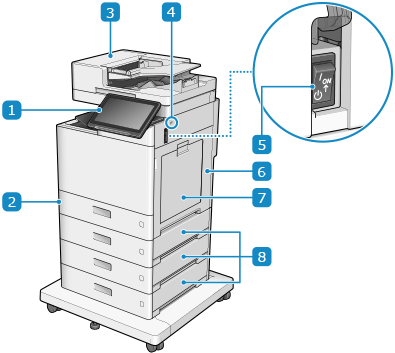
C611F / C611 / C521F / C521 / C431F / C431 / C331F / C331
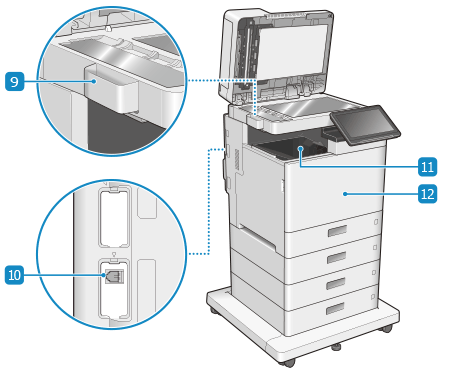
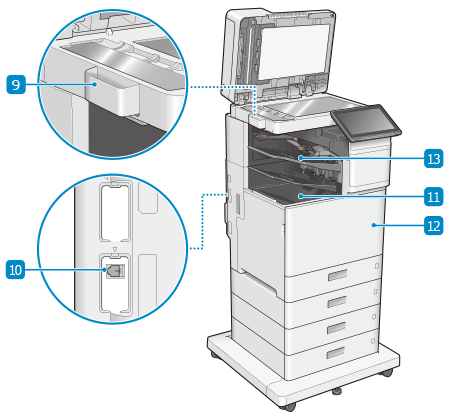
C611FZ / C611Z / C521FZ / C521Z / C431FZ / C431Z / C331FZ / C331Z
 Control panel
Use the touch panel display to operate the machine and check its status. Control Panel
 Paper drawer 1
Load frequently used paper. Paper Drawer
 Feeder
You can place several sheets of originals in the feeder. Placed originals are fed and scanned one by one automatically. 2-Sided Single Pass Feeder
 USB port (for USB devices) (front right side)
You can connect a commercial USB memory device or USB keyboard.
* Supports USB 2.0.
 Power switch
Turn ON and OFF the power of the machine. Turning ON and OFF the Machine
 Right cover of the main unit
Open the cover when a paper jam occurs inside the machine.
 Multi-purpose Tray
To temporarily use paper not loaded in the paper drawer, load it in the multi-purpose tray. Multi-Purpose Tray
 Right cover of the paper drawer
Open this when a paper jam occurs.
 Glass cleaning cloth storage box
Stores the glass cleaning cloth.
 Telephone line jack (LINE 1)
Connect the machine to the telephone line.
 Output tray (Tray A)
Paper is output here when printing finishes. For C611FZ / C611Z / C521FZ / C521Z / C431FZ / C431Z / C331FZ / C331Z, you can specify functions for which the tray is used. [Output Tray Settings] (For the Model with the Finisher)
 Front cover of the main unit
Open to replace the toner cartridge or the waste toner container, and to clean the dust proof glass.
 Finisher
When paper is output, you can use some finishing functions. Finisher (For C611FZ / C611Z / C521FZ / C521Z / C431FZ / C431Z / C331FZ / C331Z)
IMPORTANT
If you connect a device that exceeds 5 V 500 mA power supply capacity provided by the machine to the USB port (for USB devices - front right side), the machine may be damaged.
Do not forcefully push the feeder to close when placing a book, magazine, or other thick original on the platen glass.
NOTE
For details about the configuration of the machine when options are installed and the part names of the optional equipment units, see the following.
To ensure efficient use of the machine, clean the surface of the machine and platen glass regularly.