Settings According to the Original
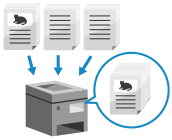
Configure the settings to efficiently scan according to the original.
You can also prevent scanning of blank pages.
You can also prevent scanning of blank pages.
Scanning Large Numbers of Originals (Job Build)
When there are too many originals to place in the feeder at once, configure the settings so that the originals scanned in multiple batches can be sent or saved together.
You can send or save originals scanned using the feeder and originals scanned using the platen glass together.
You can send or save originals scanned using the feeder and originals scanned using the platen glass together.
1
On the scan screen, press [Options]  [Job Build]. Scan Screen
[Job Build]. Scan Screen[W/Settings] is displayed at the bottom of the setting button.
2
Press [Close].
The scan screen is displayed again.
Preventing Scanning of Blank Pages (Skip Blank Originals)
Automatically deletes (skips) pages that have been determined to be blank when scanning.
For example, when both 1-sided and 2-sided originals are placed in the feeder for 2-sided scanning, the back side (blank page) of a 1-sided original is also scanned. In this case, when the settings are configured to skip blank pages, pages determined to be blank while scanning are skipped automatically, eliminating the need to delete blank pages after scanning.
For example, when both 1-sided and 2-sided originals are placed in the feeder for 2-sided scanning, the back side (blank page) of a 1-sided original is also scanned. In this case, when the settings are configured to skip blank pages, pages determined to be blank while scanning are skipped automatically, eliminating the need to delete blank pages after scanning.
* Blank originals cannot be skipped when sending scanned data to the following destinations:
Fax
I-Fax
1
On the scan screen, press [Options] [Skip Blank Originals]. Scan Screen
[Skip Blank Originals]. Scan ScreenThe [Skip Blank Originals] screen is displayed.
2
Select the color of paper to skip.
[All Colors]
You can skip all blank pages of an original regardless of the paper color.
[White Only]
Skips only blank pages on white paper.
* If you select a setting other than [Auto (Color/Gray)] or [Auto (Color/Black & White)] as the color when scanning, the machine operates according to the [All Colors] setting even when [White Only] is set. Selecting a Color
When Checking Scanned Data before Sending or Saving
Press [Preview] to select the checkbox.
You can display a preview screen to check the contents before sending or saving scanned data. Operating the Preview Screen
You can display a preview screen to check the contents before sending or saving scanned data. Operating the Preview Screen
* You cannot configure this setting when saving scanned data to Mail Box.
3
Adjust the accuracy for detecting blank pages, as needed.
1
Press [Adjust Recog. Level].
The [Adjust Recog. Level] screen is displayed.
2
Move the slider to the left or right to adjust the accuracy.
Selecting [+] increases the sensitivity level for detecting blank pages.
3
Press [OK].
The [Skip Blank Originals] screen is displayed again.
4
Press [OK] [Close].
[Close].The scan screen is displayed again.
IMPORTANT
If the size of the original is set to a size larger than the actual original, blank pages may not be skipped correctly.
NOTE
If all pages of the scanned original are determined to be blank, scanning is canceled.