
Sending with Easy Scan
The Easy Scan screen provides buttons for easily configuring basic settings such as the destination and color mode.
When you want to use Easy Scan and Send to send data, register the destinations to the Address Book in advance. Registering Destinations
When you want to use Easy Scan and Send to send data, register the destinations to the Address Book in advance. Registering Destinations
1
Place the original. Placing Originals
2
Press <Easy Scan>. <Home> Screen
3
Specify destinations on the Easy Scan screen. Scan Basic Features Screen
Specifying Destinations from the Address Book (Easy Scan)
Specifying Your Own E-Mail Address (Easy Scan)
Specifying Personal Folder (Easy Scan)

To specify multiple destinations, press <Add> in the destination display area to add a destination.
To delete a destination, select the destination in the destination display area, then press <Delete>.
Specifying Destinations from the Address Book (Easy Scan)
1
Press <Send to Dest Selected from Address Book>.
2
Select the destination.
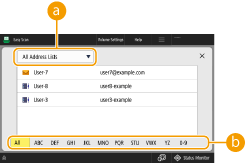
 Address list drop-down list
When you are logged in to the machine with personal authentication management, selecting <Personal Addr. List> displays your personal Address Book.
 Search buttons by first letter
Enables you to narrow down a search by the first letter of the destination
|
You can specify only e-mail and file server destinations. Up to 10 destinations can be specified at one time. You can use only local address books. Remote address books cannot be used. |
Back to Top
Specifying Your Own E-Mail Address (Easy Scan)
You can specify the e-mail address of the user who is logged in to the machine with personal authentication management. Managing Users
1
Press <Send to My E-Mail Address>.
The e-mail address of the user who is logged in to the machine is specified as the destination.
Back to Top
Specifying Personal Folder (Easy Scan)
You can specify the personal folder of the user who is logged in to the machine with personal authentication management.
Configuring Personal Folders
Managing Users
Configuring Personal Folders
Managing Users
1
Specify <Send to Personal Folder>.
The personal folder of the user who is logged in to the machine is specified as destination.
Back to Top
4
Specify the scan settings as necessary.
Selecting Color Scan/Black & White Scan (Easy Scan)
Specifying the Scanning Size of Originals (Easy Scan)
Scanning Both Sides of Originals (Easy Scan)
You cannot change the resolution settings.
To return to the Easy Scan screen without changing the settings, press <X> on the top right of the screen.
Selecting Color Scan/Black & White Scan (Easy Scan)
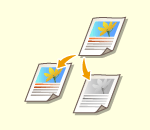 | You can specify color when scanning original. |
1
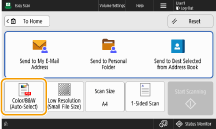
Press the setting button for color.
2
Select the color.
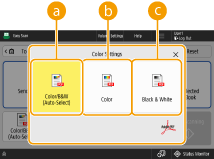 <Color/B&W (Auto-Select)>
Detects the color of the original automatically. Color originals are scanned in color, and black and white originals are scanned in grayscale.
Color originals may be detected as black and white depending on the condition of the original and the size, such as when only the edges of the original are in color. In this case, select <Color>.
<Color>Scans in full color, regardless of the color of the original.
When set to <Color>, black and white originals also count as color scans.
 <Black & White>
Scans in black and white regardless of an original's color.
Back to Top
Specifying the Scanning Size of Originals (Easy Scan)
 | You can specify the size for scanning the original. |
1
Press the setting button for scanning size.
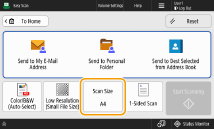
2
Select the scanning size.
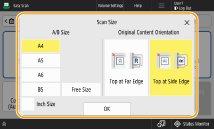
 When scanning a nonstandard size original:
Place the original in the feeder and select <Free Size>.
If you select <Free Size>, an original placed on the platen glass cannot be scanned.
When a scanning size smaller than the minimum size that can be scanned with the feeder is set, scanning cannot be performed with the feeder. For information on the document sizes that can be scanned with the feeder, see Hardware Specifications.
Back to Top
Scanning Both Sides of Originals (Easy Scan)
 | The machine can automatically scan both the front and back sides of an original. |
1
Press the button for the 2-sided original settings.
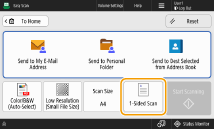
2
Select the type of two-sided original.
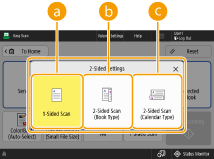 <1-Sided Scan>
Scans 2-sided originals one side at a time.
<2-Sided Scan (Book Type)>Select this if the top and bottom orientation of the front and back sides of the original are the same.
<2-Sided Scan (Calendar Type)>Select this if the top and bottom orientation of the front and back sides of the original are opposite.
<1-Sided/2-Sided Scan (Auto)> is only displayed when <Smart Scan> is set to <On> in <OCR (Text Searchable) Settings>. <OCR (Text Searchable) Settings>
Back to Top
5
Press <Start Scanning>.
If the size of the original placed on the platen glass cannot be detected, select the original size.
Originals are scanned and sending/saving starts.
To cancel scanning, press <Cancel> or  (Stop)
  <Yes>.
(Stop) <Yes>.When <Press the [Scan Next Original] key to scan the next original.> is displayed
Place the next original to scan and press <Scan Next Original>. When scanning all of the originals is complete, press <Start Sending> to send/save the file.
Depending on the communication settings, you may be prompted to enter the user name and password. Setting E-mail/I-Fax Communication
|
To check the total number of specified destinationsThe total number of specified destinations is displayed on the upper part of the screen. This enables you to confirm that the number of destinations is correct before sending. 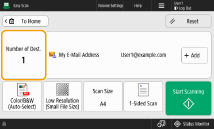 To immediately cancel a job that is being sentIf you press (Stop) on the control panel while a job is being sent, the message <Is it OK to cancel the following Send job?> appears. Press <Yes> to cancel sending.You can select <Latest Received Job> or <Job Being Sent> to choose the job to cancel. <Job to Cancel When Stop Is Pressed> Press (Stop) when there are multiple send jobs to display the screen for selecting the send job to cancel. If the send job you want to cancel is not displayed, press <Check Other Jobs> to display <Send Jobs>. Select the job that you want to cancel, and press <Cancel>.To check the statuses for sent/saved documentsOn the <Status Monitor> screen, you can check the statuses for sent/saved documents. This screen enables you to send/save documents again or cancel sending/saving after checking the statuses. Checking Status and Log for Scanned Documents When <Display Notification When Job Is Accepted> is set to <On>, the <Status Monitor> screen can be displayed from the following screen that is shown after a send job is received. <Display Notification When Job Is Accepted> 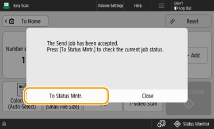 File nameWhen a file is sent/saved, its file name is automatically set based on the following format. If you select <1-Sided/2-Sided Scan (Auto)> and <Specify File Name from OCR (Text Searchbl.) Result>: The settings in <OCR (Text Searchable) Settings> are used.<OCR (Text Searchable) Settings> In other cases: "The year, month, day, hour, minute, and second the file is saved (14 digits).file extension name" format, such as "20251030133541.pdf" E-mail subjectThe subject entered in <Default Subject> is automatically set (<Default Subject>). |