Registering Groups to the Address Book (Control Panel)
You can register a group of multiple destinations to the Address Book using the control panel.
You can register only the same type of destinations for a group.
You can register only the same type of destinations for a group.
Required Preparations |
Register the destinations to be added to a group to the Address Book of the machine. Registering Destinations to the Address Book (Control Panel) |
1
On the control panel, press [Address Book] in the [Home] screen, and press  . [Home] Screen
. [Home] Screen2
Press 
 [Register New Destination to Address Book] .
[Register New Destination to Address Book] .The [Register As] screen is displayed.
If the [Address Book PIN] screen is displayed, enter the PIN, and press [<Apply>] .
.3
Press [Coded Dial] or [One-Touch] [Group] .
[Group] .The [Group] screen is displayed.
If [Coded Dial] is selected, unregistered coded dialing numbers are automatically set and the [Group] screen is displayed.
When [One-Touch] is selected, select the number to register.
You can change this number to another number later.
You can change this number to another number later.
4
Enter the name by pressing [Name] , and then press [<Apply>] .
, and then press [<Apply>] .You can register a destination without entering its name, but by entering the name, you can search for it by its initials when specifying the destination.
5
Press [Number of Destinations] .
.6
Press [<Add>] , and select the destinations to add to the group.
, and select the destinations to add to the group.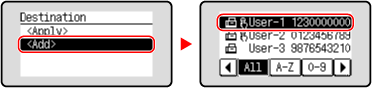
Repeat this step to add multiple destinations.
7
Check that the destinations to be added to the group are correct, and then press [<Apply>] .
.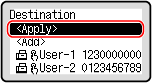
To view the information of a destination, select the target destination.
8
Change registered numbers as needed.
To change a [Coded Dial] number, press [Coded Dial] and press and select an unregistered number, or enter a three-digit coded dialing number using the numeric keys.
and select an unregistered number, or enter a three-digit coded dialing number using the numeric keys.9
Press [<Apply>] .
.The group is registered to the Address Book.