Turning OFF the Machine
In addition to using the power switch on the front of the machine, you can also turn OFF the power using Remote UI from a remote location.
IMPORTANT
Check the operation status of the machine before turning it OFF.
A process to protect the storage in the machine is performed when the power is turned OFF. Therefore, turning OFF the machine during an operation may cancel the operation or result in data corruption or damage.
Do not turn OFF the machine when using the Fax or I-Fax function. The machine will be unable to receive the data.
Turning OFF the machine while scanning an original or printing paper may result in a paper jam.
Do not turn OFF the machine while initializing all the data and settings with the Optional Data Storage Kit installed. Doing so may damage the storage. When turning the main power of the machine OFF, press [Print] on the [Home] screen, and confirm that the message "This function is currently unavailable. The device is preparing the optional storage... Wat a moment, then try again." is not displayed. Initializing All Settings and Data
Unplugging the power cable before the machine turns OFF may result in a malfunction.
The machine may continue to operate during the shutdown process. Before removing the power plug, confirm that the touch panel display and indicators have been off for three seconds or longer. Control Panel
Turning OFF the Machine Using the Power Switch
1
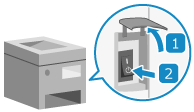
Open the power switch cover, and press the power switch to the OFF position ( ). Front Side
). Front SideWhen the power switch is vertical
When the power switch is horizontal
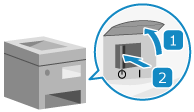
The touch panel display and indicators turn off and you can turn the machine OFF.Control Panel
It may take a few minutes until the power turns OFF. Do not unplug the power cable until the power turns OFF.
It may take a few minutes until the power turns OFF. Do not unplug the power cable until the power turns OFF.
2
Close the power switch cover.
NOTE
Turning ON the Machine Again
Wait for 10 or more seconds to elapse after the display and indicators turn off, then turn the machine ON again.
If quick startup is enabled, wait for 20 or more seconds to elapse before turning the machine ON again. [Quick Startup Settings for Main Power]
* By default, the Quick Startup setting is enabled.
* If the machine is restarted within 20 seconds, it starts up normally and not with Quick Startup.
Turning OFF the Machine Using Remote UI
1
Log in to Remote UI. Starting Remote UI
2
On the Portal page of Remote UI, click [Settings/Registration]. Remote UI Portal Page
3
Click [Device Management]  [Remote Shutdown].
[Remote Shutdown].The [Remote Shutdown] screen is displayed.
4
Click [Start].
The shutdown confirmation message appears.
5
Click [OK].
A screen indicating that the machine is being shut down is displayed, and then the power is turned OFF.
When the power is turned OFF, Remote UI is disconnected.
When the power is turned OFF, Remote UI is disconnected.