Restarting the Machine
When you make changes to the settings of the machine, you may have to restart the machine to apply the changes depending on the setting.
When you change the settings using either the control panel or Remote UI, you can restart the machine using the power switch or Remote UI.
When you change the settings using either the control panel or Remote UI, you can restart the machine using the power switch or Remote UI.
IMPORTANT
Check the operation status of the machine before restarting the machine.
A process to protect the storage in the machine is performed when restarting the machine. Therefore, restarting the machine during an operation may cancel the operation or result in data corruption or damage.
Do not restart the machine when the message [Backing up stored data from Remote UI...] is displayed on the control panel. Otherwise, you will be unable to back up saved files.
Restarting the machine while scanning an original or printing paper may result in a paper jam.
Restarting the Machine Using the Power Switch
1
Open the power switch cover, and press the power switch to the OFF position ( ). Front Side
). Front SideWhen the power switch is vertical
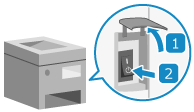
When the power switch is horizontal
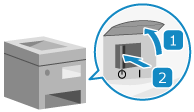
The touch panel display and indicators turn off and you can turn the machine OFF. Control Panel
It may take a few minutes until the power turns OFF.
It may take a few minutes until the power turns OFF.
2
Wait for the specified time to elapse after the display and indicators turn off, then turn the power switch to the ON position ( ).
).
).The machine starts up.
When restarting the machine with regular startup, wait for 10 or more seconds to elapse after the display and indicators turn off, then turn the machine ON again.
When restarting the machine with quick startup, wait for 20 or more seconds to elapse after the display and indicators turn off, then turn the machine ON again. [Quick Startup Settings for Main Power]
* By default, the Quick Startup setting is enabled.
* If the machine is restarted within 20 seconds, it starts up normally and not with Quick Startup.
3
Close the power switch cover.
Restarting the Machine Using Remote UI
Administrator privileges are required to restart the machine using Remote UI.
1
Log in to Remote UI as an administrator. Starting Remote UI
2
On the Portal page of Remote UI, click [Settings/Registration]. Remote UI Portal Page
3
Click [Restart Device].
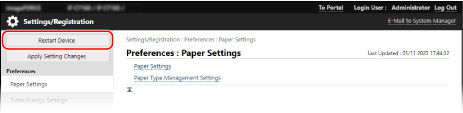
The [Restart Main Unit] screen is displayed.
4
In [Basic Functions Status], check that there are no functions operating, and then click [Perform Restart].
A restart confirmation message appears.
5
Click [OK].
A screen indicating that the machine is being restarted is displayed, and then the machine is restarted.
When the machine is restarted, Remote UI is disconnected.
When the machine is restarted, Remote UI is disconnected.
NOTE
If Options Are Not Recognized After Restarting the Machine
Turn off the power of the options and turn it on again.