Configuring the Finishing Functions

You can configure the finishing functions described below.
Sorting Functions
The copied paper is sorted when output.
* When you use the platen glass, you need to configure the Job Build setting in order to copy multiple originals together and sort them when output. Copying Large Numbers of Originals (Job Build)
Types of sorting functions
Collate
When you make multiple copies of a multi-page original, the output copies are sorted into sets with the same page order as the original.
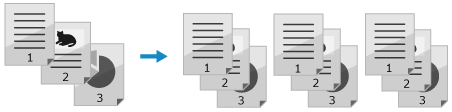
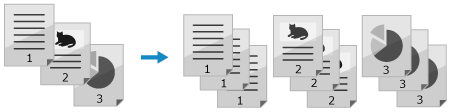
Group
When you make multiple copies of a multi-page original, the specified number of copies for each page of the original is grouped when output.
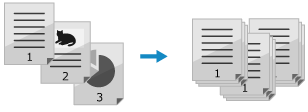
Offset
The output position is offset for each copy set or page group.
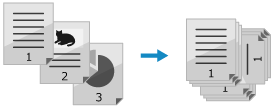
Rotate 90 Degrees
Each copy set or page group is output in alternating portrait and landscape orientation.
Staple Function
The copied paper is stapled when output.
* When using the staple function, pay careful attention to the orientation of the placed original and the staple position setting. Orientation of an Original to Be Stapled and Setting the Staple Position (Option)
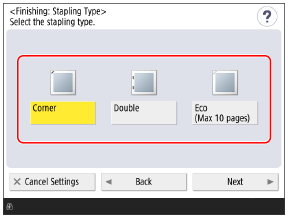
Types of staple functions
Corner
The corner of each copy set or page group is stapled when output.

Double
Each copy set or page group is stapled in two locations at the edge of the paper when output.

Staple-Free
The corner of each copy set or page group is crimped without using staples when output.
This is convenient when you want to save staples or temporarily bind the paper, as you can easily peel the pages apart by pressing the crimped part with your finger.
This is convenient when you want to save staples or temporarily bind the paper, as you can easily peel the pages apart by pressing the crimped part with your finger.
Punch Function
Punch holes for filing are made in the copied paper when output.

* The available functions vary depending on the options installed. Options with Finishing Functions
* Some finishing functions may not be available depending on the paper size and paper type. Paper Usable with Finishing Functions
1
On the copy screen, press [Options]  [Finishing]. Copy Screen
[Finishing]. Copy ScreenThe [Finishing] screen is displayed.
2
Configure the finishing functions.
When Using the Sorting Functions
1
Select [Collate (Page Order)] or [Group (Same Pages)].
2
Configure the Offset or Rotate 90 Degrees setting, as needed.
When Using the Offset Function
Press [Offset] to select it.
If you select [Collate (Page Order)] in Step 1, enter the number of copies at which to offset the output position, using the numeric keys.
If you select [Collate (Page Order)] in Step 1, enter the number of copies at which to offset the output position, using the numeric keys.
When Using the Rotate 90 Degrees Function
Press [Rotate 90 Degrees] to select it.
When Using the Staple Function
1
Select [Staple + Collate] or [Staple + Group], and press [Next].
To staple each set of copies, select [Staple + Collate].
To staple each group of pages, select [Staple + Group].
2
Select the type of staple function.
3
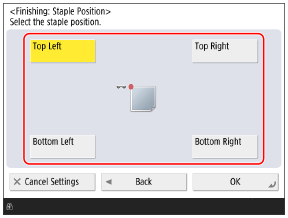
Select the staple position.
When Using the Punch Function
1
Press [Hole Punch].
The [Hole Punch] screen is displayed.
* The [Hole Punch] screen may not be displayed depending on the type of puncher. In this case, proceed to Step 3.
2
Select the type of [Hole Punch].
3
Press [OK].
The [Finishing] screen is displayed again.
Press [OK] [Close].
[Close].The copy screen is displayed again.
IMPORTANT
If Paper Runs Out While Copying with the Staple Setting
Load paper in the paper source without removing the copied paper before it is stapled. The machine will perform stapling when copying is completed.
NOTE
Inserting a Job Separator Between a Specified Number of Copies or Between Each Page Group
When you collate the copies, you can insert a job separator between a specified number of copies. [Job Separator Between Copies]
When you group the copies by page, you can insert a job separator between each set of grouped pages. [Job Separator Between Groups]
Setting the Procedure for When Stapling Cannot Be Performed
You can set whether to copy without stapling or cancel copying when there are too many sheets to staple. [Action When Too Many Sheets to Staple]