Size and Orientation Settings
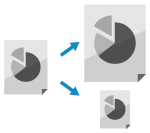
You can configure the size and original orientation according to the placed original.
Setting the Original Size
When a standard size original is placed, the size of the original is detected automatically by default.
* For details on the sizes of the original that can be detected automatically, see the following:
Manually set the size of the placed original in the following cases:
When the size of the placed original cannot be detected automatically
When a size different from the placed original is detected
When part of the image on the edge of the original is missing after being scanned
1
On the scan screen, press the setting button for the original size. Scan Screen
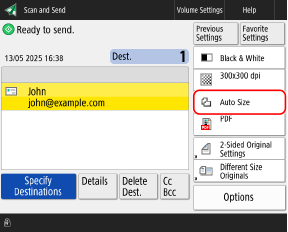

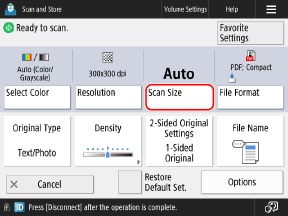
The [Scan Size] screen is displayed.
2
Select the size of the placed original.
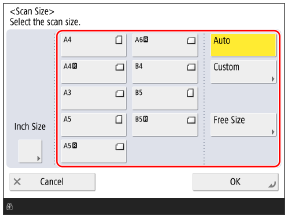
Depending on the setting, the location where to place the original may be restricted to the platen glass or feeder. If the original is placed in a different location, place it in the listed location. Placing Originals
When Placing a Custom Size Original
Enter the size (length of sides) of the original to set.
1
Press [Custom].
2
Enter the length of the sides for [X] and [Y], and press [OK].
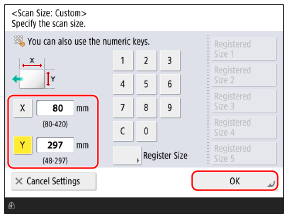
Press [X] and [Y] to select them, and enter the values.
When frequently used original sizes are registered, you can call them up by pressing [Registered Size 1] to [Registered Size 5].
Registering the Size of an Original
Follow the procedure below to register sizes when you frequently use specific non-standard size originals. You can call up the size on the size input screen, saving you the trouble of entering the size each time.
You can register up to five sizes for an original.
You can register up to five sizes for an original.
Press [Register Size]  select the button to which you want to register the size press [Register/Edit] enter lengths for the [X] side and [Y] side press [OK] [Close] select the button to which you want to register the size press [Register/Edit] enter lengths for the [X] side and [Y] side press [OK] [Close] |
* On the size registration screen, you can select a button and press [Rename] to rename the button.
When Placing a Free Size Original
If you do not know the size (length of the sides) of the placed original, select [Free Size].
* If this is set to [Free Size], the original can only be placed in the feeder.
* Depending on your model, the following screen is displayed when you select [Free Size]. Select the orientation of the loaded original, and then press [OK].
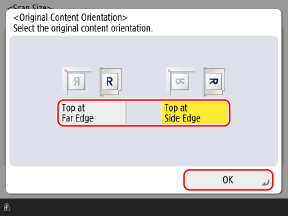
Select [Top at Far Edge] when the text on the business card is written horizontally.
Select [Top at Side Edge] when the text on the business card is written vertically.
When Scanning Originals of a Special Size Such As OFICIO 

Press [Other Size], and select the paper size.
3
Press [OK].
The scan screen is displayed again.
Setting the Original Orientation
Set the orientation of the placed original so that the top and bottom of the scanned data are displayed correctly.
1
Press [Options] [Orig. Content Orientation]. Scan Screen
[Orig. Content Orientation]. Scan ScreenThe [Orig. Content Orientation] screen is displayed.
2
Select [Top at Far Edge] or [Top at Side Edge] according to the placed original.
3
Press [OK] [Close].
[Close].The scan screen is displayed again.