Saving Scanned Data
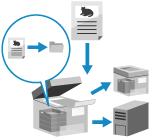
Scan the original and save the scanned data to the following locations:
Advanced Box on another machine
Windows server
The save destination is displayed on the control panel of the machine, so you can confirm the save destination and save scanned data.
When saving data to the Advanced Box of another machine or a Windows server, you can use the control panel of this machine to create or rename a destination folder.
When saving data to the Advanced Box of another machine or a Windows server, you can use the control panel of this machine to create or rename a destination folder.
* For details on the Advanced Box of another machine, see the manuals of the other machine.
Required Preparations
Make preparations according to the store location of the scanned data. Preparing to Send and Save Scanned Data
1
Place the original. Placing Originals
If the screen for selecting the thickness of the original appears, select the thickness of the placed original.
2
On the control panel, press [Scan and Store] in the [Home] screen. [Home] Screen
The screen for selecting the type of store location is displayed.
3
Display the store location.
When Saving to Advanced Box on Another Machine or Windows Server
1
Press [Network].
2
Select another machine or server to be used as the store location.
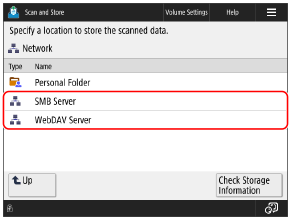
Select [Personal Folder] to directly access and store to your own login user folder (Personal Folder).
You can press [Check Storage Information], select the connection destination, and then press [Details] to check the protocol and path of the connection destination.
If a login screen appears, enter the same user name and password used to log in to the other machine or server, and press [OK].
3
Display the destination folder.
You can also create a destination folder. [Network] and [Memory Media] File Selection Screen
4
Press [Scan].
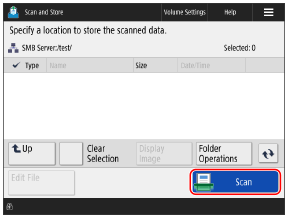
The scanning screen is displayed.
An icon indicating the type of destination and the hierarchy of the destination are displayed on the top left of the screen.
[ ]: Advanced Box on another machine or Windows server
[
]: Advanced Box on another machine or Windows server5
Configure the scan settings. Scan Settings
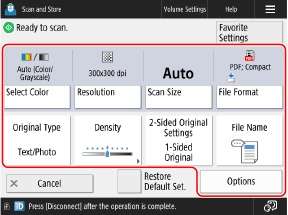
* The items that appear on the screen vary depending on the model and options.
To select a different store location, press [Cancel] at the bottom left of the screen.
When Favorite Settings are registered, you can call these up by pressing [Favorite Settings]. Registering and Recalling Favorite Settings
To cancel changes to the settings and return to the default settings, press [Restore Default Set.].
6
Press [ Start].
Start].Scanning of the original starts.
To cancel scanning, press [Cancel]  [Yes]. Canceling Scanning
[Yes]. Canceling ScanningWhen scanning of the original is completed, the scanned data is saved.
You can use [ Status Monitor] to check the save status and log. Checking the Send or Save Status and Log of Scanned Data
You can use [
Status Monitor] to check the save status and log. Checking the Send or Save Status and Log of Scanned DataWhen [Press the [Start] key to scan the next original.] Is Displayed
When an original is placed on the platen glass and is scanned or scanning is performed using Job Build, the screen for scanning additional originals is displayed.
1
To continue scanning originals, place the next original, and press [ Start].
Start].The next original is scanned, and the same screen is displayed.
Repeat this process until scanning of all originals is completed.
Repeat this process until scanning of all originals is completed.
When placing originals on the feeder to scan, remove the scanned original (original ejected to the original output tray) before placing the next original.
When Changing the Scan Settings for Each Original
On the screen with the displayed message, press [Change Settings]. You can change the following settings:
[Select Color]
[Scan Size]
[2-Sided Original]
[Density]
[Original Type]
For example, when scanning a 2-sided original after scanning a 1-sided original, press [Change Settings], and set [2-Sided Original].
2
Press [Start Storing].
The scanned data is saved.
IMPORTANT
When Performing Operations while Logged in to Advanced Box or Windows server
When the operation is complete, make sure to press [Disconnect] or [Log Out] to log out.
NOTE
When Multiple Originals Are Fed during Scanning and Operations Are Canceled (Detect Multiple Sheet Feed)
A message is displayed on the screen. Remove the jammed original while following the instructions in the message. Paper and Staple Jams
When the jammed original is removed, the screen for resuming operations is displayed.
If multi sheet feeding was detected incorrectly, press [Do Not Detect Multi. Sheet Feed] to resume scanning.
When the jammed original is removed, the screen for resuming operations is displayed.
If multi sheet feeding was detected incorrectly, press [Do Not Detect Multi. Sheet Feed] to resume scanning.
To prevent detection of multi sheet feeding, configure either of the following settings:
On the scan screen, press [Options] [Detect Feeder Multi. Sheet Fd.] each time you scan, to cancel detection of multi sheet feeding.
[Detect Feeder Multi. Sheet Fd.] each time you scan, to cancel detection of multi sheet feeding.Change the default settings to prevent detection of multi sheet feeding. [Set Detection of Feeder Multi. Sheet Feed as Default]
* The optional Document Feeder Double Feeding Detection Kit-A may be required in order to use the multiple sheet feed detection function.
Previewing Contents before Saving
You can display a preview screen to check the contents before saving scanned data. You can also change the page order and delete pages on the preview screen. Checking and Editing Scanned Data before Sending or Saving
Enhancing the Security of Scanned Data
You can enhance the security of scanned data by encrypting the PDF file or adding a digital signature to the PDF or XPS file. Enhancing the Security of Scanned Data