
Front Side
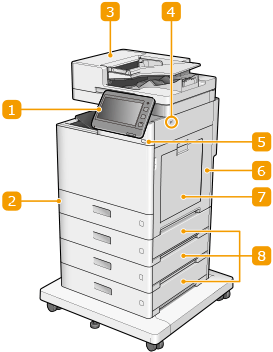

 Control panel
The control panel consists of Home key, a display, status indicators, etc. You can perform all the operations and specify settings from the control panel.
Control Panel
Basic Screens on the Touch Panel Display
Control Panel
Basic Screens on the Touch Panel Display
 Paper drawer 1
 Feeder
Open the front cover when replacing toner cartridges.
2-Sided Single Pass Feeder
2-Sided Single Pass Feeder
 USB memory port (Front-right side of the machine)
You can connect devices such as a USB memory device to the machine. Connecting a USB Memory Device

The machine can supply a maximum power of 5 V 500 mA. Connecting a device that requires more power may damage the machine.

Some types of memory media may not be able to save data correctly.
The USB port (front-right side of the machine) supports USB 2.0.
 Power switch
Press the power switch when turning ON or OFF the machine.
 Right cover of the main unit
Open the right cover when clearing paper jams. Clearing Paper Jams
 Multi-purpose tray
Load the paper into the multi-purpose tray when you want to temporarily use a type of paper different from that which is loaded in the paper drawer.
 Right cover of the paper drawer
Open this when a paper jam occurs.
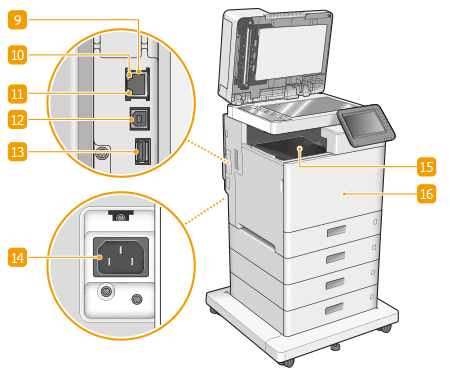
 LAN port
Connect a LAN cable when connecting the machine to a wired LAN router, etc.
Setting up the Network Environment
Setting up the Network Environment
 ACT indicator
The ACT indicator blinks while data is being sent or received.
 LNK indicator
The LNK indicator blinks green when the machine is properly connected to a network.
 USB port (for computer connection)
Connect a USB cable when connecting the machine and a computer.
The USB port (for computer connection) supports USB 2.0.
 USB port (for USB device connection)
You can connect devices such as an external hard disk to the machine.
The machine can supply a maximum power of 5 V 500 mA. Connecting a device that requires more power may damage the machine.
The USB port (for USB device connection) supports USB 2.0.
 Power socket
Connect the power cord.
 Output tray
Printed paper is output to the output tray.
 Front cover
Open to replace the toner cartridge or the waste toner container. Replacing the Toner Cartridge
|
For more information about the configuration of optional equipment installed on the machine, see Options. |
Connecting a USB Memory Device
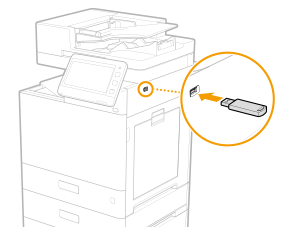
You can connect a USB memory device to the USB ports located on the right side of the machine, and directly print data from the USB memory device. Originals scanned using the machine can also be saved directly to the USB memory device.
 |
Make sure that the USB memory device is oriented properly when connecting it to the machine. If it is not connected properly, it may cause the USB memory device or machine to malfunction. Make sure to follow the proper procedure when removing the USB memory device. Removing the memory media Failure to do so may cause the USB memory device or machine to malfunction. You can use a USB memory device with a FAT32 (up to 32 GB) or exFAT (up to 2 TB) file system. |
|
Unsupported devices and usagesMemory media with security functions Memory media that does not meet the USB specification Memory card readers connected via USB Connecting memory media via an extension cable Connecting memory media via a USB hub |