
Printing from a Computer
You can print a document made with an application on your computer by using the printer driver. There are useful settings on the printer driver, such as enlarging/reducing and 2-sided printing, that enable you to print your documents in various ways. Before you can use this function, you need to complete some procedures, such as installing the printer driver on your computer. For more information, see the manuals for the relevant drivers on the online manual website.
About the Printer Driver Help
Clicking [Help] on the printer driver screen displays the Help screen. On this screen, you can see the detailed descriptions that are not in the User's Guide.
To Use the Optional Items
If the optional paper feeder or cassette feeding unit is attached to the machine, perform the following operation on the printer driver in advance.
|
To perform the following procedure, log in to your computer with an administrator account. |
Open the printer folder (Displaying the Printer Folder)  Right-click the printer driver icon for this machine [Printer properties] or [Properties] [Device Settings] tab [Paper Source] Select the paper source [OK] [OK]
Right-click the printer driver icon for this machine [Printer properties] or [Properties] [Device Settings] tab [Paper Source] Select the paper source [OK] [OK]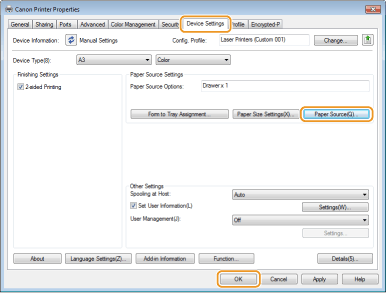
Basic Printing Operations
This section describes how to print a document on your computer by using the printer driver.
 Paper settings on the machine |
Normally, it is necessary to specify the paper size and type for the paper loaded in each paper source before proceeding to printing. |
1
Open a document in an application and display the print dialog box.
2
Select your printer, and click [Preferences] or [Properties].
3
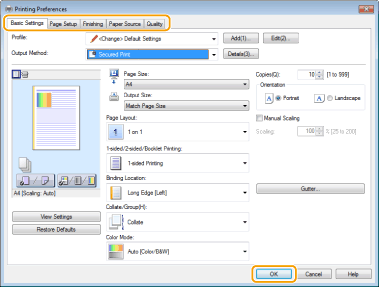
Specify the print settings as necessary, and click [OK].
Switch the tab according to the settings.

When you have configured [POP Printing Optimization]*
To obtain better print results, specifying the following settings on the machine is recommended.
<Toner Warning Mode> : <POP Print> Toner Warning Mode
<POP Printing Speed> : <Mode 2> POP Printing Speed
<Auto POP Calibration> : <On> Auto POP Calibration
There are restrictions for paper that can be used with this function. See Paper Types Available with POP Printing Optimization for available paper sizes and types.
When the amount remaining in a toner cartridge is low, automatic calibration may be performed, resulting in a slow start of printing.
When <Auto POP Calibration> is not configured, it is recommended that you perform <POP Prnt Calibration> prior to POP printing. Correcting Color Mismatch and Hues
*For more information on [POP Printing Optimization], see the manuals for the relevant drivers on the online manual website. |
4
Click [Print] or [OK].
Printing starts.
If you want to cancel printing, see Canceling Prints.