Improving Blurred Images
If the printed image is faint or blurred, you can adjust the Secondary Transfer Voltage (the voltage that transfers toner to the paper) on each drawer.
Configuring/Printing the Chart
To adjust the secondary transfer voltage, first print the chart page.
1
On the control panel, press [Paper Settings] in the [Home] screen. [Home] Screen
2
Press [Advanced Paper Source Settings].
3
Select the drawer.
4
Press [Adjust Secondary Transfer Voltage].
5
Select the secondary transfer voltage adjustment method.
Press [Do Not Use Scanner] to view the printed chart, identify the optimal patch, and make manual adjustments.
Press [Use Scanner] to scan the printed chart and have the optimal patch identified and adjustments made automatically.
If you selected [Use Scanner], the usable paper sizes are A3, A4, 11" x 17", and LTR.
If you selected [Use Scanner], the usable paper sizes are A3, A4, 11" x 17", and LTR.
6
Press [Chart Print Set.].
[Chart Print Settings] screen is displayed.
7
Press [Voltage Range for Chart Print].
8
Select the range of voltage that is covered on the printed chart.
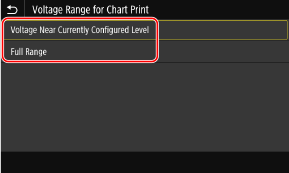
[Voltage Near Currently Configd. Lvl.]
A chart is printed with adjustments in increments of ±1.
[Full Range]
A chart is printed with adjustments in increments based on the status of the machine.
9
Press [Print Side].
10
Press [Front Side Only] or [Both Sides] to select the sides of the paper of which you want to adjust the secondary transfer voltage.
If [Manual Back Side Print (2-Sided Only)] is set to [On], press [Front Side Only].
If you select [Both Sides], see Paper Available for Two-Sided Copying/Two-Sided Printing for available paper for charts.
11
Press [ ].
].
].12
Press [Chart Print] or [Print/Scan].
13
Check that printable paper is set in the machine, and press [Start].
The chart page is printed.
Adjusting the Secondary Transfer Voltage
You can adjust the secondary transfer voltage by using the printed chart. The procedures of adjusting the secondary transfer voltage differ depending on whether you use the scanner.
If you selected [Do Not Use Scanner]
Visually identify the optimal patch in the chart and adjust the secondary transfer voltage.
1
Check the optimal patch in the printed chart.
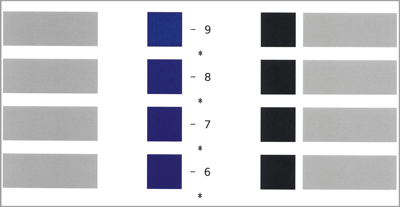
With the current settings, chart numbers are printed in magenta.
Check the chart as you sequentially increase from negative values to positive values. When you reach a point where the density within the patch appears uniform (-8 in the example), compare it with a patch with a value that is higher by 2 (-7 and -6 in the example) and select the value you consider to be optimal.
A side that has a single asterisk (*) printed next to the chart number is the front side.
Where there is no discernible difference among the selected numbers, choose the middle of the three values (-7 in the example).
2
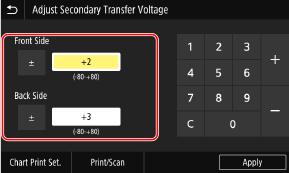
Press [Front Side] or [Back Side] and specify the value.

You can specify the value using the Remote UI from a computer. Managing the Machine from a Computer (Remote UI)
If [Manual Back Side Print (2-Sided Only)] is set to [On], adjust the value for [Back Side].
3
Press [Apply].
The secondary transfer voltage is adjusted.
If you selected [Use Scanner]
Scan the chart on the scanner to have the optimal patch identified automatically.
1
Follow the instruction on the control panel to place the chart on the platen glass. Place the scanned side of the chart facing down.
2
Close the feeder or the platen cover and press [Start Scanning].
The chart is scanned.
You may not be able to scan special paper such as colored paper or pre-punched paper. To scan special paper, press [Do Not Use Scanner] and make the adjustment manually.
3
Open the feeder or the platen and remove the chart.
4
Press [Apply].
The secondary transfer voltage is adjusted.