
Copy Operations
This section describes the basic copy operations when copying documents, photos, and other printed materials ("originals").
|
When copying originals that have text or images extending to the edges without margins, the copy may printed with an area missing around the edge. For the size of the margin, see the basic specifications. Basic Specifications |
1
Place the original. Placing Originals
2
The copy screen is displayed.
3
Set the Number of Copies, and the Zoom.
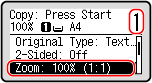
[Number of Copies]
 For MF275dw II
Specify the number of copies.
Use the numeric keys to enter the number of copies.
Use the numeric keys to enter the number of copies.
For MF272dw II
Specify the number of copies.
Use /
/  /
/  /
/  to enter the number of copies, and then press
  .
.
Use
/ / / to enter the number of copies, and then press .[Zoom]
Set the zoom for enlarging or reducing copies.
Setting a Custom Zoom
For MF275dw II
Press [Custom Zoom] , enter a custom Zoom using the numeric keys, or press / , and then press .
You can specify a value from 25% to 400% in 1% increments.
Press [Custom Zoom]
, enter a custom Zoom using the numeric keys, or press / , and then press .You can specify a value from 25% to 400% in 1% increments.
For MF272dw II
Press [Custom Zoom] / / / to set a custom zoom, and then press .
You can specify a value from 25% to 400% in 1% increments.
Press [Custom Zoom]
/ / / to set a custom zoom, and then press .You can specify a value from 25% to 400% in 1% increments.
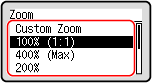
Automatically Setting the Zoom a Standard Size
Select a fixed zoom the list, and press .
.
4
Configure the other copy settings, as needed. Additional Copying Features
You can perform 2-sided copying and adjust the image quality and other settings to suit your original and purpose.
5
Press  .
.
.Copying starts.
Use [Status Monitor] to view the copy job status. Checking the Copy Status and Log
When [*Scan Next:Press Start] appears
When an original is placed on the platen glass and copied using 2-sided copying or N on 1, the screen is displayed for scanning the next original.
1 | Select original size. Only displayed when 2-sided copying is specified. |
2 | Place the next original on the platen glass, and press .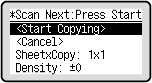 The next original is scanned, and the same screen is displayed. Repeat this process until scanning of all originals is completed. You can also press [Density] to change the settings for each original.If the size of the original is different, part of the image may be missing, or the image may be printed smaller on the paper. |
3 | Press [<Start Copying>] .The scanned originals are printed. |