Copying Both Sides of ID Cards onto One Sheet
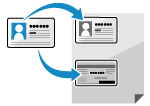 | You can use the ID Card Copy function to copy the front and back sides of a driver's license or other ID card on the same sheet of paper at 100% magnification. This can be quickly performed using  on the control panel and is convenient, for example, when copying ID cards at reception. on the control panel and is convenient, for example, when copying ID cards at reception. |
1
Place the ID card on the platen glass.
1 | Open the feeder or platen glass cover. 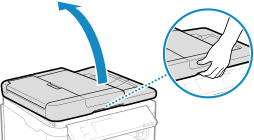 |
2 | Place the front of the ID card face down on the platen glass in the portrait orientation while aligning the corner of the ID card with the top left corner of the platen glass. 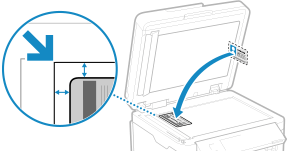 Place the ID card slightly away from the edge of the platen glass. |
3 | Gently close the feeder or platen glass cover. |
2
Press on the control panel. Control Panel
on the control panel. Control PanelThe copy screen is displayed.
3
Set the number of copies.
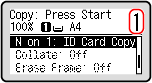
 For MF275dw II
Specify the number of copies.
Use the numeric keys to enter the number of copies.
Use the numeric keys to enter the number of copies.
For MF272dw IISpecify the number of copies.
Press [Number of Copies]

 /
/  /
/  /
/  to enter the number of copies, and then press .
Press [Number of Copies]
/ / / to enter the number of copies, and then press .4
* When you make copies using the ID Card Copy function, the zoom is fixed at 100%.
5
Press  .
.
.The front of the ID card is scanned.
6
When [*Scan Next:Press Start] is displayed, turn over the ID card and place it on the platen glass.
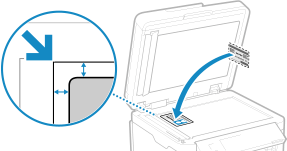
Place the back of the ID card face down in the same way as the front.
7
Press .
.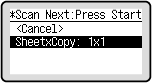
The back of the ID card is scanned and copying starts.
Use [Status Monitor] to view the copy job status and log. Viewing the Print Job Status and Log